XCTest Performance Testing: measure Blocks, Baselines, and Metrics
XCTest includes a built-in performance testing API that lets you measure how long a block of code takes and compare it against a stored baseline.


XCTest includes a built-in performance testing API that lets you measure how long a block of code takes and compare it against a stored baseline. When performance regresses, the test fails — giving you an early warning before slow code ships to users.
The measure Block
The simplest performance test wraps code in measure:
func testSortingPerformance() {
    let data = (0..<10_000).map { _ in Int.random(in: 0..<1_000_000) }
    measure {
        _ = data.sorted()
    }
}Xcode runs the block 10 times and records the average. You see the results in the Test Report, and you can set a baseline from the measured values.
Setting a Baseline
After running a measure test, Xcode shows a performance result banner. Click Set Baseline to store the current average as the reference. On subsequent runs, XCTest flags a failure if the result is more than 10% slower than the baseline (the tolerance is adjustable).
Baselines are stored per-device-model because a MacBook Pro and an iPhone SE have very different performance characteristics. Store baselines in source control — they live in <TargetName>.xcresult bundles referenced by the scheme.
Collecting Specific Metrics
The default metric is wall-clock time, but you can collect more:
func testMemoryAllocation() {
    measure(metrics: [XCTMemoryMetric()]) {
        _ = processLargeDataSet()
    }
}

func testCPUUsage() {
    measure(metrics: [XCTCPUMetric()]) {
        renderComplexScene()
    }
}

func testDiskIO() {
    measure(metrics: [XCTStorageMetric()]) {
        writeLogBatch()
    }
}You can combine metrics in one call:
measure(metrics: [
    XCTClockMetric(),
    XCTCPUMetric(),
    XCTMemoryMetric()
]) {
    runWorkload()
}Available metrics:
XCTClockMetric— wall-clock time (default)XCTCPUMetric— CPU instructions and cyclesXCTMemoryMetric— peak memory usageXCTStorageMetric— bytes read and writtenXCTOSSignpostMetric— custom signpost intervals (see below)
Signpost-Based Metrics
If your code already uses os_signpost for profiling, you can measure specific intervals in tests:
import os

let log = OSLog(subsystem: "com.example.app", category: "render")

func renderFrame() {
    os_signpost(.begin, log: log, name: "Frame Render")
    defer { os_signpost(.end, log: log, name: "Frame Render") }
    // rendering work
}

func testFrameRenderPerformance() throws {
    let metric = try XCTOSSignpostMetric(
        subsystem: "com.example.app",
        category: "render",
        name: "Frame Render"
    )
    measure(metrics: [metric]) {
        for _ in 0..<60 {
            renderFrame()
        }
    }
}This measures only the time between the signpost begin and end, ignoring test setup overhead.
Controlling Iterations
By default, measure runs 10 iterations. You can change this with XCTMeasureOptions:
func testWithFiveIterations() {
    let options = XCTMeasureOptions()
    options.iterationCount = 5
    measure(options: options) {
        expensiveOperation()
    }
}Use fewer iterations for operations that take a long time. Use more for operations with high variance.
Setup and Teardown Inside measure
If your workload needs setup that shouldn't be counted, use the block-based variant with startMeasuring():
func testParsePerformance() {
    let rawData = loadFixture("large-payload.json")
    measure {
        // rawData loading is outside measure — only parsing is timed
        self.startMeasuring()
        _ = try? JSONDecoder().decode([Record].self, from: rawData)
        self.stopMeasuring()
    }
}Call startMeasuring() and stopMeasuring() exactly once per iteration. Xcode times the interval between them.
Baseline Comparison in CI
In CI, baselines are compared automatically if the .xcresult with baselines is available. To avoid flaky CI failures from machine variance, either:
- Set a generous tolerance (edit the baseline and increase the threshold in Xcode)
- Run performance tests on dedicated hardware that matches the baseline machine
A common pattern is to record baselines on a specific Mac Mini used only for performance testing, and run comparisons only in CI jobs that target that machine.
What to Performance-Test
Focus on operations where slowness matters:
- Data processing: parsing large JSON or XML payloads
- Image manipulation: resizing, filtering, compression
- Core Data fetch requests: queries that run on app launch
- Rendering: custom drawing, complex SwiftUI view builds
- Networking stubs: serialization/deserialization throughput
Avoid performance-testing trivial operations — XCTest measures have inherent variance, and testing a two-line function produces noise rather than signal.
Viewing Results
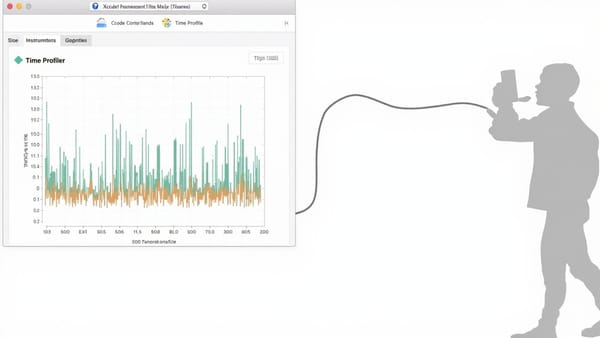
In Xcode, open the Report Navigator → select a test run → click a performance test. You see iteration-by-iteration timing, the average, and the delta from baseline. If you set multiple metrics, each has its own row.
For trend analysis across many builds, export .xcresult bundles and parse them with xcresulttool:
xcrun xcresulttool get --path MyTests.xcresult --format json | \
jq '.actions._values[].actionResult.testsRef'This gives you the raw numbers to feed into a dashboard or regression detector.
Key Points
measure {}runs code 10 times and compares the average to a stored baseline- Set baselines in Xcode after first run; store them in source control
- Use
XCTMemoryMetric,XCTCPUMetric, andXCTStorageMetricfor non-time measurements XCTOSSignpostMetricmeasures custom intervals using existingos_signpostinstrumentation- Run performance tests on consistent hardware to minimize CI variance