iOS Test Parallelization and CI Setup: Xcode Cloud, Bitrise, and GitHub Actions
A test suite that takes 45 minutes to run is not a safety net — it is a speed bump.

A test suite that takes 45 minutes to run is not a safety net — it is a speed bump. Engineers skip it, merge without waiting, and the feedback loop that automated testing is supposed to provide collapses. Slow iOS CI is one of the most consistent complaints in mobile development, and it has a well-understood solution: parallelization.
This guide covers the full picture, from Xcode's built-in parallel execution to CI-level configuration on Xcode Cloud, GitHub Actions, and Bitrise. By the end you will have concrete configuration examples and a clear model for how to split, execute, and manage your tests at scale.
Why iOS Tests Are Slow and the Business Cost
iOS tests are inherently slower than backend tests for several reasons. They require a running iOS simulator, which adds several seconds of startup overhead per test class. The simulator runs in a sandboxed process that must be booted, receive the test runner binary, and tear down after each test session. UI tests add another layer — they launch the full app binary, interact with it through the accessibility layer, and wait for animations and network responses.
On a mid-size app with 800 unit tests and 150 UI tests, a sequential run can easily exceed 30 minutes on a modern Mac. At 10 pull requests per day and two engineers waiting on each one, that is 100 engineer-hours per week consumed by waiting. At even modest engineering salaries, the business cost of a slow test suite is measured in thousands of dollars per month.
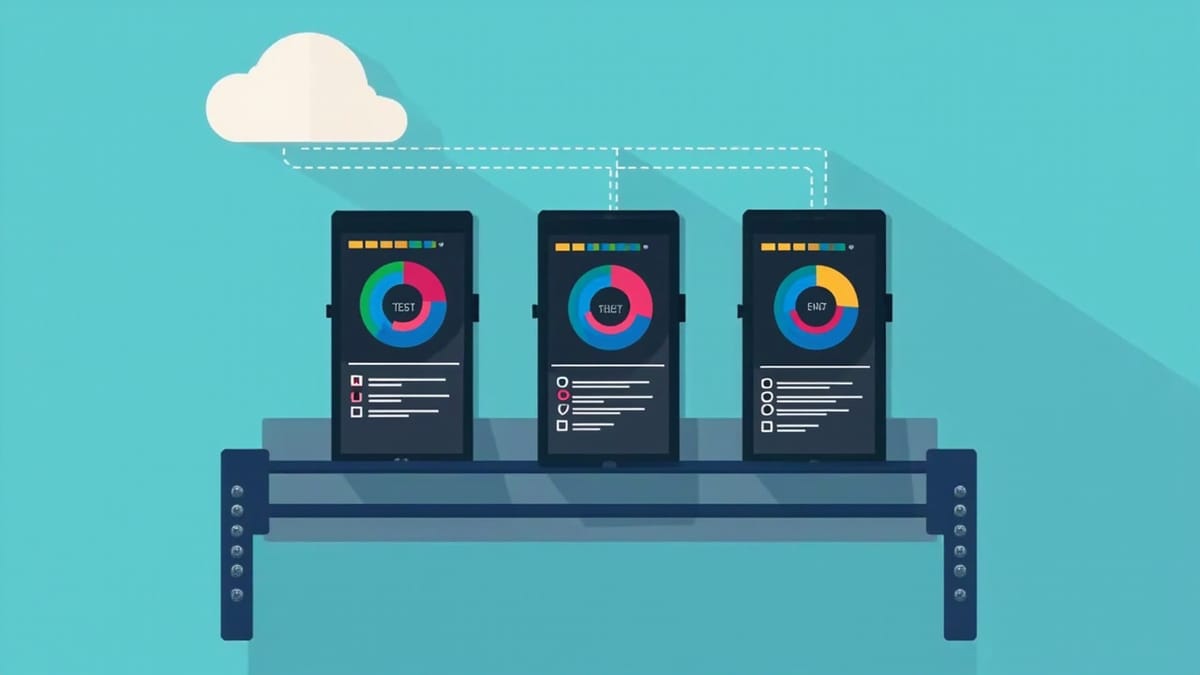
Parallelization reduces this. Running the same 800 unit tests across 4 parallel simulators can cut runtime to 8-10 minutes. Adding more workers scales further. The techniques to achieve this are well-supported in Xcode and across all major CI platforms.
Xcode's Built-In Parallel Testing
Xcode has supported parallel test execution since Xcode 9. The feature runs multiple copies of the test runner process simultaneously, distributing test classes across them.
To enable it in Xcode: go to Product > Scheme > Edit Scheme, select the Test action, open Options for your test plan, and check "Execute in parallel." When you run tests with ⌘+U, Xcode spawns multiple simulator instances and distributes your test classes across them.
From the command line, use the -parallel-testing-enabled YES flag with xcodebuild:
xcodebuild test \
  -scheme MyApp \
  -destination 'platform=iOS Simulator,name=iPhone 15,OS=17.0' \
  -parallel-testing-enabled YES \
  -parallel-testing-worker-count 4 \
-resultBundlePath TestResults.xcresultThe -parallel-testing-worker-count flag controls how many simulator instances run simultaneously. The optimal value depends on your Mac's CPU and RAM. On Apple Silicon machines, 4 workers is a reasonable starting point; with 16GB+ RAM you can often push to 6-8.
Test class granularity. Xcode distributes work at the class level, not the method level. Each XCTestCase subclass runs as a unit on a single worker. This means large test classes become bottlenecks — if one class has 200 tests and everything else has 10, you are not getting much parallel benefit. Aim for classes of 20-50 test methods for even distribution.
Thread safety. Parallel tests run in separate processes, so they do not share memory. Static state, singletons, and shared file system paths can still cause interference. Design your tests to be fully isolated — use temporary directories keyed on ProcessInfo.processInfo.globallyUniqueString for any file I/O.
Test Plans for Fine-Grained Control
Xcode test plans (.xctestplan files) give you precise control over which tests run, in what configuration, and with what parallelism settings. Create a test plan via Product > Scheme > Edit Scheme > Test > click the + under "Test Plans."
A test plan is a JSON file you commit to your repository:
{
  "configurations": [
    {
      "id": "...",
      "name": "Default",
      "options": {
        "parallelizationEnabled": true,
        "workerCount": 4
      }
    }
  ],
  "testTargets": [
    {
      "target": {
        "name": "MyAppTests",
        "projectPath": "MyApp.xcodeproj"
      }
    }
  ]
}Reference the test plan in your xcodebuild command:
xcodebuild test \
  -scheme MyApp \
  -testPlan MyApp \
-destination 'platform=iOS Simulator,name=iPhone 15,OS=17.0'Test plans also let you define multiple configurations — for example, one for unit tests with high parallelism and one for UI tests with more conservative settings. This is especially useful when you have a fast unit test suite that should run on every commit and a slower UI test suite that runs on a schedule.
Xcode Cloud: Parallel Workflows and Test Plans
Xcode Cloud is Apple's managed CI platform, integrated directly into Xcode and App Store Connect. It has first-class support for test parallelization with no configuration of infrastructure required.
In App Store Connect, create a workflow for your app and add a Test action. Under the Test action, select your test plan. Xcode Cloud automatically provisions simulators and runs tests in parallel according to the plan's settings.
For additional parallelism at the workflow level, create multiple workflows with different scopes and trigger them from the same branch:
- Unit Test Workflow: targets your unit and integration test plans, runs on every pull request
- UI Test Workflow: targets your UI test plan, runs on merge to main or on a schedule
Each workflow runs on its own set of Apple-managed Mac instances. There is no shared infrastructure to manage.
Xcode Cloud caches derived data between builds, which significantly reduces compilation time for unchanged code. Configure your start conditions to trigger on pull request creation and update, and set the test plan to the parallelized configuration:
Workflow: Unit Tests
Start Condition: Pull Request — Target Branch: main
Action: Test — Scheme: MyApp — Test Plan: UnitTestsOne practical consideration: Xcode Cloud does not give you shell access to the build machines. If your tests require environment variables or secrets, set them in the Workflow's Environment section in App Store Connect. For custom scripts, use the ci_scripts/ directory — ci_pre_xcodebuild.sh and ci_post_xcodebuild.sh run before and after the build action respectively.
GitHub Actions for iOS: Practical Configuration
GitHub Actions can run iOS tests on macos runners. The key challenge is keeping the runner fast and the configuration reproducible.
A minimal workflow for parallel iOS tests:
name: iOS Tests

on:
  pull_request:
    branches: [main]

jobs:
  test:
    runs-on: macos-14
    timeout-minutes: 60

    steps:
      - uses: actions/checkout@v4

      - name: Select Xcode
        run: sudo xcode-select -s /Applications/Xcode_15.2.app

      - name: Cache derived data
        uses: actions/cache@v4
        with:
          path: ~/Library/Developer/Xcode/DerivedData
          key: ${{ runner.os }}-deriveddata-${{ hashFiles('**/*.xcodeproj/project.pbxproj') }}
          restore-keys: |
            ${{ runner.os }}-deriveddata-

      - name: Run tests
        run: |
          xcodebuild test \
            -scheme MyApp \
            -destination 'platform=iOS Simulator,name=iPhone 15,OS=17.2' \
            -parallel-testing-enabled YES \
            -parallel-testing-worker-count 4 \
            -resultBundlePath TestResults.xcresult \
            | xcbeautify

      - name: Upload test results
        if: always()
        uses: actions/upload-artifact@v4
        with:
          name: test-results
path: TestResults.xcresultCaching derived data is critical. Without it, every run recompiles your entire project from scratch. The cache key on project.pbxproj invalidates the cache when project structure changes.
xcbeautify formats xcodebuild output for readability. Install it with brew install xcbeautify in your workflow, or add it as a pre-step.
Pinning the Xcode version. GitHub Actions runners offer several Xcode versions; always pin with xcode-select to avoid unexpected behavior when GitHub updates the runner image. Check the runner images repository for available versions.
For UI tests, create a separate job that runs only on specific triggers:
  ui-tests:
    runs-on: macos-14
    if: github.event_name == 'push' && github.ref == 'refs/heads/main'
    steps:
      - uses: actions/checkout@v4
      - name: Run UI tests
        run: |
          xcodebuild test \
            -scheme MyApp \
            -testPlan UITests \
            -destination 'platform=iOS Simulator,name=iPhone 15,OS=17.2' \
            -parallel-testing-enabled YES \
-parallel-testing-worker-count 2Running UI tests only on merge to main keeps pull request feedback fast.
Bitrise: Primary Workflow and Xcode Test Step
Bitrise is a mobile-focused CI platform with a visual workflow editor and a large library of pre-built Steps. The Xcode Test for iOS Step handles most configuration:
workflows:
  primary:
    steps:
    - activate-ssh-key@4: {}
    - git-clone@8: {}
    - cache-pull@2: {}
    - xcode-test@5:
        inputs:
        - scheme: MyApp
        - test_plan: UnitTests
        - simulator_device: iPhone 15
        - simulator_os_version: "17.2"
        - xcodebuild_options: >-
            -parallel-testing-enabled YES
            -parallel-testing-worker-count 4
        - generate_code_coverage_files: 'yes'
    - cache-push@2:
        inputs:
        - cache_paths: |
            ~/Library/Developer/Xcode/DerivedData
- deploy-to-bitrise-io@2: {}Bitrise's Add-on Testing (Device Farm) provides real physical devices for testing. Configure it in the workflow to run tests against a matrix of real iPhones and iPads:
    - virtual-device-testing-for-ios@1:
        inputs:
        - test_type: xctest
        - test_devices: |
            iPhone 15 Pro,17.0,en,portrait
            iPhone SE (3rd generation),16.0,en,portrait
iPad Air (5th generation),17.0,en,landscapeDevice Farm tests run in parallel across all specified devices, giving you coverage across OS versions and screen sizes that would be impractical with simulators.
Test Splitting Strategies
When you need to split tests across multiple CI workers at the job level — not just simulator workers — you need an explicit splitting strategy. This is the approach taken by large teams with thousands of tests.
By class name (simplest). Assign test classes alphabetically to workers. Worker 1 gets A-L, Worker 2 gets M-Z. This is crude but requires no tooling.
By method count. Count the number of test methods per class and distribute classes so each worker has roughly equal method counts. Requires a script that reads your test plan or queries xctestrun output.
By historical duration. The most effective approach. Parse the TestSummaries from previous xcresult bundles to get per-test durations, then group tests to minimize the maximum worker duration. Tools like Knapsack Pro automate this for mobile.
For GitHub Actions, matrix strategy can split work across multiple jobs:
jobs:
  test:
    strategy:
      matrix:
        shard: [1, 2, 3, 4]
    runs-on: macos-14
    steps:
      - name: Run shard ${{ matrix.shard }}
        run: |
./scripts/run-tests-shard.sh ${{ matrix.shard }} 4Where run-tests-shard.sh accepts the shard index and total count, queries xcodebuild -list, filters test classes for the shard, and runs only those.
Flaky Test Management in CI
Flaky tests are tests that pass and fail non-deterministically. In parallel execution, they become more visible because timing-dependent failures are exposed by simultaneous workloads on shared hardware.
Retry on failure. xcodebuild supports -test-iterations and -retry-tests-on-failure:
xcodebuild test \
  -scheme MyApp \
  -retry-tests-on-failure \
-test-iterations 3This retries each failing test up to 3 times before reporting it as failed. Use this as a short-term measure while fixing the underlying flakiness.
Quarantine mechanism. Maintain a list of known-flaky tests and skip them in CI until fixed. Use XCTSkip with a tracking comment:
func testPaymentFlow() throws {
    try XCTSkip("Flaky: race condition in payment mock — tracked in #1234")
}Run the quarantine list in a separate scheduled job so you have visibility into the failure rate without blocking merges.
Root causes of flakiness in iOS tests. The most common sources are: animations not completed before assertions (use waitForExistence(timeout:) instead of sleeping), shared simulator state between tests (reset app state in setUp and tearDown), network calls not mocked (use URLProtocol or dependency injection), and timing assumptions in async code (use XCTestExpectation with proper timeouts).
Simulator Management in CI
Simulators in CI must be created, booted, used, and shut down reliably. Most CI platforms handle this automatically through the destination string in xcodebuild. When you need manual control:
# Create a simulator
xcrun simctl create "TestPhone" "iPhone 15" "com.apple.CoreSimulator.SimRuntime.iOS-17-2"

# Boot it
xcrun simctl boot <device-udid>

# Shut down after tests
xcrun simctl shutdown <device-udid>

# Delete to reclaim disk space
xcrun simctl delete <device-udid>For CI machines that run many builds, simulators accumulate and consume significant disk space. Add a cleanup step at the end of your workflow:
xcrun simctl delete unavailableThis removes all simulators that are not currently booted, reclaiming disk space without affecting active sessions.
On GitHub Actions, each job starts with a clean runner, so simulator accumulation is not an issue. On self-hosted runners or Bitrise agents, proactive cleanup matters.
Code Signing in CI
Code signing is the perennial pain point of iOS CI. The two viable approaches are Fastlane Match and Xcode Cloud's managed signing.
Fastlane Match stores your certificates and provisioning profiles in a private Git repository or cloud storage, encrypted with a passphrase. CI fetches and installs them at build time:
- name: Setup signing
  run: |
    bundle exec fastlane match development \
      --readonly true \
      --git-url ${{ secrets.MATCH_GIT_URL }} \
      --git_basic_authorization ${{ secrets.MATCH_GIT_AUTH }}
  env:
MATCH_PASSWORD: ${{ secrets.MATCH_PASSWORD }}Use --readonly true in CI — you never want CI writing new certificates to your Match repository.
Xcode Cloud handles signing automatically for App Store distribution. For testing, you typically use development signing, which Xcode Cloud manages without any configuration if you have the correct team membership.
For custom CI with self-signed testing certificates, import directly:
security import certificate.p12 -k ~/Library/Keychains/login.keychain-db \
-P "$CERTIFICATE_PASSWORD" -T /usr/bin/codesignMeasuring the Improvement
Before you invest in parallelization configuration, measure your baseline. Run your full test suite serially and record the wall-clock time:
time xcodebuild test \
  -scheme MyApp \
  -destination 'platform=iOS Simulator,name=iPhone 15,OS=17.2' \
  -parallel-testing-enabled NO \
2>&1 | tail -5Then enable parallelization with 2, 4, and 8 workers, measuring each configuration. Plot the results. You will typically see near-linear improvement up to 3-4 workers, then diminishing returns as compilation and linking overhead dominates over test execution.
Parse xcresult bundles for per-test durations to identify your slowest tests:
xcrun xcresulttool get --format json --path TestResults.xcresult \
| jq '.actions._values[].actionResult.testsRef'The slowest 20% of your tests usually account for 80% of the total duration. Targeting those specific tests for optimization or isolation delivers more improvement than adding more workers.
After implementing parallelization on a typical iOS project, teams report reductions from 35-45 minutes to 8-12 minutes — a 3-4x improvement. Combined with test splitting across multiple CI jobs, some teams achieve 5-6x or better.
Parallelization is the highest-return infrastructure investment a mobile team can make. A test suite that runs in 8 minutes gets run. One that runs in 45 minutes gets skipped. Xcode's built-in support, combined with the CI configuration patterns above, makes this achievable without custom tooling for most teams.
HelpMeTest adds 24/7 monitoring and AI-powered test management on top of your CI pipeline — start free at helpmetest.com.