Instruments Profiling for Test Optimization: Time Profiler, Allocations, and Leaks

Instruments is Apple's performance analysis tool included with Xcode. It attaches to a running process — including your test target — and records CPU usage, memory allocations, and retain cycles. When tests run slowly or your app leaks memory during a test run, Instruments shows you exactly where the time and memory went.
Launching Instruments for a Test Target
You can profile a test run directly from Xcode:
- Hold
Optionand click Product → Test (or pressCmd+Opt+Ito open the profiling sheet) - Select the instrument you want: Time Profiler, Allocations, or Leaks
- Xcode builds, launches the simulator, and starts recording
Alternatively, attach Instruments to an already-running test process:
xcodebuild test -scheme MyApp -destination 'platform=iOS Simulator,name=iPhone 15' \
  -enableCodeCoverage NO &

# Then in Instruments: File → Attach to ProcessTime Profiler
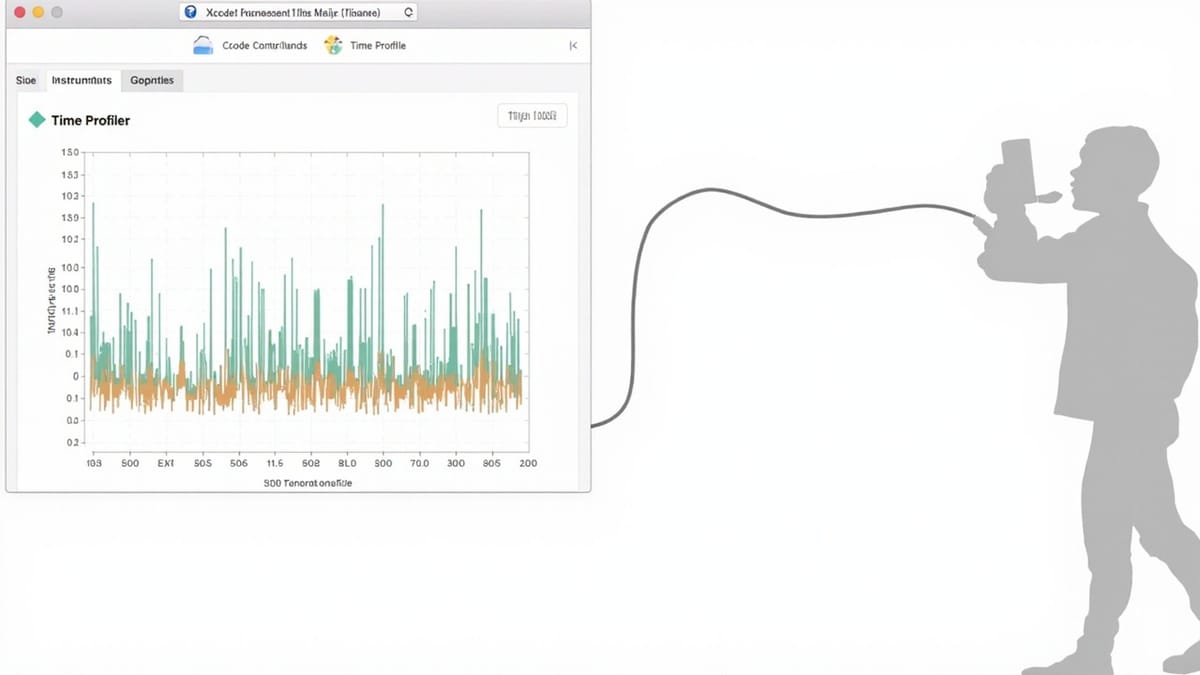
Time Profiler samples the call stack every millisecond and builds a flame graph showing where CPU time accumulates.
Reading the Flame Graph
- Wide bars = more time spent (and sampled) in that function
- Look for unexpectedly wide bars in test setup, teardown, or in application code called by tests
Common Findings in Test Suites
Slow setUp / tearDown: If setUp is doing real database migrations or network calls for every test, Time Profiler shows them as the dominant cost. Fix: move one-time setup to setUpWithError + class-level override class func setUp().
Synchronous main-thread work: If your test waits for a DispatchQueue.main.sync that is blocked by other work, you see stack frames stuck in mach_wait_until. Fix: redesign the code to use async/await or use XCTestExpectation instead of blocking the thread.
Unnecessary view rendering: Tests that instantiate UIViewController and add it to a window trigger full layout passes. If that's not needed, create the controller without a window.
Filtering the Flame Graph
In the call tree, check Hide System Libraries to remove Apple framework frames. This surfaces your own code immediately. Use Focus on Subtree to zoom into a specific frame.
Allocations Instrument
The Allocations instrument tracks every heap allocation and deallocation. It is useful for:
- Finding tests that allocate far more memory than expected
- Detecting memory pressure in tight loops
- Comparing allocation counts before and after an optimization
Allocation Statistics View
Switch to Statistics (top-right dropdown) to see:
| Column | What it shows |
|---|---|
| # Persistent | Objects still alive (not freed) |
| # Transient | Total objects created (freed + alive) |
| Bytes Persistent | Live memory |
| # Allocations | Total allocation calls |
A test that creates millions of transient allocations may be fast but is generating GC pressure. If Bytes Persistent keeps growing across test iterations, you have a memory leak — switch to the Leaks instrument to confirm.
Heap Snapshots
Click Mark Generation in the Allocations timeline to capture a heap snapshot. Run one test, take a snapshot, run another, take another. Compare snapshots to see what objects the second test created and didn't release.
Leaks Instrument
The Leaks instrument periodically scans for unreachable reference cycles. It runs automatically every 10 seconds during a session and marks leaks on the timeline.
Attaching Leaks to Tests
Add the Leaks instrument alongside Allocations in the same template (use the Leaks template which includes both). Run your test suite and watch for red marks on the Leaks timeline row.
Reading a Leak
When Leaks detects a cycle:
- Click the red mark on the timeline
- The Cycles & Roots view shows a graph of objects keeping each other alive
- Expand each node to see the allocation backtrace
Common leak patterns in tests:
Closure retaining self: A timer or notification closure captures self strongly without [weak self]. The view controller is freed but the timer's closure keeps it alive.
Delegates without weak: If a test creates a mock delegate and the object under test holds a strong reference to it, the cycle keeps both alive after the test ends.
NotificationCenter observers: If your object registers for notifications and the test doesn't call removeObserver, the object leaks. Fix: call removeObserver in deinit or use the token-based API and store tokens.
Detecting Leaks Programmatically
For CI, you can run the Leaks command-line tool:
leaks --atExit --list MyAppTestsOr use MLeaksFinder / FBRetainCycleDetector for in-process detection during test runs.
Memory Graph Debugger (Xcode Alternative)
For quick one-off leak debugging without Instruments, use the Memory Graph Debugger in Xcode:
- Run the app or tests in Xcode
- Click the Memory button in the Debug navigator (stack icon → memory icon)
- Xcode captures the heap and shows a graph of live objects
- Filter by your class names to see what's alive
This is faster than Instruments for simple cases and doesn't require a separate profiling session.
Workflow: Optimizing a Slow Test Suite
- Profile with Time Profiler → identify the top 3 time sinks
- Fix one: move slow setup to a shared fixture, use
@MainActorcorrectly, remove redundant view hierarchy construction - Re-profile → confirm the time dropped
- Switch to Allocations → look for tests with high transient allocations or growing persistent counts
- Switch to Leaks → confirm no cycles introduced by the fix
- Repeat for the next bottleneck
A test suite that took 4 minutes can often be brought under 90 seconds by eliminating repeated expensive setup and reducing allocations in inner loops.
Key Points
- Time Profiler: shows where CPU time goes — look for slow
setUp, blocking main-thread calls, and unnecessary rendering - Allocations: tracks heap usage — high transient counts indicate GC pressure; growing persistent counts indicate leaks
- Leaks: detects reference cycles — common causes are strong closures, strong delegates, and unremoved notification observers
- Profile the test target directly from Xcode using
Cmd+Opt+I - Use Mark Generation in Allocations to compare heap state between test runs
- The Memory Graph Debugger in Xcode is a fast alternative for one-off leak inspection