Browser Use: Python Browser Automation with LLMs
The Python AI ecosystem has exploded with tools for building LLM-powered applications, but most of them operate on text.

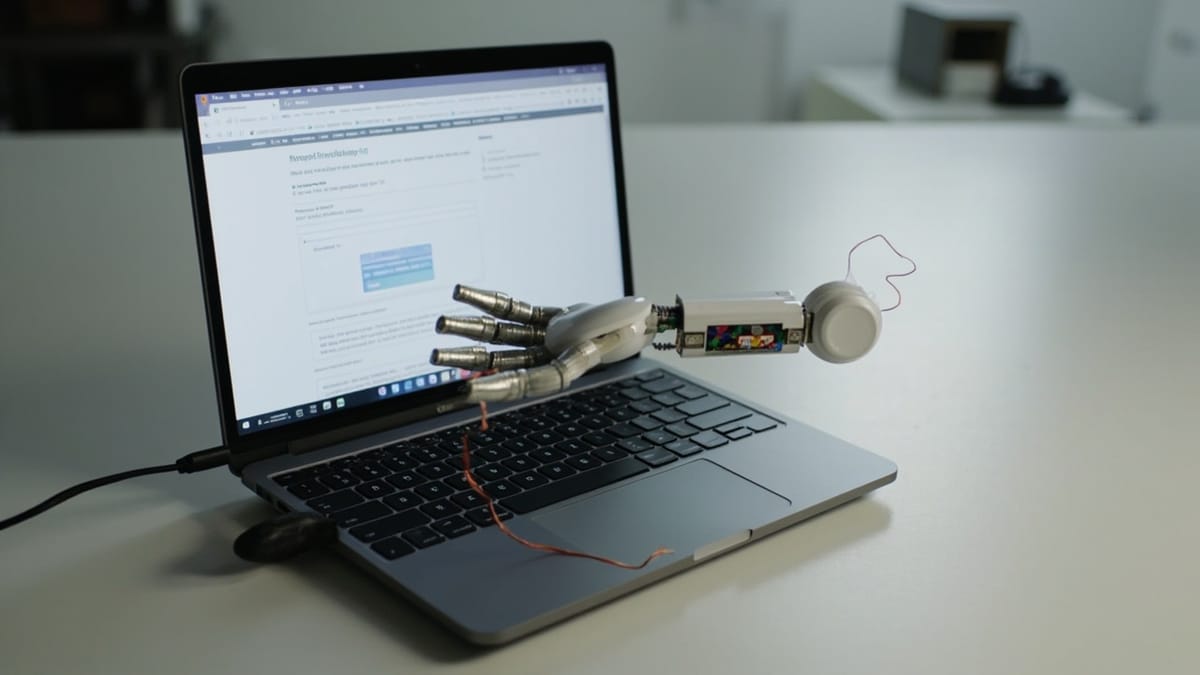
The Python AI ecosystem has exploded with tools for building LLM-powered applications, but most of them operate on text. Browser Use bridges the gap: it's a Python library that gives LLMs the ability to actually interact with web browsers, making it a natural fit for teams building AI-powered testing agents or automating complex web workflows.
This post explains what Browser Use is, how it works under the hood, and how to use it for web application testing with practical code examples.
What Is Browser Use?
Browser Use is an open-source Python library that integrates LLMs with Playwright to create autonomous browser agents. You give it a natural language task, connect it to an LLM (OpenAI, Anthropic, or others via LangChain), and it handles the browser interaction loop automatically.
The library gained significant traction in 2024 as one of the cleaner implementations of the "LLM controls browser" pattern. Unlike some alternatives, Browser Use is built to be modular — you can customize the agent loop, add custom actions, extract structured data, and integrate it into larger Python applications.
The project sits at the intersection of two trends: the rise of AI agents that take real-world actions, and the need for more resilient web automation that doesn't break every time a UI changes.
Installation and Setup
Browser Use requires Python 3.11+ and Playwright:
pip install browser-use
playwright install chromiumYou'll also need an LLM API key. Browser Use works with any LangChain-compatible LLM:
export OPENAI_API_KEY="your-key-here"
# or
export ANTHROPIC_API_KEY="your-key-here"Basic Usage
The simplest Browser Use program looks like this:
import asyncio
from browser_use import Agent
from langchain_openai import ChatOpenAI

async def main():
    agent = Agent(
        task="Go to github.com/trending and find the top Python repository today. Return its name and star count.",
        llm=ChatOpenAI(model="gpt-4o"),
    )
    result = await agent.run()
    print(result)

asyncio.run(main())The agent opens a browser, navigates to GitHub Trending, identifies the top Python repo, and returns the result — all without you writing a single selector.
Using Browser Use for Application Testing
The real value for testing teams comes from combining Browser Use's autonomous navigation with structured assertions.
Testing a Registration Flow
import asyncio
from browser_use import Agent, Browser, BrowserConfig
from langchain_anthropic import ChatAnthropic
from pydantic import BaseModel

class RegistrationResult(BaseModel):
    success: bool
    confirmation_message: str
    user_email: str

async def test_registration():
    browser = Browser(
        config=BrowserConfig(
            headless=True,
            disable_security=False,
        )
    )

    agent = Agent(
        task="""
        Test the user registration flow:
        1. Navigate to https://staging.your-app.com/register
        2. Fill in the registration form with:
           - First name: Test
           - Last name: User
           - Email: test.user.{timestamp}@example.com
           - Password: SecurePass123!
        3. Submit the form
        4. Verify you see a confirmation message
        5. Return whether registration was successful and what confirmation message appeared
        """,
        llm=ChatAnthropic(model="claude-opus-4-5"),
        browser=browser,
    )

    result = await agent.run(max_steps=20)

    # The result contains the agent's final answer
    print("Registration test result:", result)

    await browser.close()

asyncio.run(test_registration())Multi-Step E-Commerce Testing
async def test_purchase_flow():
    agent = Agent(
        task="""
        Test the complete purchase flow on https://staging.your-app.com:

        1. Browse to the shop and find any product under $50
        2. Add it to the cart
        3. Navigate to checkout
        4. Fill shipping info:
           - Name: Jane Smith
           - Address: 456 Oak Avenue
           - City: Austin
           - State: TX
           - ZIP: 78701
           - Email: jane@test.com
        5. Select the cheapest shipping option
        6. Do NOT submit payment — stop at the payment step
        7. Extract and return: product name, product price, shipping cost, order total

        If any step fails, describe exactly what went wrong.
        """,
        llm=ChatOpenAI(model="gpt-4o"),
        max_actions_per_step=5,
    )

    history = await agent.run(max_steps=30)

    # Inspect the action history
    for step in history.history:
        print(f"Step {step.step_number}: {step.model_output.current_state.evaluation_previous_goal}")

    print("\nFinal result:", history.final_result())


asyncio.run(test_purchase_flow())Extracting Structured Test Data
Browser Use integrates with Pydantic for structured output, which is essential for reliable assertions:
from pydantic import BaseModel
from typing import List

class ProductListing(BaseModel):
    name: str
    price: float
    in_stock: bool
    rating: float | None

class PageTestResult(BaseModel):
    products: List[ProductListing]
    total_count: int
    filters_visible: bool
    sort_options: List[str]

async def test_product_listing_page():
    agent = Agent(
        task="""
        Visit https://staging.your-app.com/products and analyze the product listing page.
        Extract all visible products with their prices and stock status.
        Also check if filter options are visible and what sort options are available.
        """,
        llm=ChatOpenAI(model="gpt-4o"),
        output_model=PageTestResult,  # Forces structured output
    )

    result = await agent.run()

    # Now result is a typed PageTestResult
    assert result.filters_visible, "Filters should be visible on the product page"
    assert len(result.products) > 0, "Product listing should not be empty"
    assert all(p.price > 0 for p in result.products), "All products should have a price"
    assert "Price: Low to High" in result.sort_options, "Sort by price should be available"

    print(f"Found {result.total_count} products, {len(result.products)} shown")
    print(f"Sort options: {result.sort_options}")

asyncio.run(test_product_listing_page())Custom Actions
Browser Use lets you extend the agent with custom actions — this is useful for testing-specific tasks like injecting test data or resetting application state:
from browser_use import Agent, Controller
from browser_use.browser.context import BrowserContext

controller = Controller()

@controller.action("Reset the application to a clean test state")
async def reset_test_state(browser: BrowserContext):
    """Custom action to call your test reset endpoint"""
    page = await browser.get_current_page()
    await page.evaluate("""
        // Clear localStorage
        localStorage.clear();
        sessionStorage.clear();
    """)
    # Also call your reset API
    await page.goto("https://staging.your-app.com/api/test/reset")
    return "Application state reset to clean test baseline"

@controller.action("Take a screenshot and save it as evidence")
async def capture_evidence(browser: BrowserContext, filename: str):
    page = await browser.get_current_page()
    await page.screenshot(path=f"test-evidence/{filename}.png")
    return f"Screenshot saved as {filename}.png"

# Use the custom controller in your agent
agent = Agent(
    task="Reset the app, then test the login flow and capture evidence of success",
    llm=ChatOpenAI(model="gpt-4o"),
    controller=controller,
)Running Tests in Parallel
For CI/CD integration, you'll want to run multiple agents simultaneously:
import asyncio
from browser_use import Agent, Browser, BrowserConfig
from langchain_openai import ChatOpenAI

TEST_SCENARIOS = [
    "Test that anonymous users can browse products but cannot checkout",
    "Test that logged-in users can complete a purchase",
    "Test that the search functionality returns relevant results for 'laptop'",
    "Test that the contact form submission shows a success confirmation",
]

async def run_single_test(scenario: str, index: int) -> dict:
    browser = Browser(config=BrowserConfig(headless=True))

    agent = Agent(
        task=f"Base URL: https://staging.your-app.com\n\n{scenario}\n\nReturn PASS or FAIL with a brief reason.",
        llm=ChatOpenAI(model="gpt-4o"),
        browser=browser,
    )

    try:
        result = await agent.run(max_steps=25)
        return {"scenario": scenario, "result": result, "status": "completed"}
    except Exception as e:
        return {"scenario": scenario, "error": str(e), "status": "error"}
    finally:
        await browser.close()

async def run_all_tests():
    tasks = [run_single_test(scenario, i) for i, scenario in enumerate(TEST_SCENARIOS)]
    results = await asyncio.gather(*tasks, return_exceptions=True)

    passed = sum(1 for r in results if isinstance(r, dict) and "PASS" in str(r.get("result", "")))
    print(f"\nResults: {passed}/{len(TEST_SCENARIOS)} scenarios passed")

    for result in results:
        if isinstance(result, dict):
            status = "PASS" if "PASS" in str(result.get("result", "")) else "FAIL"
            print(f"  [{status}] {result['scenario'][:60]}...")

asyncio.run(run_all_tests())Pros and Cons
Strengths
Pure Python. If your team is Python-native, Browser Use integrates naturally into your existing test infrastructure, CI pipelines, and data processing workflows.
LangChain ecosystem. Works with any LLM that has a LangChain integration — OpenAI, Anthropic, Google Gemini, local models via Ollama. You can switch providers without rewriting tests.
Structured output. The Pydantic integration makes it possible to write proper assertions against extracted data, not just string comparisons.
Extensible. Custom actions let you inject domain knowledge — your test reset endpoints, authentication shortcuts, or database seeding logic.
Active development. The project is actively maintained with regular updates and a responsive community.
Weaknesses
Python-only. Teams with TypeScript/JavaScript test suites can't use Browser Use directly (though they might reach for Stagehand instead).
LLM dependency. Every action requires an LLM call, making tests slow and expensive at scale. Not suitable as a replacement for your entire unit or integration test suite.
Non-determinism. Like all LLM-based automation, the same task may produce different step sequences on different runs. Build retry logic and don't assume idempotency.
Debug complexity. When the agent gets confused, the agent history helps but doesn't provide the familiar traceback of a traditional test failure.
Browser Use vs. Direct Playwright
If you're deciding between Browser Use and writing Playwright tests directly:
- Choose Playwright for stable, fast, deterministic tests you need to run thousands of times
- Choose Browser Use for exploratory testing, testing complex flows without known selectors, or building test agents that need to adapt to changing UIs
The ideal setup uses both: Playwright for the core regression suite, Browser Use for exploratory and smoke testing against staging environments.
HelpMeTest and Natural Language Testing
Browser Use is a library — you write Python code that calls it. HelpMeTest is a service that handles this layer for you. You describe tests in natural language through the HelpMeTest interface, and the platform's AI (backed by Robot Framework with Playwright) generates and runs the tests on a schedule.
For teams who want the resilience of AI-driven testing without building their own agent infrastructure, HelpMeTest's usage-based pricing ($0.003/run) provides AI-powered test generation, scheduled monitoring, and failure notifications — without needing to manage Python environments, LLM API keys, or browser infrastructure.
Both approaches are valid. Browser Use gives you maximum flexibility and control; HelpMeTest gives you a managed service with less setup.
Conclusion
Browser Use brings the power of LLM-driven browser automation to the Python ecosystem cleanly and pragmatically. Its LangChain integration, structured output support, and extensible action system make it genuinely useful for building testing agents — not just demos.
The key is knowing where it fits: complex exploratory flows and resilience testing, not high-frequency regression tests where speed and determinism matter.
Get started with:
pip install browser-use
playwright install chromiumAnd if you'd rather have a managed testing service handle the LLM orchestration, HelpMeTest is worth a look.