Accessibility Usability Testing: Beyond WCAG Compliance into Real-World Usability

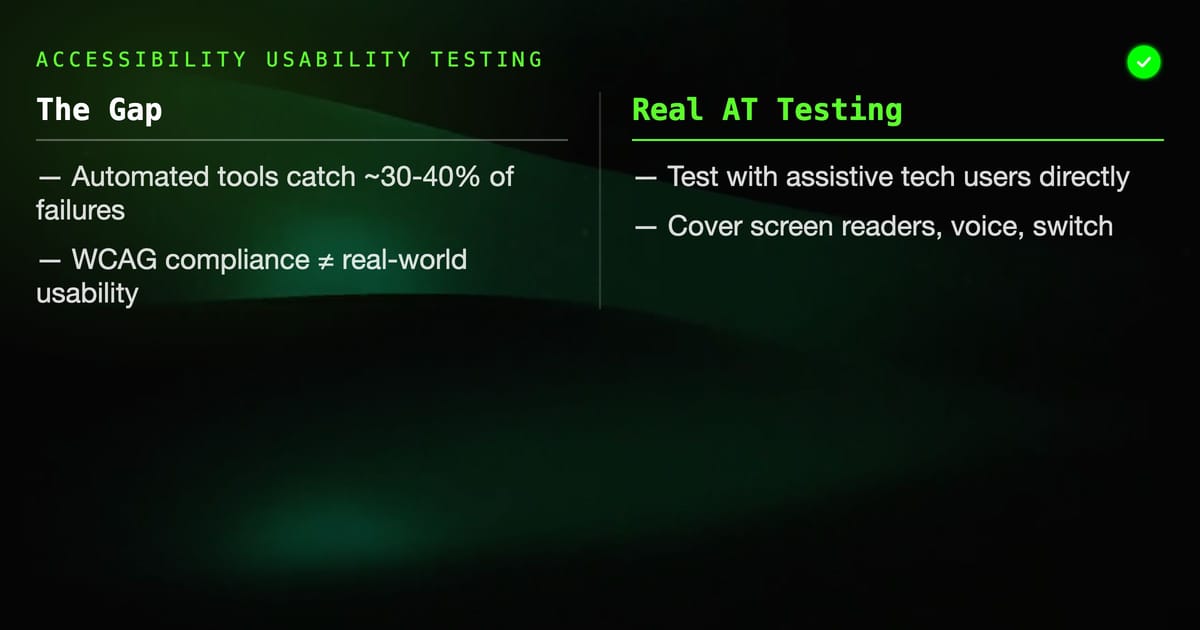
WCAG compliance and accessible usability are not the same thing. A product can pass automated accessibility checks and still be unusable by screen reader users, people with cognitive disabilities, or users with motor impairments.
Accessibility usability testing closes that gap: testing with real assistive technology users to find the problems that automated tools and heuristic evaluation miss.
The Compliance vs. Usability Gap
Automated accessibility tools (axe, Lighthouse, WAVE) check for WCAG technical requirements:
- Images have alt text (but is the alt text meaningful?)
- Form fields have labels (but are the labels accurate and helpful?)
- Color contrast passes the threshold (but is the focus indicator actually visible?)
- Keyboard navigation exists (but is it efficient and logical?)
A screen reader user navigating your checkout flow encounters something different: the actual interaction sequence, with all its edge cases. The ARIA roles might be correct, but the focus management after a modal closes might be wrong. The alt text might be present but describe the image rather than its function. The form error might be announced but not associated with the correct field.
Automated testing catches ~30–40% of accessibility failures. Testing with assistive technology users catches the rest.
Assistive Technology Coverage
Different disabilities, different assistive technologies, different testing requirements:
Screen readers
JAWS (Job Access With Speech): Most used among blind users in enterprise environments. Windows-only. Interacts with the DOM and ARIA in specific ways that differ from other screen readers.
NVDA: Free, open source, Windows. Strong market share among blind users. Different keyboard shortcuts than JAWS.
VoiceOver: Built into macOS and iOS. Dominant on Apple platforms. Mobile and desktop VoiceOver differ significantly in interaction model.
TalkBack: Android's built-in screen reader. Touch exploration model, different interaction patterns from keyboard-navigation screen readers.
Orca: Linux screen reader. Less common in enterprise contexts but important for developer tools.
Testing all five is ideal. At minimum, test with JAWS or NVDA (Windows desktop), VoiceOver (iOS), and TalkBack (Android) for broad coverage.
Screen magnification
ZoomText, Windows Magnifier, macOS Zoom. Users see 200–1600% magnification, viewing a small window of the screen. Issues:
- Overflow content hidden off-screen
- Zoom-triggered reflow failures
- Loss of context when navigating magnified content
Voice control
Dragon NaturallySpeaking, Windows Speech Recognition, Voice Control on macOS/iOS. Users navigate by speaking control labels ("click Submit", "click Cancel"). Issues:
- Controls without visible labels
- Duplicate control labels on a page
- Dynamic content that changes labels
Switch access
Users with motor impairments navigate with a single switch (spacebar equivalent). Sequential scanning through all focusable elements. Issues:
- Too many elements to scan through
- Focus traps
- Timeout-based UI that switch users can't reach in time
Cognitive accessibility
Not a single assistive technology but a range of needs addressed by design decisions:
- Plain language
- Consistent navigation
- Error recovery without time pressure
- No reliance on memory across screens
- Reduced motion
Recruiting Participants with Disabilities
Recruiting users with specific disabilities is harder than general user recruitment. Practical approaches:
Disability organizations: Organizations serving blind, deaf, or cognitively disabled communities often facilitate research recruitment. They're the best source for genuine assistive technology users.
Accessibility-focused research panels: UserZoom, UserTesting, and dedicated accessibility research firms maintain panels of users with disabilities.
Community outreach: Blind and visually impaired communities are active online (Twitter/X, Reddit, specific forums). Respectful outreach with fair compensation gets responses.
Compensation: Pay at or above market research rates. Participants with disabilities may need additional time, may have transportation or equipment needs, and deserve recognition that their specialized knowledge has value.
Screener considerations: Screen for the specific disability and assistive technology combination you need. A VoiceOver user on iOS doesn't necessarily use JAWS on Windows. Screen for experience level — a new JAWS user has different testing value than a 10-year expert.
Remote vs. in-person
Remote is often preferable for accessibility testing:
- Participants use their own equipment and settings (optimized for their use)
- No travel barriers
- Familiar environment reduces cognitive load
Remote requirements:
- Screen sharing must work with the participant's AT
- Video call software must be keyboard navigable
- Provide technical setup support in advance
Task Design for AT Users
Tasks for accessibility testing follow the same scenario-based principles as general usability testing, with additional considerations:
Avoid tasks that assume visual scanning: "Find the blue button in the top right corner" assumes visual access. Use goal-based scenarios: "Start the checkout process."
Allow time: AT users may complete tasks more slowly. This is not failure — it's the expected experience. Design sessions with generous time per task.
Don't script the interaction method: Let VoiceOver users navigate the way they normally would. Don't ask them to "use the Tab key" if they normally use swipe gestures on iOS.
Include recovery tasks: "You submitted the form and got an error. Fix it." Error recovery is often where accessibility breaks down — error messages aren't announced, focus doesn't move to the error, the error message isn't associated with the field.
Screen Reader Testing Methodology
Pre-session setup
- Confirm the participant's AT setup (version of screen reader, speech rate, verbosity settings)
- Verify screen sharing captures the screen reader audio
- Test the session setup with the participant's AT before the formal session begins
- Brief the participant: "We're testing the product, not you. Any problems you encounter are problems with our product, not problems with you."
Observation focus areas
Navigation efficiency: Can the user find their target content without excessive exploration? Count the number of navigation steps to reach key content.
Content structure: Does heading navigation (H key in JAWS/NVDA) allow logical content scanning? Is the heading hierarchy meaningful?
ARIA announcements: What does the screen reader actually say? Sometimes ARIA that appears correct produces confusing announcements in practice.
Focus management: After a modal opens, does focus move into it? After a modal closes, does focus return to the trigger? After an action updates content, does focus or an announcement indicate the change?
Form interactions: Are labels read with fields? Are errors associated with fields? Are instructions available without losing context?
Dynamic content: Are live regions announcing updates? Is the announcement timing appropriate (not too frequent, not too late)?
Screen reader testing checklist
Adapted from WebAIM's screen reader survey and AT user research:
Navigation:
- Page title announced correctly on load
- Heading structure provides logical outline for content
- Landmark regions (header, nav, main, footer) present and correctly labeled
- Skip navigation link works correctly
- All interactive elements keyboard reachable
- Focus order is logical (matches visual/reading order)
Content:
- Images: alt text describes function (not just appearance) for interactive images; decorative images marked as presentation
- Icons: have accessible names (aria-label or title)
- Tables: have captions, th elements, and proper scope attributes
- Color: information not conveyed by color alone
Forms:
- All inputs have associated labels (not just placeholder text)
- Required fields indicated programmatically
- Error messages associated with relevant fields (aria-describedby)
- Error summary announced on submission failure
Dynamic content:
- Modals: focus moves in on open, returns to trigger on close
- Live regions: status updates announced without focus change
- Loading states: communicated via ARIA live regions
- Timeouts: warning announced with sufficient time to extend
Cognitive Accessibility Testing
Cognitive accessibility testing focuses on users with cognitive disabilities: learning disabilities, ADHD, TBI, intellectual disabilities, and age-related cognitive decline.
Recruitment considerations
Cognitive accessibility research requires careful participant screening and session design:
- Match the specific cognitive profile to the content type (a user with dyslexia will have different issues than a user with executive function challenges)
- Keep sessions shorter (45 minutes max for high-cognitive-demand products)
- Allow extended time on tasks
- Ensure facilitators are trained in supportive communication
Key testing focus areas
Plain language: Can users understand instructions, labels, and error messages? Test with the lowest reading level in your user base.
Memory demands: Does the interface require users to remember information across pages or screens? Can users complete multi-step processes without external memory aids?
Error recovery: Are errors described in plain language? Is the correction path clear? Is there time pressure on the correction?
Consistent navigation: Does navigation appear in the same location and work the same way throughout?
Reduced cognitive load: Are there distractions, autoplay media, or complex interactions that would overwhelm users with attention limitations?
The Web Content Accessibility Guidelines 2.1+ include WCAG 2.1 Level AAA guidelines addressing cognitive accessibility. The W3C's Cognitive Accessibility Roadmap (COGA) provides extended guidance.
Motor Accessibility Testing
Testing for users with motor impairments: reduced dexterity, tremor, limited range of motion.
Touch target size: Minimum 44×44px for touch interfaces (WCAG 2.5.5). Test with a mouse held loosely or on a trackpad at arm's length to simulate reduced dexterity.
Spacing: Insufficient spacing between clickable elements causes miss-clicks. Test with users who have tremor or who use coarse pointing devices.
Timeout sensitivity: Forms and UI that timeout create failures for slow-moving users. Test with deliberate slowdowns.
Drag and drop: Not accessible without keyboard equivalent. Test that all drag-and-drop functionality has an alternative.
Single switch simulation: Navigate your product using only the Tab key, Space, and Enter. This approximates single-switch access. Can all functionality be reached? Is the navigation efficient enough to be usable?
Combining Automated and Manual Testing
Efficient accessibility testing uses automated tools and human testing together:
Automated first: Run axe, Lighthouse, or aXe-core in CI/CD. Block deployments that introduce new WCAG A and AA violations. This is the cheapest testing available.
Heuristic evaluation second: Apply accessibility heuristics manually. Tools can't assess alt text quality, label accuracy, or focus management logic.
AT user testing third: Test with real AT users to find the interaction failures that neither automated nor heuristic testing catches.
The sequence ensures you don't waste AT user session time on issues axe would have caught.
Reporting Accessibility Usability Findings
Accessibility findings should include:
- WCAG success criterion violated (if applicable)
- AT tested with (screen reader + version + browser + OS)
- Task context (what was the user trying to do?)
- Description of the failure
- User impact (what couldn't the user accomplish?)
- Severity (blocker / major / minor)
- Suggested fix
Example finding:
Issue: Modal close button not announced after modal opens
AT: JAWS 2024 + Chrome on Windows 11
Task: User tried to edit their profile photo
Failure: Modal opens but focus does not move into modal. JAWS reads
the background page, not the modal. Close button at top of modal
is not reachable via Tab from the background.
User impact: User cannot interact with the modal; must close browser tab to escape.
Severity: Blocker
Fix: On modal open, move focus to the first interactive element
within the modal (or the modal heading). Implement focus trap to
keep Tab within the modal while it's open.
WCAG: 2.1.2 (No Keyboard Trap) — paradoxically, focus not entering
the modal means the background is the trap.Integrating Accessibility Testing into Development
Accessibility doesn't work as a final-stage audit. By that point, fixes are expensive.
Design stage: Review designs against accessibility heuristics. Catch color contrast failures, missing labels, and interaction patterns that don't have keyboard equivalents.
Development stage: Automated accessibility tests in CI/CD. ARIA review before PR merge.
QA stage: Manual keyboard-navigation testing and screen reader spot checks as part of feature QA.
Pre-release: AT user testing for major features and flows. This is the validation stage, not the discovery stage.
Post-release: Periodic AT user testing (quarterly for stable products, per-release for rapidly changing ones).
Summary
Accessibility usability testing requires testing with real assistive technology users, not just automated WCAG checks. Automated tools find ~30–40% of accessibility failures. The rest require AT users navigating actual workflows.
Recruit genuine AT users. Design realistic scenarios. Observe focus management, ARIA announcements, and error recovery carefully. Combine automated testing (fast, cheap, continuous) with AT user sessions (slower, expensive, irreplaceable) for efficient coverage.
WCAG compliance is the floor, not the ceiling. Real accessibility usability means AT users can accomplish real tasks efficiently — not just that the code passes technical checks.