Best Website Testing Tools in 2026 (Reviewed & Compared)

Website testing tools fall into five categories: functional testing (does it work?), performance testing (is it fast?), SEO auditing (can Google find it?), security scanning (is it safe?), and cross-browser testing (does it work everywhere?). Most websites need all five — but functional testing is the one most teams skip, and it's the one that actually catches bugs users hit.
Key Takeaways
"Website up" ≠ "Website working." Uptime monitors confirm your server responds. Functional tests confirm your checkout works, your forms submit, your logins succeed.
AI-powered tools have changed the game. You no longer need to write code to automate website testing. Tools like HelpMeTest let you describe tests in plain English and generate Robot Framework + Playwright scripts automatically.
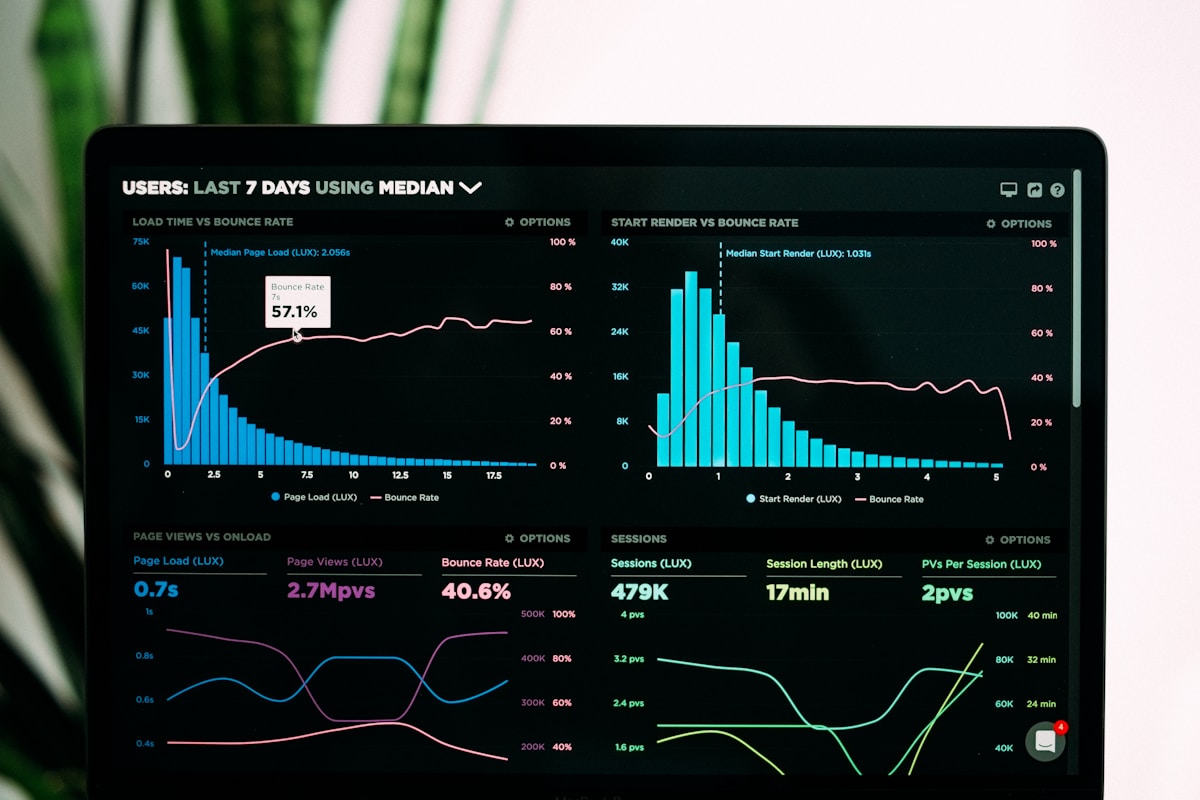
Performance tools (GTmetrix, PageSpeed Insights) don't catch functional bugs. A site can score 95 on PageSpeed and have a broken payment form. You need both.
Free tools cover basics; paid tools cover scale. For a small site, free plans from most tools are sufficient. For serious automated testing, budget $50–$200/month depending on coverage requirements.
Website testing tools are software applications that help you verify a website works correctly, loads quickly, ranks in search engines, and stays secure. With hundreds of tools available, choosing the right ones is harder than the testing itself.
This guide breaks down the best website testing tools by category — with honest assessments of what each does well, where they fall short, and which ones are worth paying for.
Categories of Website Testing Tools
Before picking tools, understand what you actually need to test:
| Category | What It Tests | Key Question |
|---|---|---|
| Functional testing | Does the site work? | Can users complete key tasks? |
| Performance testing | Is it fast? | How long does it take to load? |
| SEO auditing | Can Google find it? | Are there technical SEO issues? |
| Security scanning | Is it safe? | Are there vulnerabilities or exploits? |
| Cross-browser testing | Does it work everywhere? | Does it work in Safari and Firefox too? |
| Accessibility testing | Can everyone use it? | Does it meet WCAG standards? |
Most teams underinvest in functional testing while overinvesting in performance and SEO tools. The result: pages that load fast but have broken contact forms.
Functional Website Testing Tools
Functional testing answers the question: does your website actually work? These tools simulate real user behavior — clicking buttons, filling forms, navigating flows — to verify everything functions as intended.
1. HelpMeTest — AI-Powered Functional Testing
Best for: Teams that want automated testing without writing code
HelpMeTest is an AI-powered QA platform that generates and runs automated tests from plain English descriptions. Instead of writing Playwright or Selenium scripts, you describe what you want to test:
"Test that a user can sign up with email, verify the confirmation email is received, and log in successfully."
HelpMeTest generates the Robot Framework + Playwright test, runs it against your site, and reports results. When your UI changes and selectors break, self-healing tests automatically find the new elements.
Key features:
- AI test generation: Describe tests in natural language, get working automation
- Self-healing tests: Broken selectors auto-repair when UI changes
- 24/7 health monitoring: Continuous checks at 5-minute intervals
- Visual regression testing: Catch layout changes across breakpoints
- No infrastructure: Cloud-hosted SaaS, nothing to install or maintain
Pricing:
- Free: 10 tests, unlimited health checks
- Pro: $100/month flat, unlimited tests, parallel execution
Free Website Checker: HelpMeTest offers a free tool that scans any URL for functional issues — broken links, form errors, JavaScript failures, and more.
When to use HelpMeTest:
- You want to automate testing without a dedicated QA engineer
- Your current tests keep breaking when the UI changes
- You need 24/7 monitoring that catches functional issues, not just downtime
2. Playwright — Open Source Browser Automation
Best for: Engineering teams with JavaScript/TypeScript experience
Playwright is Microsoft's open-source browser automation framework. It's arguably the best pure testing tool available — fast, reliable, and supports Chrome, Firefox, and WebKit (Safari's engine) in a single test run.
Key features:
- Multi-browser support: Chrome, Firefox, Safari (WebKit)
- Built-in waiting: auto-waits for elements, no manual
sleep()calls - Network interception: mock APIs, simulate failures
- Codegen: record user actions to generate test code
- Trace viewer: debug failures with video replay
Pricing: Free and open source
Limitations: Requires Node.js knowledge. You write and maintain all test code. No built-in CI scheduling, no health monitoring dashboard.
When to use Playwright:
- You have developers comfortable with TypeScript
- You need maximum control over test logic
- You're building a test suite from scratch with a strong engineering team
3. Cypress — Developer-Friendly E2E Testing
Best for: Frontend developers writing component and E2E tests together
Cypress is popular for its developer experience — tests run in the browser, you can see exactly what's happening in real time, and the debugging experience is excellent.
Key features:
- Real-browser testing with visual debugging
- Time-travel debugging: click to see state at any point
- Component testing: test React/Vue/Angular components in isolation
- Automatic screenshots on failure
Pricing:
- Open source: Free (self-hosted)
- Cypress Cloud: $67–$167/month for team features, parallelization, test analytics
Limitations: Cypress only supports Chromium-based browsers natively (Chrome, Edge). Firefox support is experimental. Safari/WebKit is not supported. Also, self-hosting Cypress at scale requires infrastructure.
When to use Cypress:
- Frontend-heavy team that wants to test components and E2E together
- You prefer Chrome-focused testing with excellent developer experience
4. Selenium — The Industry Standard
Best for: Legacy projects and Java/Python shops
Selenium is the original browser automation framework — battle-tested, with libraries for every major language (Java, Python, C#, Ruby, JavaScript).
Key features:
- Language bindings for Java, Python, C#, Ruby, JavaScript
- Supports all major browsers
- Selenium Grid for parallel execution across machines
- Massive community and documentation
Pricing: Free and open source
Limitations: Verbose. Requires significant setup. Browser driver management is painful. Test stability is lower than modern alternatives — tests are flakier, maintenance is higher. The modern equivalent (Playwright) is faster and more reliable.
When to use Selenium: Legacy Java/Python projects already invested in the framework. New projects should prefer Playwright.
Performance Testing Tools
Performance tools measure how fast your website loads. Speed directly affects user experience and SEO rankings.
5. Google PageSpeed Insights
Best for: Quick performance baseline on any URL
PageSpeed Insights runs a Lighthouse audit against any URL and scores it on Core Web Vitals: LCP (Largest Contentful Paint), INP (Interaction to Next Paint), and CLS (Cumulative Layout Shift).
Key features:
- Real user data (CrUX) + lab data
- Core Web Vitals assessment (Pass/Fail)
- Specific optimization recommendations
- Mobile and desktop scores
Pricing: Free
Limitations: Point-in-time only. No monitoring, no history. Doesn't test functional behavior.
6. GTmetrix
Best for: Detailed performance analysis with historical tracking
GTmetrix runs WebPageTest and Lighthouse analyses, providing waterfall charts, resource breakdowns, and performance history.
Key features:
- Performance history and trends
- Waterfall chart for debugging slow resources
- Video playback of page load
- Scheduled monitoring (Pro)
Pricing: Free plan available; Pro from $10/month
7. WebPageTest
Best for: Advanced performance debugging by engineers
WebPageTest is the most powerful free performance analysis tool available. Run tests from specific locations, devices, and network conditions. View detailed waterfall charts, connection timings, and resource analysis.
Pricing: Free; API access for automation available
SEO Auditing Tools
SEO tools identify technical issues that prevent search engines from crawling, indexing, and ranking your pages.
8. Google Search Console
Best for: Understanding how Google actually sees your site
Google Search Console is the authoritative source for Google indexing data. It shows which pages are indexed, which have errors, your Core Web Vitals assessment from real users, and which queries drive traffic.
Pricing: Free
When to check it: Weekly, at minimum. GSC catches indexing issues before they tank rankings.
9. Screaming Frog SEO Spider
Best for: Technical SEO crawls of small-to-medium sites
Screaming Frog crawls your website like a search engine and reports every technical SEO issue: broken links, duplicate title tags, missing meta descriptions, redirect chains, and more.
Pricing: Free up to 500 URLs; £259/year for unlimited
10. Ahrefs / Semrush
Best for: Comprehensive SEO analysis including backlinks and competitor research
Both Ahrefs and Semrush offer site audits, keyword tracking, backlink analysis, and competitor intelligence. They're the industry standard for professional SEO work.
Pricing: $99–$449/month depending on plan and tool
Security Testing Tools
Security tools scan for vulnerabilities before attackers find them.
11. OWASP ZAP (Zed Attack Proxy)
Best for: Automated vulnerability scanning for development teams
OWASP ZAP is a free, open-source security scanner maintained by OWASP. It runs active scans to detect XSS, SQL injection, CSRF, and hundreds of other vulnerability types.
Pricing: Free and open source
12. Snyk
Best for: Scanning dependencies and code for vulnerabilities in CI/CD
Snyk monitors your npm/pip/Maven dependencies and alerts you to known vulnerabilities. Integrates directly with GitHub, GitLab, and CI pipelines.
Pricing: Free plan available; paid plans from $25/month
Cross-Browser Testing Tools
Cross-browser tools verify your site works across different browsers, devices, and screen sizes.
13. BrowserStack
Best for: Manual cross-browser testing on real devices
BrowserStack provides access to 3,000+ real browsers and devices. You can manually test any URL on iPhone Safari, Android Chrome, or any browser/OS combination.
Pricing: From $29/month (Automate plan starts at $199/month)
Limitations: Expensive at scale. Manual testing doesn't scale with deployment frequency.
14. Sauce Labs
Best for: Large-scale automated cross-browser testing in CI
Sauce Labs runs Selenium/Playwright/Cypress tests across browsers in the cloud. Built for enterprises with heavy CI/CD usage.
Pricing: From $49/month; enterprise plans in the thousands
15. LambdaTest
Best for: BrowserStack alternative with competitive pricing
LambdaTest offers real-device testing, automated browser testing, and visual testing at lower price points than BrowserStack.
Pricing: Free plan; paid from $15/month
Accessibility Testing Tools
16. axe DevTools / WAVE
Both axe DevTools and WAVE are browser extensions that scan pages for WCAG accessibility violations. Free versions handle most auditing needs.
How to Choose Website Testing Tools
For Small Teams (1–5 developers)
Minimum viable stack:
- HelpMeTest (free plan) — functional tests for your critical flows
- Google PageSpeed Insights — performance baseline
- Google Search Console — SEO and indexing health
- WAVE — accessibility checks
Total cost: $0/month. This covers the most important failure modes.
For Growing Teams (5–20 developers)
Recommended stack:
- HelpMeTest Pro ($100/month) — automated testing + 24/7 monitoring
- Playwright — developer-written tests in CI/CD
- GTmetrix (paid) — performance monitoring with history
- Screaming Frog — quarterly SEO crawls
- Snyk (free) — dependency vulnerability monitoring
Total cost: ~$120–$150/month
For Enterprise Teams
Add: Ahrefs/Semrush ($99–$449/month), Sauce Labs or BrowserStack for cross-browser, dedicated security scanning tooling.
Functional vs. Performance: What Most Teams Get Wrong
The most common mistake in website testing: optimizing for the metrics you can measure while ignoring the ones you can't.
Performance scores are easy to visualize — a number from 0–100. SEO issues have dashboards. But functional failures are invisible until a user hits them.
A checkout form that throws a JavaScript error at step 3. A password reset that never sends the email. A filter that returns no results even when products exist. None of these show up in PageSpeed Insights. None of them affect your SEO score. They just cost you revenue.
The rule of thumb: Run performance and SEO tools to find optimization opportunities. Run functional testing tools to confirm your site actually works.
HelpMeTest's free Website Checker catches many functional issues automatically — run it on any URL to see what's broken before your users do.
Summary: Best Website Testing Tools by Category
| Category | Best Free Tool | Best Paid Tool |
|---|---|---|
| Functional testing | HelpMeTest (free plan) | HelpMeTest Pro |
| Performance | Google PageSpeed Insights | GTmetrix / WebPageTest |
| SEO auditing | Google Search Console | Ahrefs / Semrush |
| Security scanning | OWASP ZAP | Snyk |
| Cross-browser | BrowserStack (trial) | LambdaTest / BrowserStack |
| Accessibility | WAVE / axe | axe DevTools Pro |
| E2E automation | Playwright | HelpMeTest Pro |
Start Testing Your Website Today
The best website testing setup is one you actually use. Start with the basics:
- Run HelpMeTest's free Website Checker on your URL — takes 60 seconds
- Set up Google Search Console if you haven't already
- Run a PageSpeed Insights audit on your key pages
Once you've handled the basics, add automated functional testing so you catch regressions before they reach users. HelpMeTest's free plan includes 10 automated tests and unlimited health monitoring — enough to cover your most critical user flows without writing any code.