Website Testing SOP Template for Agencies (Copy and Use)

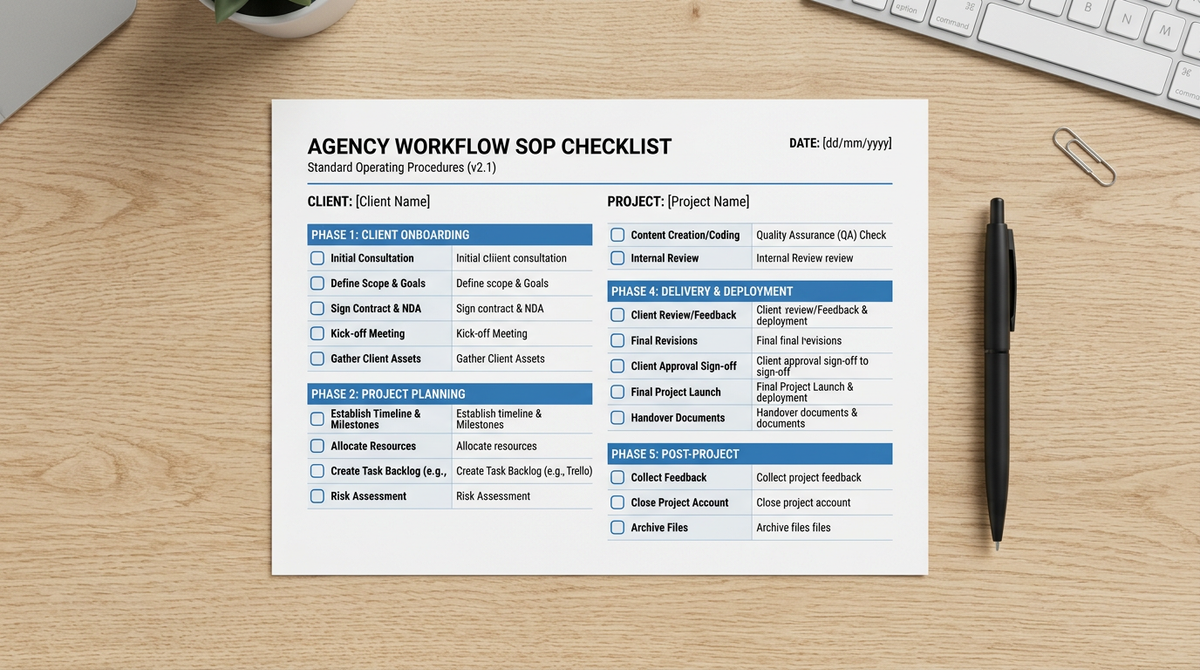
Your agency has a process for everything — project kickoffs, client handoffs, invoice follow-ups. But does it have a written, repeatable process for verifying that a client website actually works? If not, this is that process.
Key Takeaways
A website testing SOP turns ad hoc clicking into a repeatable, delegatable process. Written procedures mean new team members can execute QA correctly without supervision, and clients get consistent coverage regardless of who's working their account.
The SOP has three phases that cover different failure windows. Pre-launch QA catches build errors. Post-launch monitoring catches runtime drift. Incident response defines what to do when something breaks.
The most expensive QA failures happen silently after launch. A plugin auto-update that breaks a contact form generates no error — the site looks normal, the form just doesn't submit. Only automated functional tests catch these.
A documented SOP is also a service you can charge for. Agencies with a formal testing process can package it as a "Website Maintenance + QA" retainer. The SOP is the deliverable clients are paying for — make it visible.
Most agency QA processes live in one person's head. When that person is on vacation, QA becomes "the developer clicks through it before launch." When they leave the agency, the process leaves with them.
A standard operating procedure (SOP) solves this. Written, version-controlled, and executable by anyone on your team — it's the difference between a QA process that scales and one that depends entirely on who happens to be available.
This template is designed for web agencies, SEO agencies, and Shopify development shops. Copy it, customize the specifics to your stack, and use it today.
How to Use This Template
The SOP is organized into three phases:
- Pre-Launch QA — Run before any site goes live or any major update is deployed
- Post-Launch Monitoring — The ongoing automated layer that runs without manual intervention
- Incident Response — What to do when monitoring alerts fire
Each phase has a checklist with pass/fail criteria. Every line item should be completed and signed off before moving to the next phase. "I think it's fine" is not a pass.
Phase 1: Pre-Launch QA Checklist
Run this checklist before every launch and every major update (plugin updates, theme changes, hosting migrations, new payment integrations).
1.1 Functional Testing
- Contact form submits correctly — Fill all fields with test data, submit, verify confirmation message appears. Check that the form notification email arrives in the client's inbox within 5 minutes.
- All other lead capture forms submit — Repeat for quote forms, booking forms, newsletter signups, and any other form that captures lead data.
- E-commerce checkout completes (if applicable) — Add product to cart, proceed to checkout, complete a test purchase with a Stripe test card, verify order confirmation page appears and confirmation email arrives.
- Login and account creation work (if applicable) — Register a new test account, verify email confirmation, log in, access the authenticated area.
- Search functionality returns results (if applicable) — Run at least 2 test searches, verify results page renders correctly.
- Booking/scheduling system works (if applicable) — Complete a test booking from start to confirmation, verify the calendar blocks the time slot.
1.2 Navigation and Links
- Primary navigation links resolve — Click every item in the main navigation, verify no 404s.
- Footer links resolve — Click every footer link (Privacy Policy, Terms, Contact, social links), verify no 404s or broken pages.
- Internal links in key pages resolve — Spot-check 10 internal links on the homepage and 3-4 primary landing pages.
- CTA buttons link correctly — Every "Get a Quote," "Book Now," "Contact Us" button goes to the right destination.
1.3 Performance and Technical
- Page load time under 3 seconds — Test homepage, primary landing page, and contact page with Google PageSpeed Insights or WebPageTest. Target LCP under 2.5 seconds.
- Mobile layout renders correctly — Test at 375px (iPhone SE), 390px (iPhone 14), and 768px (iPad) breakpoints. No overlapping elements, no horizontal scroll on mobile.
- SSL certificate valid — Verify HTTPS loads correctly, no certificate warnings. Check expiry date — flag if less than 60 days remaining.
- No JavaScript console errors — Open browser DevTools on homepage and primary landing page, verify no red errors in console.
- Images load correctly — Verify no broken image placeholders on homepage, product pages, and team/about pages.
- Core Web Vitals pass — LCP < 2.5s, INP < 200ms, CLS < 0.1 (measured in Google Search Console or PageSpeed Insights).
1.4 SEO and Analytics
- Meta titles and descriptions are populated — Check 5 key pages (homepage, primary services, contact). No default CMS placeholder text visible.
- Canonical tags are correct — No duplicate canonical tag pointing to staging URL.
- Google Analytics fires on page load — Verify tracking fires in GA4 Realtime view during the pre-launch review.
- Search Console verified and sitemap submitted — For new sites: verify ownership in Google Search Console, submit sitemap.xml.
- Robots.txt is not blocking indexing — Verify
robots.txtdoes not containDisallow: /(a common staging holdover that accidentally prevents search indexing).
1.5 Third-Party Integrations
- CRM integration passes a test lead — Submit contact form, verify the lead appears in the client's CRM (HubSpot, Salesforce, Pipedrive, etc.) within 10 minutes.
- Email marketing integration captures subscriber — Submit newsletter signup form, verify the subscriber appears in Mailchimp/Klaviyo/ActiveCampaign.
- Payment processor is in live mode — For e-commerce launches, verify Stripe/PayPal/Square is switched from test mode to live mode. Run a $1 live transaction and refund it.
- Chat widget loads correctly — If the site uses Intercom, Drift, or any live chat widget, verify it loads and initiates correctly.
Pre-launch sign-off: [Name] | [Date] | [All items passed: Y/N]
If any items fail: document the failure, assign it to the responsible developer, and do not launch until it passes.
Phase 2: Post-Launch Monitoring Setup
Run this once at launch, then the monitoring runs automatically.
2.1 Uptime Monitoring
- Add site to uptime monitoring — Configure 5-minute interval checks for the homepage URL. Enable SSL monitoring with 30-day expiry alerts.
- Configure alert routing — Alerts go to the project Slack channel AND the account manager's email. Include the client name in the alert subject.
- Set up alert thresholds — Alert fires after 2 consecutive failures (prevents false alarms from transient blips).
- Verify first check passes — Confirm the monitoring platform shows the site as UP within 10 minutes of setup.
2.2 Automated Functional Tests
- Create client workspace in HelpMeTest — Separate workspace for each client, named with the client company name.
- Set up contact form test — Automated test that fills and submits the primary lead form and verifies the confirmation message. Schedule: daily.
- Set up homepage availability test — Verify the homepage loads and key elements render. Schedule: daily.
- Set up checkout test (e-commerce only) — Complete checkout flow with Stripe test card, verify order confirmation. Schedule: daily.
- Set up mobile render check — Verify homepage renders correctly at 375px. Schedule: weekly.
- Configure Slack/email alerts for test failures — Test failure alerts route to the project channel, labeled with client name and test name.
- Run all tests once manually — Verify all tests pass on the live site before scheduling.
2.3 Regression Testing Schedule
- Weekly regression run configured — Full test suite for this client runs every Monday at 6am.
- Post-update regression trigger documented — Team knows to manually trigger a full regression run after any plugin update, theme change, or code deployment.
- Quarterly deep review scheduled — Calendar reminder set to manually review all tests and update for any site changes every 90 days.
Phase 3: Incident Response Procedures
When monitoring alerts fire, this procedure governs the response.
3.1 Triage (Within 30 Minutes of Alert)
- Identify what broke — Review the failing test or monitoring alert. Screenshot the failure if possible.
- Assess severity — Is this a revenue-impacting failure (checkout broken, lead form broken) or a non-critical issue (visual glitch, slow page load)?
- Check if client is already aware — Search email and Slack for any client messages in the last 2 hours about the issue.
- Verify the failure is real — Run the failing test manually one more time or visit the page yourself. Confirm it's not a testing infrastructure blip.
Critical failures (checkout broken, all forms broken, site down): Escalate immediately regardless of time. Call the client within 30 minutes of confirming the failure.
Medium failures (individual form broken, visual issue, slow performance): Respond by business hours next day. Notify client proactively before they notice.
Low failures (minor visual inconsistency, non-critical 404): Fix within 48 hours, include in next monthly report.
3.2 Root Cause Investigation
Common failure patterns and where to look:
| Symptom | Likely Cause | Where to Check |
|---|---|---|
| Contact form doesn't submit | Plugin update broke form ID | WordPress plugin update log |
| Checkout fails | Payment processor test mode re-activated | Stripe/PayPal dashboard |
| Site returns 500 error | PHP version update, plugin conflict | Hosting control panel error logs |
| Site shows "maintenance mode" | Client or another developer left it on | WordPress admin > Settings |
| SSL warning | Certificate expired or not renewed | Hosting control panel > SSL |
| Pages returning 404 | Permalink structure changed | WordPress admin > Settings > Permalinks |
| Mobile layout broken | Theme update, incompatible CSS | Browser DevTools at 375px |
3.3 Client Communication Template
For critical failures:
Subject: [URGENT] Issue detected on [client-domain.com] — investigating now
Hi [Client Name],
Our monitoring detected an issue with [specific function — e.g., your contact form] on [client-domain.com] at [time]. We're investigating the cause now and will have an update within [30 minutes / 1 hour].
We'll keep you updated. You don't need to do anything — we're on it.
[Your name]
For resolved incidents:
Subject: Issue on [client-domain.com] — resolved
Hi [Client Name],
The issue with [specific function] that occurred at [time] has been resolved. Root cause: [plain language explanation]. We've also added an additional check to catch this type of issue faster in the future.
Total downtime: [X minutes/hours]. No action needed on your end.
[Your name]
3.4 Post-Incident Documentation
After every incident, document in the client's workspace:
- Date and time the failure started
- How it was detected (monitoring alert, client report, internal discovery)
- Root cause
- Fix applied
- Time to resolution
- Preventive measure added
This log becomes evidence in quarterly reviews and monthly reports.
Monthly Client Reporting Template
Send this report on the first business day of each month.
[Client Name] — Website Health Report — [Month Year]
Uptime: [X]% availability this month ([Y] hours total, [Z] minutes downtime if any)
Automated Checks: We ran [N] automated checks on your website this month.
Issues Caught: [N] issues detected and resolved before affecting your visitors:[Date]: [What broke] — [Root cause] — [Resolution]
No issues this month: Your site passed all checks. [If true]
Upcoming risks: [If any — plugin updates due, SSL expiring, etc.]
Questions? Reply to this email or call [phone].
Agencies using this report format consistently find that clients who receive it renew retainers at higher rates. The report makes invisible work visible.
Making the SOP a Sellable Service
Once you have a documented SOP, you have a productized service. Instead of including "we'll check the site before launch" as part of project scope, you have a named, scoped deliverable:
Website Maintenance + QA Retainer — $X/month
- Pre-launch QA checklist (billed per launch/update)
- 24/7 uptime monitoring
- Daily automated functional tests on critical flows
- Monthly health report
- Priority incident response (within 30 minutes)
Clients who understand they're paying for a process — not just reactive support — stay longer and are easier to retain during agency growth. The SOP is the product.
For agencies using HelpMeTest to power this workflow, the Pro plan ($100/month) covers unlimited tests across unlimited client sites — all the automated testing in Phase 2 of this SOP, running without manual effort.
FAQ
How long does it take to run the pre-launch checklist?
A full pre-launch QA checklist takes 45–90 minutes for a typical brochure site, 2–3 hours for an e-commerce site with checkout testing and integration verification. The time investment pays for itself on the first prevented launch failure — a broken payment integration discovered post-launch costs far more in client relationship repair than the hours spent checking it beforehand.
How often should the SOP be updated?
Review the SOP quarterly and after any major incident where the SOP didn't catch the problem. Common updates: adding new types of third-party integrations to the checklist as you take on new clients, updating alert thresholds based on experience, and refining the incident response templates based on what's worked.
Should each client have a customized version of this SOP?
The base checklist should be standard across all clients — it ensures consistent coverage. Layer in client-specific additions: an e-commerce client gets the checkout tests, a booking site gets the scheduling flow test. The standard 80% is identical; the custom 20% is documented in the client workspace.
How do you handle a client who reports a bug before your monitoring catches it?
It happens. When it does, document it as a gap in monitoring coverage — what test should have caught this but didn't? Add that test to the client's test suite. The goal is that over 6–12 months, the number of client-reported issues before your system catches them trends toward zero.
What's the minimum viable version of this SOP for a small agency?
For agencies just getting started: run the pre-launch checklist manually using this template, and set up uptime monitoring + one contact form test for each client. That covers the highest-risk failures (launch errors and broken lead forms) without requiring significant setup time. Add automation layers as you grow.
Summary
A website testing SOP turns one-off QA into a repeatable process that any team member can execute, that scales across a growing portfolio, and that generates the kind of paper trail clients see and appreciate.
Copy this template, customize the specifics to your stack and client types, and run it on your next launch.
Automate the monitoring and testing phases with HelpMeTest — free for up to 10 tests, then $100/month for unlimited client sites.