Unity XR Testing: How to Test AR/VR Applications in Unity
XR (Extended Reality) applications in Unity present unique testing challenges. You can't run a headset in CI. Controller input is hardware-dependent.


XR (Extended Reality) applications in Unity present unique testing challenges. You can't run a headset in CI. Controller input is hardware-dependent. AR anchors depend on real-world surfaces that don't exist in test environments. Framerate drops in VR cause motion sickness, making performance regression a user-experience crisis rather than just a slowdown.
This guide covers practical Unity XR testing strategies that work without physical hardware.
The Core Challenge: No Headset in CI
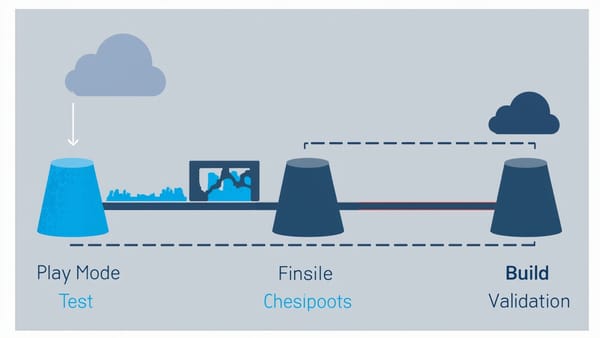
The fundamental problem is that XR applications assume hardware that doesn't exist in a CI environment. The solution is:
- Mock XR input and device presence for logic tests
- Use XR Simulation for spatial interaction tests
- Use play mode tests for integration-level testing
- Use build verification tests to catch platform-specific issues
Project Setup for XR Testing
Add XR simulation package to your project:
// Packages/manifest.json
{
  "dependencies": {
    "com.unity.xr.interaction.toolkit": "3.0.3",
    "com.unity.xr.management": "4.4.0"
  }
}In your test assembly definition, include:
UnityEngine.TestRunnerUnity.XR.CoreUtilsUnityEngine.XR.ManagementUnityEngine.XR.Interaction.Toolkit
Unit Testing XR Interaction Logic
Test the logic behind XR interactions without hardware:
// Assets/Tests/EditMode/GrabInteractableTests.cs
using NUnit.Framework;
using UnityEngine;
using UnityEngine.XR.Interaction.Toolkit;

[TestFixture]
public class GrabInteractableTests
{
    private GameObject _interactableObject;
    private XRGrabInteractable _grabInteractable;

    [SetUp]
    public void SetUp()
    {
        _interactableObject = new GameObject("TestGrabbable");
        _grabInteractable = _interactableObject.AddComponent<XRGrabInteractable>();
        _interactableObject.AddComponent<Rigidbody>();
    }

    [TearDown]
    public void TearDown()
    {
        Object.DestroyImmediate(_interactableObject);
    }

    [Test]
    public void GrabInteractable_InitialState_IsNotSelected()
    {
        Assert.IsFalse(_grabInteractable.isSelected);
    }

    [Test]
    public void GrabInteractable_WhenEnabled_IsActive()
    {
        Assert.IsTrue(_grabInteractable.enabled);
    }
}Testing AR Anchor Placement Logic
AR anchor placement depends on raycasting against real-world planes. Test the logic separately from the hardware by abstracting the AR dependencies:
// IARAnchorManager.cs — interface for testability
public interface IARAnchorService
{
    bool TryRaycast(Vector2 screenPoint, out Pose hitPose);
    ARAnchor CreateAnchor(Pose pose);
}

// AnchorPlacementManager.cs
public class AnchorPlacementManager : MonoBehaviour
{
    private IARAnchorService _anchorService;

    public void Initialize(IARAnchorService anchorService)
    {
        _anchorService = anchorService;
    }

    public bool TryPlaceAnchor(Vector2 screenPosition, out ARAnchor anchor)
    {
        anchor = null;

        if (!_anchorService.TryRaycast(screenPosition, out var hitPose))
            return false;

        anchor = _anchorService.CreateAnchor(hitPose);
        return anchor != null;
    }
}

// Tests/EditMode/AnchorPlacementTests.cs
[TestFixture]
public class AnchorPlacementManagerTests
{
    [Test]
    public void TryPlaceAnchor_WhenRaycastMisses_ReturnsFalse()
    {
        var mockService = Substitute.For<IARAnchorService>();
        Pose hitPose;
        mockService.TryRaycast(Arg.Any<Vector2>(), out hitPose).Returns(false);

        var go = new GameObject();
        var manager = go.AddComponent<AnchorPlacementManager>();
        manager.Initialize(mockService);

        bool result = manager.TryPlaceAnchor(new Vector2(0.5f, 0.5f), out var anchor);

        Assert.IsFalse(result);
        Assert.IsNull(anchor);

        Object.DestroyImmediate(go);
    }

    [Test]
    public void TryPlaceAnchor_WhenRaycastHits_CreatesAnchor()
    {
        var expectedPose = new Pose(new Vector3(1, 0, 2), Quaternion.identity);
        var fakeAnchor = new GameObject("Anchor").AddComponent<ARAnchor>();

        var mockService = Substitute.For<IARAnchorService>();
        Pose capturedPose;
        mockService.TryRaycast(Arg.Any<Vector2>(), out capturedPose)
            .Returns(x => { x[1] = expectedPose; return true; });
        mockService.CreateAnchor(Arg.Any<Pose>()).Returns(fakeAnchor);

        var go = new GameObject();
        var manager = go.AddComponent<AnchorPlacementManager>();
        manager.Initialize(mockService);

        bool result = manager.TryPlaceAnchor(new Vector2(0.5f, 0.5f), out var anchor);

        Assert.IsTrue(result);
        Assert.IsNotNull(anchor);
        mockService.Received(1).CreateAnchor(Arg.Is<Pose>(p => p.position == expectedPose.position));

        Object.DestroyImmediate(go);
        Object.DestroyImmediate(fakeAnchor.gameObject);
    }
}Testing VR Locomotion
Locomotion bugs cause motion sickness. Test that movement stays within safe parameters:
[TestFixture]
public class LocomotionTests
{
    [Test]
    public void SnapTurn_TurnsExactlyNDegrees()
    {
        var go = new GameObject("Player");
        var snapTurn = go.AddComponent<SnapTurnProvider>();
        snapTurn.turnAmount = 45f;

        Quaternion initialRotation = go.transform.rotation;
        snapTurn.SnapTurn(SnapTurnProvider.TurnDirection.Right);

        float angleDifference = Quaternion.Angle(initialRotation, go.transform.rotation);
        Assert.AreApproximatelyEqual(45f, angleDifference, delta: 0.1f);

        Object.DestroyImmediate(go);
    }

    [Test]
    public void ContinuousMove_Speed_IsWithinComfortRange()
    {
        // Maximum comfortable movement speed in VR is ~1.5 m/s to avoid motion sickness
        var go = new GameObject("Player");
        var provider = go.AddComponent<ContinuousMoveProvider>();

        Assert.LessOrEqual(provider.moveSpeed, 1.5f,
            "Movement speed exceeds VR comfort threshold — may cause motion sickness");

        Object.DestroyImmediate(go);
    }

    [Test]
    public void TeleportProvider_InvalidDestination_DoesNotTeleport()
    {
        var playerGo = new GameObject("Player");
        var teleport = playerGo.AddComponent<TeleportationProvider>();
        Vector3 originalPosition = playerGo.transform.position;

        // Queue teleport to invalid position (NaN)
        teleport.QueueTeleportRequest(new TeleportRequest
        {
            destinationPosition = new Vector3(float.NaN, 0, 0),
            destinationRotation = Quaternion.identity
        });

        // Player should not have moved
        Assert.AreEqual(originalPosition, playerGo.transform.position);

        Object.DestroyImmediate(playerGo);
    }
}Play Mode Tests with XR Device Simulator
For integration tests that need a full scene:
// Tests/PlayMode/XRInteractionPlayModeTests.cs
using System.Collections;
using NUnit.Framework;
using UnityEngine;
using UnityEngine.TestTools;
using UnityEngine.XR.Interaction.Toolkit;
using UnityEngine.XR.Interaction.Toolkit.Inputs.Simulation;

[TestFixture]
public class XRInteractionPlayModeTests
{
    [UnityTest]
    public IEnumerator GrabObject_MoveHand_ObjectFollowsHand()
    {
        // Create scene objects
        var playerGo = new GameObject("Player");
        var interactorGo = new GameObject("RightHand");
        interactorGo.transform.SetParent(playerGo.transform);
        var interactor = interactorGo.AddComponent<XRDirectInteractor>();

        var grabbableGo = new GameObject("Grabbable");
        grabbableGo.AddComponent<Rigidbody>();
        var collider = grabbableGo.AddComponent<SphereCollider>();
        collider.radius = 0.1f;
        var grabbable = grabbableGo.AddComponent<XRGrabInteractable>();

        // Wait for initialization
        yield return new WaitForSeconds(0.1f);

        // Position hand near object
        interactorGo.transform.position = new Vector3(0, 0, 0.05f);
        grabbableGo.transform.position = Vector3.zero;

        yield return new WaitForSeconds(0.1f);

        // Verify objects were created and initialized
        Assert.IsNotNull(grabbable);
        Assert.IsNotNull(interactor);

        // Cleanup
        Object.DestroyImmediate(playerGo);
        Object.DestroyImmediate(grabbableGo);
    }
}Performance Testing in VR
Frame rate is a health metric in VR — below 72fps causes motion sickness:
using Unity.PerformanceTesting;
using NUnit.Framework;

[TestFixture, Category("Performance")]
public class VRPerformanceTests
{
    [Test, Performance]
    public void FrameTime_StandardScene_UnderTargetBudget()
    {
        // 90fps target = 11.1ms frame budget
        using (Measure.Frames()
            .WarmupCount(30)
            .MeasurementCount(100)
            .Run())
        {
            // Frame measurement happens automatically
        }
    }

    [Test]
    public void DrawCallCount_StandardScene_UnderBudget()
    {
        // Use Unity's performance stats
        int drawCalls = UnityStats.drawCalls;
        Assert.LessOrEqual(drawCalls, 100,
            $"Too many draw calls ({drawCalls}) will hurt VR performance. Target: < 100");
    }

    [Test]
    public void TextureMemory_UnderVRAMBudget()
    {
        long textureMemory = UnityEngine.Profiling.Profiler.GetAllocatedMemoryForGraphicsDriver();
        long budgetBytes = 512L * 1024 * 1024; // 512MB for Quest 2

        Assert.Less(textureMemory, budgetBytes,
            $"Texture memory ({textureMemory / 1024 / 1024}MB) exceeds Quest 2 budget (512MB)");
    }
}CI/CD for Unity XR Builds
# .github/workflows/unity-xr-tests.yml
name: Unity XR Tests

on: [push, pull_request]

jobs:
  test:
    name: Unity Tests (${{ matrix.test-mode }})
    runs-on: ubuntu-latest
    strategy:
      matrix:
        test-mode: [editmode, playmode]

    steps:
      - uses: actions/checkout@v4
        with:
          lfs: true  # Required for XR assets

      - uses: game-ci/unity-test-runner@v4
        id: tests
        env:
          UNITY_LICENSE: ${{ secrets.UNITY_LICENSE }}
          UNITY_EMAIL: ${{ secrets.UNITY_EMAIL }}
          UNITY_PASSWORD: ${{ secrets.UNITY_PASSWORD }}
        with:
          testMode: ${{ matrix.test-mode }}
          projectPath: .
          unityVersion: 2023.3.0f1
          customParameters: -buildTarget Android

      - uses: actions/upload-artifact@v4
        if: always()
        with:
          name: Test results (${{ matrix.test-mode }})
path: ${{ steps.tests.outputs.artifactsPath }}XR Testing Checklist
For every XR feature PR:
- Interaction logic tested in edit mode (no hardware needed)
- Controller input simulation tested with mock interactors
- AR anchor placement logic tested with mocked raycast results
- Locomotion speed and rotation tested against comfort parameters
- Performance — draw calls, texture memory, frame time targets verified
- Platform-specific behavior tested for target device (Quest, HoloLens, iOS ARKit)
Common Unity XR Testing Mistakes
Testing with only play mode tests: Play mode tests are 5-10x slower than edit mode tests. Extract all logic into non-MonoBehaviour classes and test them in edit mode.
Not testing interaction distance thresholds: "Close enough to grab" is a fuzzy concept. Test the exact distance at which grab activates and deactivates.
No motion sickness parameter tests: Maximum safe locomotion speeds are known (< 1.5 m/s continuous, 45° snap turns). Test that your defaults stay within these values.
Ignoring platform-specific resource limits: Quest 2 has 6GB RAM and specific GPU limits. Test draw call counts and texture memory explicitly.
Not mocking AR dependencies: ARRaycastManager and ARAnchorManager are Unity components that require device hardware. Always abstract them behind interfaces for testability.
Unity XR testing requires accepting that headsets won't be in CI and designing tests accordingly — mock hardware dependencies behind interfaces, test logic in fast edit-mode tests, and use Unity's performance testing package for frame budget validation. The key insight is that most XR bugs are logic bugs (incorrect state transitions, wrong calculations) that don't require hardware to reproduce.