E2E Testing with Claude Code or Cursor: AI-Written Tests, No Playwright Required


One script installs HelpMeTest. One command connects it to Claude Code or Cursor. After that, when you're building a feature, you tell your AI to write tests for it. The AI creates Robot Framework tests, runs them in a cloud browser, and shows you exactly which steps passed, which failed, and how long each took. No Playwright install. No browser binaries. No local infrastructure to manage. You write the code. The AI writes the tests.
Key Takeaways
No Playwright required. Playwright MCP still needs Playwright installed locally, browser binaries managed, and test files checked into your repo. HelpMeTest runs everything in the cloud — nothing to install on your machine.
One-line install. curl -fsSL https://helpmetest.com/install | bash — no npm, no Node version conflicts, no global package managers. A self-contained binary, ready in seconds.
One command connects your AI. helpmetest install mcp --claude adds HelpMeTest to Claude Code. Same for Cursor with --cursor. No config files to edit, no JSON to write manually.
Tests run in a real cloud browser. No browser binaries to download or update. HelpMeTest runs tests on its own infrastructure and streams results back to your editor.
Self-healing tests. When your UI changes, AI fixes broken selectors automatically. You don't spend hours debugging "element not found" errors after every deploy.
Every developer who's tried to add E2E tests has hit the same wall: install Playwright or Cypress, configure it, install browser binaries, write selectors, deal with timing issues, fix broken tests when the UI changes. Test maintenance was the #1 pain point for engineering teams in 2024, up 138% from 2022.
The new approach is AI + MCP (Model Context Protocol): connect your AI coding assistant to a testing tool via MCP, and let the AI write and run the tests. Most implementations use Playwright MCP — but Playwright MCP still requires a local Playwright installation, browser binaries on your machine, and test files in your git repo.
HelpMeTest is different. It's a cloud-hosted test platform with a CLI and MCP server. You install it with a single curl command, connect it to Claude Code or Cursor, and your AI can write tests, run them in a real cloud browser, and return actual results — with no local browser infrastructure at all.
This article covers how it works, from installation through CI/CD integration.
Installation
Install the CLI:
curl -fsSL https://helpmetest.com/install | bashThis downloads a self-contained binary — no Node.js version conflicts, no npm, no package managers to fight. After install, run helpmetest --version to verify.
Authenticate:
helpmetest loginThis opens your browser to sign in. After you log in, credentials are saved automatically. No API tokens to copy-paste for local use.
Connect to your editor:
# Claude Code
helpmetest install mcp --claude

<span class="hljs-comment"># Cursor
helpmetest install mcp --cursor

<span class="hljs-comment"># Claude Desktop
helpmetest install mcp --claude-desktop

<span class="hljs-comment"># VSCode
helpmetest install mcp --vscode

<span class="hljs-comment"># Interactive (prompts you to pick the editor)
helpmetest install mcp
Restart your editor. HelpMeTest tools are now available to your AI assistant.
That's it. When HelpMeTest starts an MCP session, it automatically reads your project's CLAUDE.md and AGENTS.md files — so your AI gets project-specific context the moment it connects.
What Your AI Can Now Do
Once connected, your AI assistant has access to HelpMeTest tools:
- Run tests by name, tag, or ID
- Check test and health check status
- Search Robot Framework keywords
- Create and update tests
Ask your AI to check status and it calls helpmetest_status. The response looks like this — actual output from the platform:
🧪 Tests: 4✅ 0❌ 1⚠️ (5 total)

✅ 🟢 100/100    11s Todo App Test             #demo #onboarding
✅ 🟢 100/100    13s Landing Page Availability
✅ 🟡  98/100    13s Demo button               #page:landing
✅ 🟡  99/100    5s  Landing Page              #uptime
⚠️ ⚪ Unknown     N/A Checkout Flow             #feature:checkout

🏥 Health Checks: 3✅ 0❌ 0⚠️

✅ production                    1s  5m
✅ staging                       4s  5m
✅ api                           2s  1m
Each test shows its reliability score (100/100 = always passes), last run time, and tags. ⚠️ Unknown means created but not yet run.
How Tests Work
HelpMeTest tests are Robot Framework — a keyword-driven test syntax. Two spaces between keyword and arguments is mandatory.
Here is a real test from the platform:
Go To  https://todo.playground.helpmetest.com/  timeout=30s
Type text  .new-todo  Write a todo app test
Press Keys  .new-todo  Enter
Click  .todo-list li:nth-child(1) .toggle
Get Text  .todo-count  ==  2 items left
When this test runs, the output shows each step with timing and return values:
🧪 Test Results

✅ tcuuj3zeidrgvp3549qfh (4.701431s) - PASS

🔧 Keywords Executed

✅ 0.225s Go To  https://todo.playground.helpmetest.com/  timeout=30s
  → 200
✅ 0.274s Type text  .new-todo  Write a todo app test
✅ 0.030s Press Keys  .new-todo  Enter
✅ 0.088s Click  .todo-list li:nth-child(1) .toggle
✅ 0.048s Get Text  .todo-count  ==  2 items left
  → "2 items left"
You see every step, its duration, and what values were returned. When a step fails, the output shows which assertion broke and what value was actually present.
Your AI writes tests like this for you. You don't need to know the syntax — but seeing what the platform actually runs helps you review what your AI creates.
Your AI Writes Tests for Your Features
After building a feature, tell your AI what you made:
You: I just finished the checkout flow — add item to cart,
     fill email and payment info, submit, see confirmation.
     Write tests for this.
Your AI reads your component and route code, creates Robot Framework steps matching the actual behavior, runs them immediately, and returns the real execution output.
A more complex test your AI might create:
Go To  https://myapp.com/  timeout=30s
Wait For Elements State  button[data-testid="add-to-cart"]  visible  timeout=10s
Click  button[data-testid="add-to-cart"]
Go To  https://myapp.com/checkout
Fill Text  input[name="email"]  test@example.com
Fill Text  input[name="card"]  4111111111111111
Click  button[type="submit"]
Wait For Elements State  .order-confirmation  visible  timeout=15s
${confirm_text}=  Get Text  h1
Should Contain  ${confirm_text}  Order Confirmed
If a step fails, your AI sees which line broke and what the browser showed instead. It can fix the test or flag that it found a bug in your feature.
Browser State: No Re-Login
Tests that require authentication need to log in before doing anything. Re-running the login flow in every test wastes time and creates fragile dependencies.
HelpMeTest's browser state saves a full session — cookies, localStorage, all of it — and restores it at the start of any test.
Create an auth test once:
Go To  https://myapp.com/login
Fill Text  input[name="email"]  testuser@example.com
Fill Text  input[name="password"]  testpassword
Click  button[type="submit"]
Wait For Elements State  .dashboard  visible  timeout=10s
Save As  RegisteredUser
Every other test starts already logged in:
As  RegisteredUser
Go To  https://myapp.com/account/settings
Ask your AI to set this up once. After that, all tests it writes for authenticated flows start with As RegisteredUser automatically.
Running Tests from the CLI
You don't need the editor to run tests. The CLI works anywhere:
# Run a test by name
helpmetest <span class="hljs-built_in">test <span class="hljs-string">"Checkout Flow"

<span class="hljs-comment"># Run all tests with a tag
helpmetest <span class="hljs-built_in">test tag:smoke

<span class="hljs-comment"># Run with verbose output
helpmetest <span class="hljs-built_in">test <span class="hljs-string">"Checkout Flow" --verbose

<span class="hljs-comment"># Check status of all tests and health checks
helpmetest status

<span class="hljs-comment"># Check just tests
helpmetest status <span class="hljs-built_in">test
Exit code is 0 for pass, 1 for fail — fits naturally into scripts and CI pipelines.
Testing Localhost
Building something locally that isn't deployed yet? Use the proxy:
helpmetest proxy start :3000This creates a public URL tunneled to your localhost:3000. Your tests can reach your local dev server from the cloud browser. No deployment needed to run real E2E tests during development.
How This Differs from Playwright MCP
If you've read about Claude Code + Playwright MCP, here's the practical difference:
Playwright MCP setup:
- Install Playwright:
npm install playwright - Install browser binaries:
npx playwright install - Store test files in your git repository
- Maintain test code when UI changes
- Configure CI to install Playwright and browsers on every run
HelpMeTest MCP setup:
- Install one CLI:
curl -fsSL https://helpmetest.com/install | bash - Tests run in HelpMeTest's cloud browser — nothing on your machine
- Tests stored in HelpMeTest's cloud — not in your repo
- Self-healing: AI fixes broken selectors automatically
- CI installs the same one CLI, no browser setup
The test experience is different too. Playwright MCP writes test files to your disk. HelpMeTest MCP creates tests through the API, runs them immediately in a cloud browser, and returns the real execution output — all within the same conversation where you're building the feature. Tests persist in HelpMeTest's platform, not as files in your project.
Neither approach is universally better. Playwright MCP gives you test code in your repo and full control over execution. HelpMeTest gives you zero infrastructure overhead and a platform with monitoring, health checks, and reliability scores built in.
CI/CD Integration
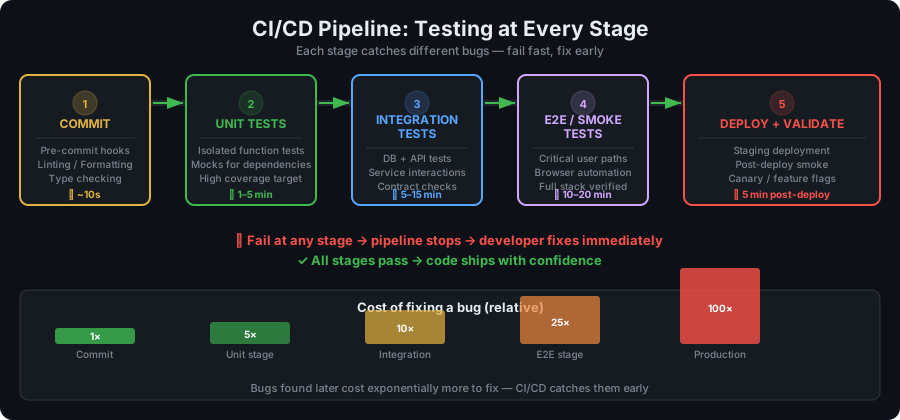
Add HelpMeTest to your pipeline with two commands. The env var is HELPMETEST_API_TOKEN:
# .github/workflows/e2e.yml
name: E2E Tests

on:
  push:
    branches: [main]
  pull_request:

jobs:
  e2e:
    runs-on: ubuntu-latest
    steps:
      - uses: actions/checkout@v4

      - name: Install HelpMeTest CLI
        run: curl -fsSL https://helpmetest.com/install | bash

      - name: Run E2E tests
        run: helpmetest test tag:ci
        env:
          HELPMETEST_API_TOKEN: ${{ secrets.HELPMETEST_API_TOKEN }}

      - name: Report deployment heartbeat
        if: github.ref == 'refs/heads/main'
        run: helpmetest health "production" "30m"
        env:
          HELPMETEST_API_TOKEN: ${{ secrets.HELPMETEST_API_TOKEN }}
helpmetest health "production" "30m" sends a heartbeat to your production health check with a 30-minute grace period. If production stops receiving heartbeats after deployment, HelpMeTest sends an alert.
Setup:
- Settings → API Tokens → create a
github-actionstoken - Add it as
HELPMETEST_API_TOKENin your GitHub repository secrets - Tag tests you want to run in CI with
ci—helpmetest test tag:ciruns them all
Health Checks
Health checks are separate from automated tests. They monitor that something is alive — a server, cron job, deployment pipeline, database backup.
You send a heartbeat on a schedule. If HelpMeTest stops receiving it within the grace period, it alerts you.
From a cron job:
# Every 5 minutes: send heartbeat with 10-minute grace
*/5 * * * * HELPMETEST_API_TOKEN=HELP-xxx helpmetest health <span class="hljs-string">"my-cron-job" <span class="hljs-string">"10m"
From a deployment script:
# After deploying, confirm production is alive
helpmetest health <span class="hljs-string">"production" <span class="hljs-string">"1h"
Check all health check statuses:
helpmetest health
# or
helpmetest status health
The free plan includes unlimited health checks with 5-minute monitoring intervals.
What You Get on the Free Plan
- 10 automated tests — covers your core user flows
- Unlimited health checks — monitor as many services as you want
- 5-minute monitoring intervals
- Email alerts when tests fail or services go down
- CI/CD integration — run tests from any pipeline
No credit card required. Pro is $100/month for unlimited tests and parallel execution.
Frequently Asked Questions
Where are tests stored?
In HelpMeTest's cloud, not in your git repository. You access them via the dashboard, CLI, or through your AI editor. The CLI and MCP connect to the same tests.
What Robot Framework keywords are available?
Search from the CLI:
helpmetest keywords click
helpmetest keywords "fill text"
helpmetest keywords --<span class="hljs-built_in">type libraries
Or ask your AI — it searches keywords automatically before writing test steps.
Can I run tests on a local dev server?
Yes. helpmetest proxy start :3000 creates a public tunnel to your localhost. Tests in the cloud browser can reach it.
Does this replace unit tests?
No. Unit tests verify individual functions in isolation — fast, no browser, runs in your existing test suite. HelpMeTest handles end-to-end tests that drive a real browser through real user flows. They complement each other.
How do I get started?
- Sign up at helpmetest.com — free, no credit card
curl -fsSL https://helpmetest.com/install | bashhelpmetest login— authenticate with your accounthelpmetest install mcp --claude(or--cursor,--claude-desktop)- Ask your AI to write tests for your next feature