Shopify Store Testing for Agencies: The Complete 2026 Guide

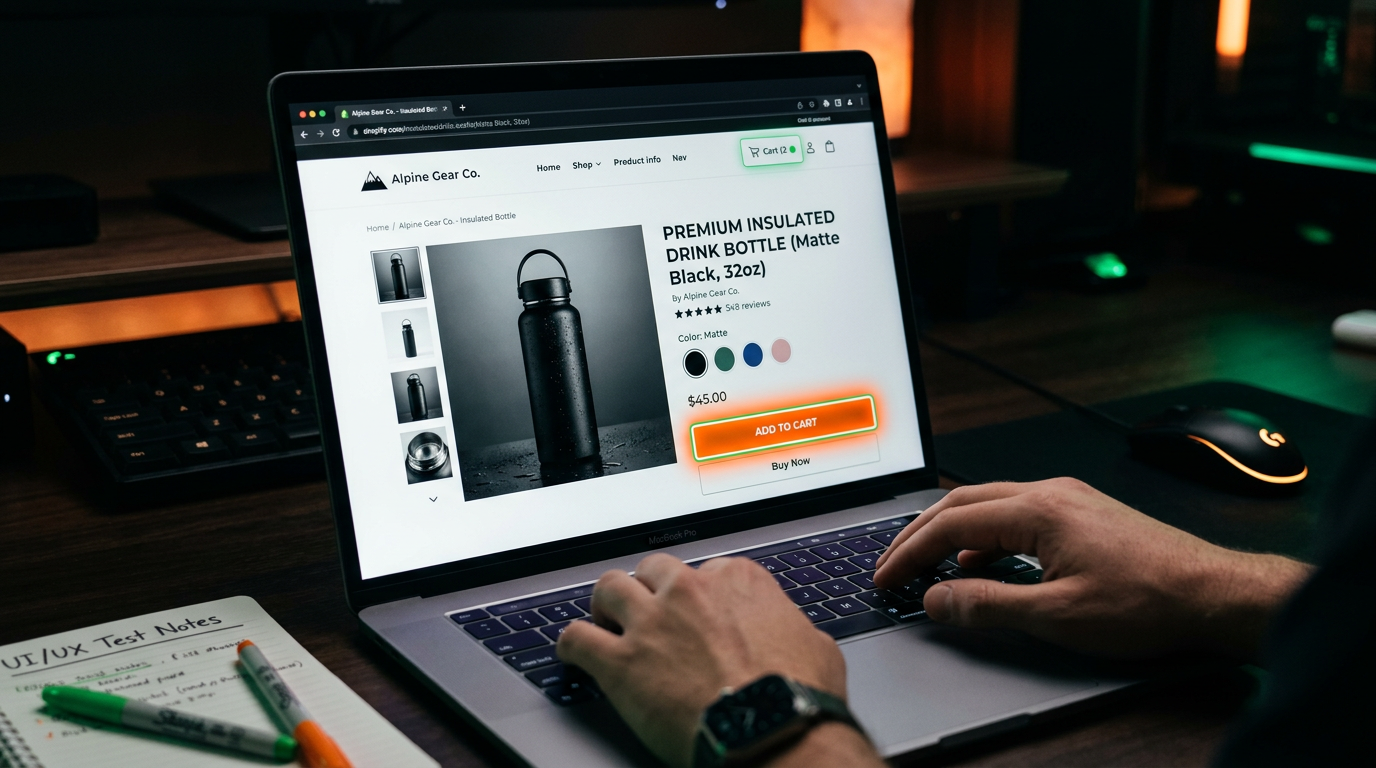
A Shopify theme update ships on a Tuesday morning. It changes the checkout button's class from btn-cart to cart-btn. The button still looks correct. But the app that manages your client's abandoned cart emails can no longer find it — and silently stops tracking. By Friday, checkout abandonment recovery has dropped 40%. The client notices. You find out when they call.
Key Takeaways
Shopify stores break in ways that look fine visually but fail functionally. Theme updates, app conflicts, and third-party script changes can break checkout, cart, and product flows while the store appears completely normal to the naked eye.
The checkout flow is the most critical — and most frequently broken — path in a Shopify store. Agencies that don't have an automated checkout test running daily are flying blind on the most revenue-sensitive part of every e-commerce client's business.
Shopify's automatic updates create a continuous testing obligation. You didn't push any code, but your client's store changed last night. Themes and apps update on Shopify's schedule, not yours.
A complete Shopify testing setup covers 5 areas: checkout, cart, product pages, third-party integrations, and post-purchase flows. Build the full suite once; it runs automatically across all clients from one dashboard.
Every Shopify agency eventually gets this call: "We just realized our checkout hasn't been working since Tuesday. We don't know how many orders we lost."
It's never a single catastrophic failure. It's a theme update that changed a CSS class. An app conflict that manifested after a platform update. A third-party script that started loading after checkout completion instead of before. Shopify stores break in quiet ways — the store looks open for business while a critical path is silently failing.
This guide is for web agencies and Shopify development shops managing multiple client stores. It covers what to test, how to set it up, and how to build the automated monitoring that catches Shopify failures before clients notice.
Why Shopify Stores Break Differently
Shopify stores have a testing problem that custom web apps don't: they update without your involvement.
Shopify pushes platform updates. Theme developers push theme updates. App developers push app updates. Your client installs a new app that conflicts with an existing one. The store you tested perfectly last Friday may behave differently today — and you had nothing to do with it.
This creates a continuous testing obligation. It's not enough to test before launch and assume stability. Shopify stores require ongoing, automated testing because the variables keep changing even when the agency isn't actively working on the site.
The failure modes are also more complex than a standard website:
Theme update regressions — Shopify themes update frequently. Each update can change CSS selectors, JavaScript behavior, or HTML structure that other components depend on. A checkout button that worked yesterday may have a new class name today.
App conflicts — The average Shopify store has 6-8 installed apps. When two apps modify the same page element (say, both trying to inject content into the cart drawer), they can conflict in ways that break functionality without throwing errors.
Third-party script failures — Review widgets, loyalty programs, chat tools, and upsell apps all inject JavaScript into the storefront. When their CDN goes down or they push a breaking update, your client's store can fail in unpredictable ways.
Checkout extension conflicts — Shopify Checkout Extensibility allows customizations that can interact with each other in unexpected ways. As more merchants adopt checkout extensions, the surface area for conflicts grows.
Inventory and metafield display — Product pages that depend on dynamic metafields or inventory-based display logic can render incorrectly when data structures change.
The 5 Areas Every Shopify Store Needs Tested
1. Checkout Flow (Critical — Test Daily)
The checkout is the revenue engine. A broken checkout is a silent revenue leak. This test should run every day, without exception.
What to test:
- Add a product to cart from a product page
- Proceed to checkout (verify the checkout page loads)
- Enter shipping information
- Select a shipping method
- Enter payment information (use Stripe test card in a staging/test environment, or confirm with Bogus Gateway for dev/test stores)
- Complete the order
- Verify order confirmation page appears with order number
- Verify order confirmation email arrives
What commonly breaks:
- Cart button stops adding to cart (JavaScript error from app conflict)
- Checkout redirect fails (theme update broke the redirect URL format)
- Shipping methods don't load (carrier API timeout or integration failure)
- Payment form renders incorrectly (Checkout Extensibility conflict)
- Order confirmation page shows blank content (template error)
The checkout test is the single most important test in a Shopify testing suite. If you have bandwidth for only one automated test per client store, this is it.
2. Cart Functionality (High Priority — Test Every 2 Days)
Cart failures are distinct from checkout failures. The cart can accept items while checkout fails, or cart functionality can break while checkout still works for customers who navigate directly.
What to test:
- Add item to cart from collection page
- Add item to cart from product page
- Verify cart count updates in header
- Open cart drawer or navigate to cart page
- Update quantity in cart
- Remove item from cart
- Verify cart total updates correctly
- Apply a discount code and verify discount is applied
What commonly breaks:
- Cart drawer doesn't open (JavaScript conflict from app update)
- Cart count doesn't update (shop theme update changed expected element)
- Quantity update fails (third-party app intercepting form submission)
- Discount code field not present (checkout extension change)
3. Product Pages (Medium Priority — Test Weekly)
Product page failures affect conversion before a customer ever reaches checkout. These are often subtle — a broken product image gallery, a missing review widget, a "Sold Out" button that appears even when inventory is available.
What to test:
- Product page loads correctly for a featured product
- Product images load and gallery navigation works
- Product variants (size, color, etc.) can be selected
- Selected variant updates price correctly
- "Add to Cart" button is present and not blocked by other elements
- Product reviews widget renders (if applicable)
- Metafield-based content displays correctly (if used)
What commonly breaks:
- Variant selector breaks after theme update
- Product image gallery stops working after a lazy-load library update
- Review app stops rendering (CDN issue or app update)
- Out-of-stock variants not properly marked (inventory sync issue)
4. Third-Party App Integrations (Medium Priority — Test Weekly)
Apps are the most common source of Shopify store failures that pass visual inspection. The store looks fine; an app is silently broken.
Critical apps to test for each client:
- Abandoned cart email — Trigger the abandoned cart flow (add to cart, start checkout, don't complete). Verify the abandonment is tracked in the app's dashboard within 30 minutes.
- Product reviews — Verify reviews render on a product page and new review submission works.
- Loyalty/rewards — If applicable, verify loyalty points display correctly for logged-in customers.
- Upsell/cross-sell — Verify upsell offers appear at the correct stage of checkout.
- Inventory sync — If inventory is synced from an external system, verify a test product's inventory level matches between systems.
These tests require client-specific configuration (knowing which apps are installed and how they're supposed to behave). Document the expected behavior for each client's critical apps during onboarding.
5. Post-Purchase Flows (Lower Priority — Test Monthly)
Post-purchase failures don't prevent orders, but they break the customer experience and can create serious support burdens.
What to test:
- Order confirmation email format and content
- Order status page (accessible via the link in confirmation email)
- Account order history (for stores with accounts enabled)
- Return/refund request initiation (if applicable)
- Loyalty points awarded post-purchase (if applicable)
Setting Up Automated Shopify Testing
The Challenge: Shopify's Test Environment
Shopify doesn't have a native staging environment for all plans. For testing checkout on a live store, agencies typically use one of:
- Shopify's Bogus Gateway (development/test stores) — fake payment method that completes checkout without a real charge
- Stripe test mode — test card numbers that simulate successful and failed transactions
- A separate test store — a duplicate store used for automated testing (costs an extra Shopify plan fee)
The Bogus Gateway approach is the most practical for agencies running automated daily tests on client stores without incurring real charges. Note that Bogus Gateway is only available on development stores — for live stores, you'll need to use Stripe's test mode or arrange a test product at $0.01 with a Stripe test card and immediate refund.
Document which payment method your automated tests use for each client, and confirm with the client that running test transactions is acceptable.
Building the Test Suite
For each Shopify client, the automated test suite should cover at minimum:
- Daily: Checkout flow (critical path)
- Daily: Homepage availability and product page load
- Every 2 days: Cart add-to-cart flow
- Weekly: Full product page functional test
- Weekly: Key app integration tests
With HelpMeTest, building these tests starts with describing the flow in plain language — the AI reads the page, maps the Shopify-specific elements (the cart button, the checkout redirect, the payment form), and writes the test steps automatically. For a standard Shopify checkout test, setup takes 15-20 minutes per client store.
The tests run in a real cloud browser with no local setup required. Test results include per-step screenshots, so when a checkout fails you can see exactly which step broke and what the page looked like at that moment.
Handling Shopify's Dynamic Elements
Shopify themes use dynamic CSS classes and JavaScript that can change with updates. Build tests that target stable, semantic elements rather than class names:
Fragile selectors to avoid:
.btn--add-to-cart-6d8f2(auto-generated class names)#checkout-btn-v2(version-dependent IDs)
Stable selectors to use:
[data-testid="add-to-cart"](if the theme has data-testid attributes)button:has-text("Add to cart")(text-based, survives class changes)form[action="/cart/add"] button[type="submit"](structural, semantic)input[name="checkout"](form field based)
Self-healing tests further reduce maintenance — when a selector changes after a theme update, the AI detects the failure, maps the new element, and updates the test automatically.
Alert Configuration for E-Commerce
Checkout failures need different alert handling than uptime issues. Configure alerts for Shopify client stores with:
- Checkout failure → immediate alert, regardless of time. This is revenue impact.
- Cart failure → same-day alert, business hours response acceptable
- Product page failure → next-day alert, standard priority
- App integration failure → weekly report unless client-critical
Route checkout alerts to a separate, higher-priority channel from general monitoring alerts. When a checkout test fails at 2am, someone needs to see it.
Shopify-Specific Testing Scenarios
After a Theme Update
When a client's Shopify theme updates (either auto-update or manual), run the full test suite immediately — don't wait for the scheduled run. Theme updates are the single most common trigger for Shopify functionality regressions.
Recommended: configure your testing platform to notify you when a theme update is detected, and trigger an immediate regression run.
After New App Installation
Document the app installation date in the client's test log. Run the full suite within 24 hours of any new app being installed. New apps frequently conflict with existing functionality, and the sooner you catch it, the easier it is to attribute to the new install.
Before Peak Traffic Periods
For e-commerce clients with seasonal traffic peaks (Black Friday, product launches, sale events), run a full suite manually 48 hours before the event. Fix any failing tests before traffic spikes. A broken checkout during a sale event is catastrophic.
Testing Mobile Checkout
70%+ of Shopify traffic is mobile. The checkout flow should be tested at mobile viewport (375px) weekly. Shopify's native checkout is well-optimized for mobile, but third-party checkout extensions and custom themes introduce mobile-specific failure modes.
Managing Shopify Testing Across Multiple Clients
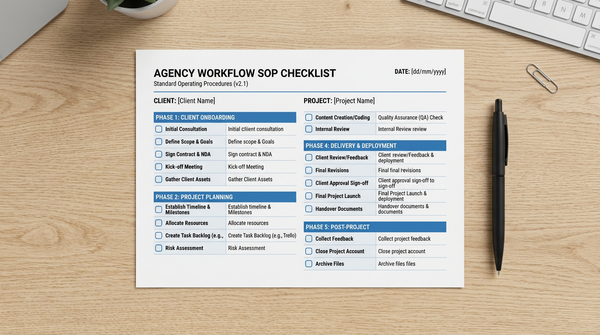
The process for testing multiple websites applies to Shopify portfolios, with Shopify-specific additions:
Template the standard suite. Every Shopify client starts with the same base: checkout test, cart test, homepage load, product page load. Then add client-specific tests for their specific apps and flows.
Document each client's critical apps. During onboarding, record which apps are installed and which ones are business-critical. This becomes the app integration testing checklist for that client.
Track theme versions. Record the current theme version for each client. When theme updates deploy, you have a baseline to compare against.
Include Shopify in the agency QA workflow. The agency QA workflow with its pre-launch and monitoring phases applies directly to Shopify — add Shopify-specific checklist items (payment gateway mode, app integration verification) to the standard template.
The ROI Case for Shopify Testing
The business case for investing in Shopify testing is straightforward. Consider a client running a Shopify store with $50,000/month in revenue.
A broken checkout running undetected for 3 days costs approximately $5,000 in lost orders (assuming the checkout failure affects 100% of attempted transactions — a realistic worst case). An automated daily checkout test that costs $3/month in platform fees catches this failure within 24 hours, limiting the damage to $1,600.
More importantly: the client relationship impact. An agency that catches checkout failures and fixes them silently retains clients. An agency that finds out when the client calls loses them. Client acquisition in agency services costs $2,000-$15,000 — far more than any testing investment.
For the agency QA automation story: one Shopify agency managing 15 client stores can cover all of them with automated daily checkout testing for $100/month total (HelpMeTest Pro) plus 2-3 hours of initial setup per store. The math is not close.
FAQ
Can you test Shopify checkout without using real payment methods?
Yes. For development/test stores, Shopify's Bogus Gateway simulates a complete checkout without real charges. For live stores, use Stripe's test mode with test card numbers — run the test transaction and configure it to immediately void/refund. Document which method your automated tests use for each client to avoid accidental live charges.
How do you handle Shopify stores with age verification or geographic restrictions?
Browser state persistence lets you save the authenticated or age-verified state once and reuse it across all tests. Authenticate, complete the age verification, save the browser state as "VerifiedUser" — all subsequent tests use that state and skip the verification step.
What happens when Shopify rolls out a new checkout version?
Major Shopify platform changes (like the rollout of Checkout Extensibility) require a test suite review. Run your tests manually after a platform update announcement, check for failures, and update selectors that changed. Self-healing tests handle minor selector changes automatically; major structural changes require manual review.
How often should you update Shopify test suites?
Review each client's test suite quarterly and after any major platform change. The checkout test should be stable for months with self-healing enabled. Product page and app integration tests may need updates after theme updates or app changes.
Can you test Shopify Markets or multi-currency stores?
Yes. Test each market's checkout separately — add a test per primary market (e.g., USD checkout and EUR checkout). Use browser geolocation settings or explicit country selectors to simulate each market. Multi-currency stores have an additional failure mode: currency conversion can fail silently if the currency API is down.
What's the minimum test set for a Shopify client with limited budget?
One automated daily checkout test covers the highest-risk failure mode. If budget allows only one test per client store, make it the checkout flow from "add to cart" through "order confirmation page." Everything else — product pages, apps, post-purchase — can fall back to weekly manual review.
Summary
Shopify stores break differently than custom web apps because they update continuously without agency involvement. The testing obligation doesn't end at launch — it's ongoing, driven by Shopify's update cycle.
A complete Shopify testing setup covers 5 areas: checkout (daily), cart (every 2 days), product pages (weekly), app integrations (weekly), and post-purchase flows (monthly). The checkout test is non-negotiable — it's the most critical path and the most frequently broken.
Agencies that build this testing layer catch failures before clients notice, retain accounts longer, and have the data to justify their retainers.
Set up automated Shopify checkout testing for your client portfolio — unlimited client stores, one dashboard, starts free.