REST Client and .http Files: API Testing Directly in VS Code
Every development team has some informal way of documenting API calls. Slack messages with curl commands.

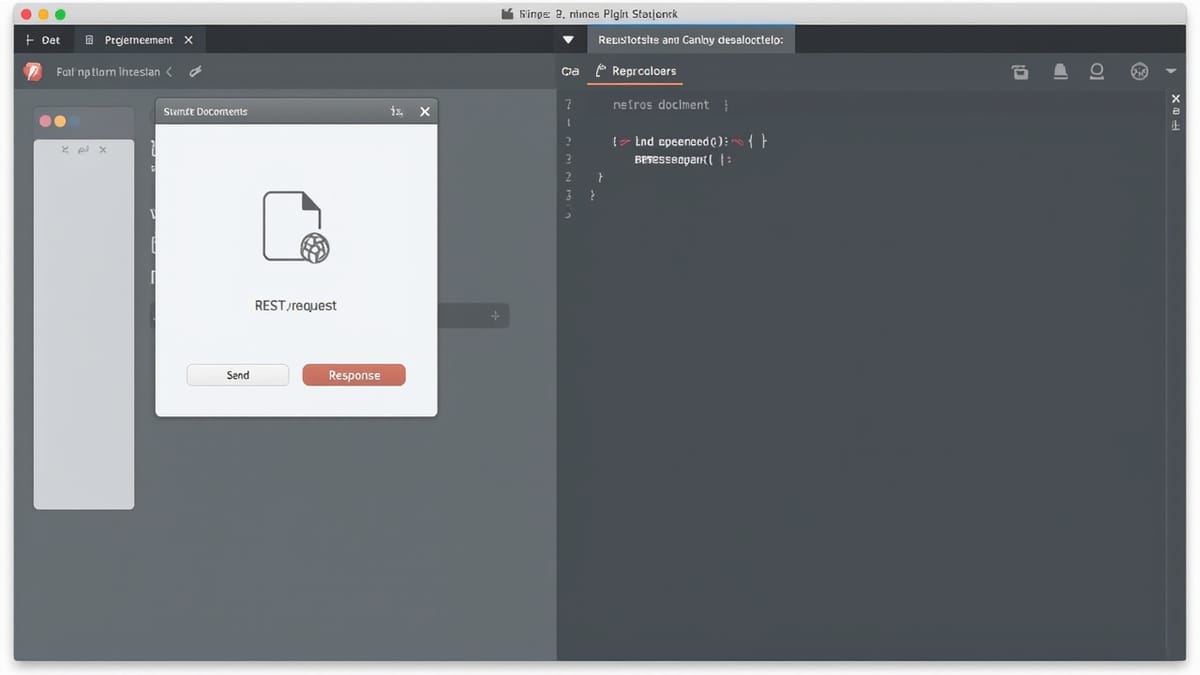
Every development team has some informal way of documenting API calls. Slack messages with curl commands. Postman collections that live on one person's laptop. A wiki page with example requests that went stale three sprints ago. None of these are good solutions.
The VS Code REST Client extension and the .http file format offer something better: API requests as plain text files, committed to your repository, readable by anyone, and executable with a single click inside the editor. No separate application, no JSON collections, no account required.
This post covers everything you need to know about .http files — the format, what the REST Client extension adds to it, practical patterns for real projects, and how to get value from it in CI.
What Is the REST Client Extension?
The VS Code REST Client extension (by Huachao Mao, also called humao.rest-client) adds the ability to send HTTP requests directly from .http or .rest files in VS Code. You write requests in a plain-text format that mirrors actual HTTP syntax, and a "Send Request" code lens appears above each one. Click it, and the response appears in a split panel.
It is one of the most-installed VS Code extensions for good reason: the learning curve is almost zero for anyone who knows HTTP, there is nothing to install beyond the extension, and the files live naturally in version control.
The .http File Format
The format is straightforward. Each request is separated by ###. A request starts with the HTTP method and URL, followed by optional headers, a blank line, and an optional body:
### Health check
GET https://api.example.com/health
Accept: application/json

### Get all users
GET https://api.example.com/users
Authorization: Bearer my-api-token
Accept: application/json

### Create a user
POST https://api.example.com/users
Content-Type: application/json
Authorization: Bearer my-api-token

{
  "name": "Alice Chen",
  "email": "alice@example.com",
  "role": "developer"
}

### Update a user
PUT https://api.example.com/users/42
Content-Type: application/json
Authorization: Bearer my-api-token

{
  "name": "Alice Chen-Williams",
  "role": "senior-developer"
}

### Delete a user
DELETE https://api.example.com/users/42
Authorization: Bearer my-api-tokenThe ### separator is required between requests. The comment text after ### becomes the request name, which appears in the response panel and in the request history.
Variables
Hard-coding URLs and tokens in .http files makes them environment-specific and leaks secrets into version control. REST Client supports three types of variables to address this.
File-scoped variables — defined at the top of the file with @:
@baseUrl = https://api.example.com
@token = my-api-token

### Get user
GET {{baseUrl}}/users/1
Authorization: Bearer {{token}}These are convenient for quick local testing but not suitable for multiple environments or secrets.
Environment variables — defined in VS Code settings (settings.json):
{
  "rest-client.environmentVariables": {
    "$shared": {
      "version": "v1"
    },
    "local": {
      "baseUrl": "http://localhost:3000",
      "token": "local-dev-token"
    },
    "staging": {
      "baseUrl": "https://api.staging.example.com",
      "token": "staging-token-redacted"
    },
    "production": {
      "baseUrl": "https://api.example.com",
      "token": "prod-token-redacted"
    }
  }
}Switch environments using the VS Code command palette (REST Client: Switch Environment) or the status bar. The $shared section applies to all environments.
System variables — built-in dynamic values:
### Create timestamped entry
POST {{baseUrl}}/logs
Content-Type: application/json

{
  "timestamp": "{{$datetime iso8601}}",
  "requestId": "{{$guid}}",
  "random": {{$randomInt 1 100}},
  "date": "{{$localDatetime 'YYYY-MM-DD'}}"
}Available system variables include $guid (UUID v4), $timestamp (Unix timestamp), $datetime (formatted datetime), $randomInt, and $processEnv (reads from actual OS environment variables).
The $processEnv variable is how you keep secrets out of settings files:
@token = {{$processEnv API_TOKEN}}

### Authenticated request
GET {{baseUrl}}/protected
Authorization: Bearer {{token}}Request Chaining with Variables
REST Client supports extracting values from responses and using them in subsequent requests within the same file. This requires the @name decorator:
### Step 1: Login
# @name loginRequest
POST {{baseUrl}}/auth/login
Content-Type: application/json

{
  "email": "test@example.com",
  "password": "{{$processEnv TEST_PASSWORD}}"
}

### Step 2: Get profile using token from step 1
GET {{baseUrl}}/me
Authorization: Bearer {{loginRequest.response.body.access_token}}

### Step 3: Create resource
# @name createProduct
POST {{baseUrl}}/products
Content-Type: application/json
Authorization: Bearer {{loginRequest.response.body.access_token}}

{
  "name": "Test Product",
  "price": 29.99
}

### Step 4: Verify created resource
GET {{baseUrl}}/products/{{createProduct.response.body.id}}
Authorization: Bearer {{loginRequest.response.body.access_token}}The {{requestName.response.body.field}} syntax lets you reference any field from a named request's response body. This is powerful for testing flows where each step depends on the previous one.
You can also reference response headers:
GET {{baseUrl}}/resource/{{createProduct.response.body.id}}
ETag: {{createProduct.response.headers.ETag}}Multipart and Form Data
REST Client handles multipart forms and URL-encoded bodies cleanly:
### Upload file (multipart)
POST {{baseUrl}}/uploads
Content-Type: multipart/form-data; boundary=boundary

--boundary
Content-Disposition: form-data; name="description"

Product screenshot
--boundary
Content-Disposition: form-data; name="file"; filename="screenshot.png"
Content-Type: image/png

< ./fixtures/screenshot.png
--boundary--

### URL-encoded form
POST {{baseUrl}}/auth/token
Content-Type: application/x-www-form-urlencoded

grant_type=client_credentials&client_id={{clientId}}&client_secret={{$processEnv CLIENT_SECRET}}The < ./path/to/file syntax reads file contents inline — useful for binary uploads or large JSON fixtures you want to keep in separate files.
GraphQL Requests
REST Client supports GraphQL with a dedicated format:
### GraphQL query
POST {{baseUrl}}/graphql
Content-Type: application/json
Authorization: Bearer {{token}}

{
  "query": "query GetUser($id: ID!) { user(id: $id) { name email createdAt } }",
  "variables": {
    "id": "42"
  }
}Or using the graphql body type shorthand:
### GraphQL query (shorthand)
POST {{baseUrl}}/graphql
Content-Type: application/graphql
Authorization: Bearer {{token}}

query GetUser($id: ID!) {
  user(id: $id) {
    name
    email
    createdAt
  }
}Organizing .http Files in a Project
For small projects, a single api.http file at the root works. For larger projects, organize by resource or domain:
api-tests/
├── environments.json       # or use settings.json
├── auth.http               # login, logout, token refresh
├── users.http              # CRUD for users
├── products.http           # product endpoints
├── orders.http             # order flow
├── webhooks.http           # webhook trigger tests
└── fixtures/
    ├── create-user.json    # reusable request bodies
└── test-image.png # binary fixturesReferencing external fixture files keeps request bodies out of the .http file when they get large:
### Create user from fixture
POST {{baseUrl}}/users
Content-Type: application/json
Authorization: Bearer {{token}}

< ./fixtures/create-user.jsonLimitations to Know
REST Client is excellent for interactive API exploration and documentation-as-code. It has real limitations for test automation:
No assertion syntax — REST Client has no built-in way to assert that a response field equals an expected value. You read the response visually, which works for exploration but does not catch regressions automatically.
No CLI runner — you cannot run .http files headlessly from the command line without a separate tool. This limits CI integration.
No loops or conditionals — the format is declarative; complex logic requires external tooling.
Settings coupling — environment variables in settings.json mean developers need to keep their VS Code settings synchronized, which is not always practical.
For teams that need assertion-based testing and CI integration, the .http file format is a starting point that tools like httpyac and Hurl extend. httpyac reads .http files and adds scripting, assertions, and a CLI runner while keeping full compatibility.
Making .http Files Work in CI
While REST Client itself has no CLI, you have two paths to CI integration:
Path 1: Use httpyac CLI — httpyac reads the same .http format and adds a CLI runner. Install it as a dev dependency and run your existing .http files without changes:
npm install --save-dev httpyac
npx httpyac run api-tests/**/*.http --env stagingPath 2: Generate curl commands — REST Client can copy a request as curl from the right-click context menu. While not scalable for large suites, this works for embedding a few critical smoke test calls in a CI script.
For teams already using REST Client extensively, Path 1 is the natural evolution — you get assertions and CI without rewriting your test files.
VS Code Features Worth Using
Request history — Every sent request appears in the history panel (REST Client: Show Request History). You can replay any past request or copy it back into a file.
Cookie management — REST Client persists cookies across requests to the same domain within a session, which is useful for testing session-based APIs.
Response comparison — Open two response panels and compare outputs side by side using VS Code's built-in diff view.
Custom output location — Configure where responses are saved: "rest-client.previewResponseInUntitledDocument": true opens responses in a new tab instead of the side panel, making it easier to inspect long responses.
Where .http Files Fit in Your Testing Strategy
REST Client .http files are most valuable as living API documentation — request examples that stay current because they live in the same repository as the code they test. Every endpoint you add to the API gets a corresponding example in the .http files. New team members can understand the API surface by reading the files, not just API docs that may be out of date.
For automated regression testing, you need assertions. That is where you either extend with httpyac or reach for a dedicated test runner. For end-to-end user journey testing that goes beyond API calls — verifying that the UI correctly handles API responses, testing complete flows in a browser — tools like HelpMeTest cover what .http files cannot. HelpMeTest generates Robot Framework and Playwright tests from natural language descriptions, running browser-level tests continuously in the cloud. HelpMeTest uses usage-based pricing, $0.003/run, no base fee. Used alongside your .http file library, you get API-level documentation and UI-level automation without managing two separate tool stacks.
Getting Started
Install the extension from the VS Code marketplace (search "REST Client" by Huachao Mao, extension ID humao.rest-client), create a file named api.http in your project root, and write your first request:
### Test your API
GET https://api.example.com/healthClick "Send Request" above the line. The response appears in a panel to the right. From there, build out the full API surface one endpoint at a time.
Commit the .http files to version control. Add them to your PR review process — when API behavior changes, the corresponding .http examples should update too. Over time, you accumulate an accurate, executable API reference that lives right where your code does.
Conclusion
The REST Client extension and .http files solve a specific problem elegantly: they give teams a standard, version-controlled format for HTTP API documentation and exploration that anyone can use without installing additional tools. The format is readable, the extension is frictionless, and the files serve as both documentation and executable examples.
For teams that want to go further — adding assertions, running tests in CI, or testing complex authentication flows — the .http format is a foundation that more powerful tools like httpyac can build on. Start with REST Client for the quick wins, and evolve toward a fuller testing setup as your needs grow.