Puppeteer Python: How to Use Pyppeteer for Browser Automation

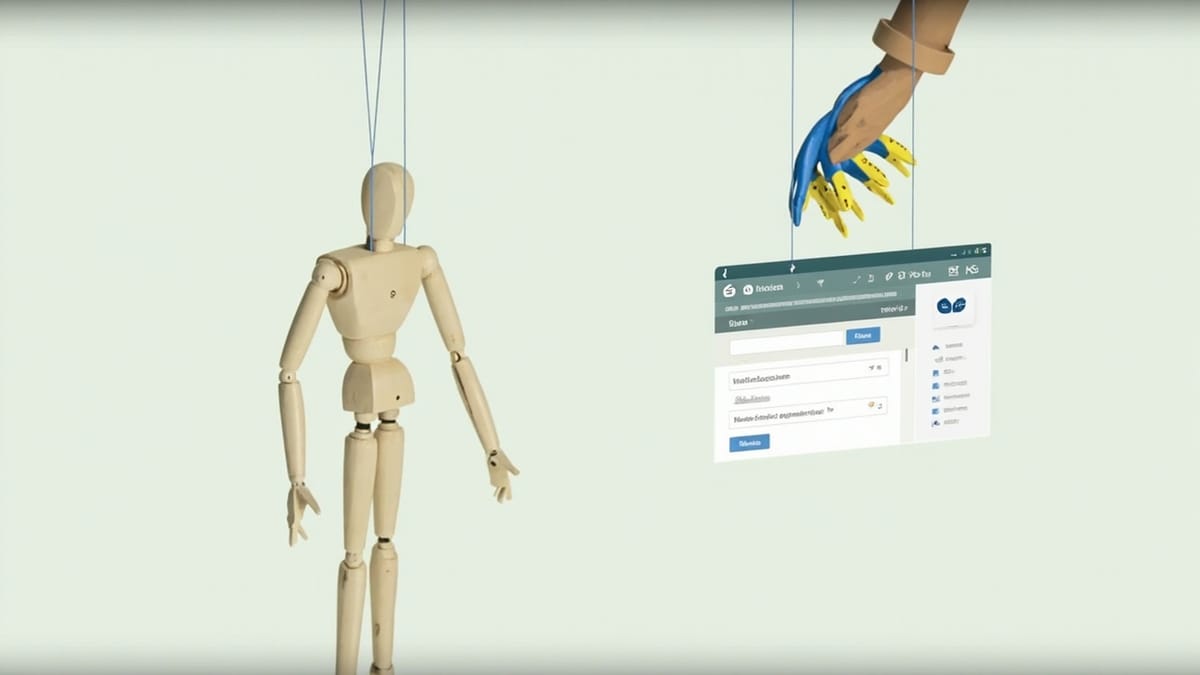
Puppeteer is a Node.js library, but Python developers can use Pyppeteer — an unofficial Python port. This guide covers installation, common automation tasks, and the gotchas you'll hit with Pyppeteer. If you need production-grade browser automation in Python, Playwright is the better-maintained choice.
Key Takeaways
Pyppeteer is Puppeteer ported to Python. It's not officially maintained by the Puppeteer team — it's a community port. Expect occasional version drift and API quirks compared to the Node.js original.
Playwright is the better Python choice in 2026. Microsoft actively maintains Playwright's Python SDK. It has the same API as its Node.js version, better async support, and first-class Python documentation.
Both Pyppeteer and Playwright use Chromium. The browser automation capabilities are similar — screenshots, scraping, form filling, JavaScript execution, intercepting requests.
Async is mandatory. Both Pyppeteer and Playwright's Python APIs are async-first. You need asyncio and async/await. There's no blocking API to fall back on (Playwright has a sync version, Pyppeteer doesn't).
For test automation, use a dedicated tool. Browser automation code written for scraping tends to be fragile. For testing web applications, tools like HelpMeTest generate and maintain tests automatically — no selector code to maintain.
What Is Puppeteer Python (Pyppeteer)?
Puppeteer is Google's Node.js library for controlling headless Chrome. Pyppeteer is a Python port that mirrors the Puppeteer API, letting Python developers use Chrome automation without switching to Node.js.
Pyppeteer gives you:
- Headless or headed Chrome/Chromium control
- Screenshot and PDF generation
- Web scraping with JavaScript support
- Form submission and click automation
- Network request interception
- JavaScript execution in the page context
Why Python developers look for "Puppeteer Python": Most Puppeteer tutorials are in Node.js. Python developers often search for a Python equivalent, and Pyppeteer is the direct answer — though Playwright has become the more popular choice.
Installing Pyppeteer
pip install pyppeteerPyppeteer downloads Chromium automatically on first run:
import asyncio
from pyppeteer import launch

async def main():
    browser = await launch()
    page = await browser.newPage()
    await page.goto("https://example.com")
    print(await page.title())
    await browser.close()

asyncio.run(main())On first run, this downloads a compatible Chromium binary (~150MB). Subsequent runs use the cached version.
Install with headless=False for debugging:
browser = await launch(headless=False) # Opens a visible browser windowCommon Automation Tasks
Taking Screenshots
import asyncio
from pyppeteer import launch

async def screenshot():
    browser = await launch(headless=True)
    page = await browser.newPage()

    # Set viewport size
    await page.setViewport({"width": 1280, "height": 720})

    await page.goto("https://example.com")

    # Full page screenshot
    await page.screenshot({"path": "full-page.png", "fullPage": True})

    # Clip to specific area
    await page.screenshot({
        "path": "clipped.png",
        "clip": {"x": 0, "y": 0, "width": 800, "height": 400}
    })

    await browser.close()

asyncio.run(screenshot())Scraping Dynamic Content
Pyppeteer loads the full page including JavaScript, so it can scrape content that BeautifulSoup can't see:
import asyncio
from pyppeteer import launch

async def scrape_spa():
    browser = await launch(headless=True)
    page = await browser.newPage()

    await page.goto("https://example-spa.com/products", {
        "waitUntil": "networkidle0"  # Wait for no network activity
    })

    # Wait for React/Vue/Angular to render
    await page.waitForSelector(".product-card")

    # Extract data via JavaScript
    products = await page.evaluate("""
        () => {
            const cards = document.querySelectorAll('.product-card');
            return Array.from(cards).map(card => ({
                name: card.querySelector('.name')?.innerText || '',
                price: card.querySelector('.price')?.innerText || '',
            }));
        }
    """)

    print(products)
    await browser.close()

asyncio.run(scrape_spa())Filling Forms and Submitting
import asyncio
from pyppeteer import launch

async def fill_form():
    browser = await launch(headless=True)
    page = await browser.newPage()

    await page.goto("https://example.com/login")

    # Type into form fields
    await page.type('input[name="email"]', "user@example.com")
    await page.type('input[name="password"]', "secretpassword")

    # Click submit button
    await page.click('button[type="submit"]')

    # Wait for navigation after login
    await page.waitForNavigation()

    print(f"After login, URL is: {page.url}")
    await browser.close()

asyncio.run(fill_form())Clicking and Navigating
import asyncio
from pyppeteer import launch

async def navigate():
    browser = await launch(headless=True)
    page = await browser.newPage()

    await page.goto("https://example.com")

    # Click a link
    await page.click("a.read-more")
    await page.waitForNavigation()

    # Click by text content (using evaluate)
    await page.evaluate("""
        () => {
            const links = Array.from(document.querySelectorAll('a'));
            const target = links.find(a => a.textContent.includes('Contact'));
            if (target) target.click();
        }
    """)

    await page.waitForNavigation()
    print(page.url)

    await browser.close()

asyncio.run(navigate())Waiting for Elements
Pyppeteer's waiting API is similar to Puppeteer's:
import asyncio
from pyppeteer import launch

async def wait_examples():
    browser = await launch(headless=True)
    page = await browser.newPage()

    await page.goto("https://example.com")

    # Wait for a CSS selector to appear
    await page.waitForSelector(".loading-spinner", {"hidden": True})  # Wait until hidden

    # Wait for element to be visible
    element = await page.waitForSelector(".content", {"visible": True})

    # Wait for navigation
    await page.click("a.next-page")
    await page.waitForNavigation({"waitUntil": "networkidle0"})

    # Wait for a function to return true
    await page.waitForFunction("() => document.title !== 'Loading...'")

    # Custom timeout (default is 30 seconds)
    await page.waitForSelector(".slow-element", {"timeout": 60000})

    await browser.close()

asyncio.run(wait_examples())Intercepting Network Requests
import asyncio
from pyppeteer import launch

async def intercept_requests():
    browser = await launch(headless=True)
    page = await browser.newPage()

    # Enable request interception
    await page.setRequestInterception(True)

    async def handle_request(request):
        # Block image and font requests to speed up scraping
        if request.resourceType in ["image", "font", "stylesheet"]:
            await request.abort()
        else:
            await request.continue_()

    page.on("request", lambda req: asyncio.ensure_future(handle_request(req)))

    await page.goto("https://example.com")
    content = await page.content()

    print(f"Page loaded without images, HTML length: {len(content)}")
    await browser.close()

asyncio.run(intercept_requests())Generating PDFs
import asyncio
from pyppeteer import launch

async def generate_pdf():
    browser = await launch(headless=True)
    page = await browser.newPage()

    await page.goto("https://example.com/report", {"waitUntil": "networkidle0"})

    await page.pdf({
        "path": "report.pdf",
        "format": "A4",
        "printBackground": True,
        "margin": {
            "top": "20mm",
            "right": "15mm",
            "bottom": "20mm",
            "left": "15mm"
        }
    })

    await browser.close()
    print("PDF saved")

asyncio.run(generate_pdf())Handling Multiple Pages / Tabs
import asyncio
from pyppeteer import launch

async def multiple_pages():
    browser = await launch(headless=True)

    # Open multiple pages in parallel
    pages = await asyncio.gather(
        browser.newPage(),
        browser.newPage(),
        browser.newPage()
    )

    # Navigate all three at once
    await asyncio.gather(
        pages[0].goto("https://example.com/page1"),
        pages[1].goto("https://example.com/page2"),
        pages[2].goto("https://example.com/page3"),
    )

    # Extract titles from all pages
    titles = await asyncio.gather(*[p.title() for p in pages])
    print(titles)

    await browser.close()

asyncio.run(multiple_pages())Pyppeteer vs Playwright Python: Which to Use?
In 2026, Playwright is the better choice for most new Python browser automation projects. Here's why:
| Pyppeteer | Playwright (Python) | |
|---|---|---|
| Maintainer | Community port | Microsoft (official) |
| Python support | Primary use case | First-class SDK |
| Documentation | Sparse, follow Node.js docs | Full Python docs |
| Async API | Async only | Both sync and async |
| Browser support | Chromium only | Chrome, Firefox, WebKit |
| Version alignment | Lags behind Puppeteer | Always current |
| Test framework integration | Manual | Built-in pytest-playwright |
| Element waiting | Manual waits | Auto-waiting |
| Community | Smaller | Larger, growing |
When Pyppeteer still makes sense:
- You're maintaining existing Pyppeteer code
- You're following a Puppeteer Node.js tutorial and want Python parity
- Your team is more familiar with the Pyppeteer API
When to use Playwright instead:
- Starting a new project
- You need Firefox or WebKit support
- You want official documentation and support
- You're building test automation (use
pytest-playwright)
The Same Example in Playwright Python
Here's the scraping example from above, rewritten in Playwright:
from playwright.sync_api import sync_playwright

def scrape_products():
    with sync_playwright() as p:
        browser = p.chromium.launch(headless=True)
        page = browser.new_page()

        page.goto("https://example-spa.com/products")
        page.wait_for_selector(".product-card")

        products = page.evaluate("""
            () => {
                const cards = document.querySelectorAll('.product-card');
                return Array.from(cards).map(card => ({
                    name: card.querySelector('.name')?.innerText || '',
                    price: card.querySelector('.price')?.innerText || '',
                }));
            }
        """)

        print(products)
        browser.close()

scrape_products()Playwright's sync API (no asyncio needed) is often cleaner for simple scripts.
Common Pyppeteer Issues and Fixes
Issue: Chromium Download Fails
pyppeteer.errors.BrowserError: Browser closed unexpectedlyFix — manually specify a Chromium path or set the revision:
import os
os.environ["PYPPETEER_CHROMIUM_REVISION"] = "1263111"

# Or use an existing Chrome installation
browser = await launch(executablePath="/usr/bin/google-chrome")Issue: Timeout Errors
pyppeteer.errors.TimeoutError: Navigation timeout of 30000 ms exceededFix — increase the default timeout:
# Increase navigation timeout
await page.goto(url, {"timeout": 60000})

# Increase default timeout for all operations
page.setDefaultNavigationTimeout(60000)
page.setDefaultTimeout(30000)Issue: Running in Docker / CI
Headless Chrome in Docker needs sandbox flags disabled:
browser = await launch(
    headless=True,
    args=[
        "--no-sandbox",
        "--disable-setuid-sandbox",
        "--disable-dev-shm-usage",
        "--disable-gpu",
    ]
)Issue: Page Crashes on Complex Sites
pyppeteer.errors.NetworkError: Protocol error (Target.activateTarget)This often happens on memory-intensive pages. Increase the shared memory size in Docker:
docker run --shm-size=2gb your-imageOr disable the crash-prone /dev/shm usage:
args=["--disable-dev-shm-usage"]Using Pyppeteer for Testing
Browser automation code can be used for testing — loading pages, filling forms, and asserting content. But scraping-style code tends to be fragile for tests:
The problem with raw Pyppeteer tests:
- Selectors break when UI changes
- Timing issues cause flaky failures
- No test reporting or history
- No CI integration out of the box
- No self-healing when the app updates
Example fragile test:
async def test_login():
    browser = await launch(headless=True)
    page = await browser.newPage()
    await page.goto("https://app.example.com/login")
    await page.type("#email", "test@example.com")  # Breaks if ID changes
    await page.type("#password", "password123")
    await page.click(".login-btn")               # Breaks if class changes
    await page.waitForNavigation()
    assert "/dashboard" in page.url
await browser.close()The AI alternative: HelpMeTest lets you write the same test in plain English:
*** Test Cases ***
User Can Log In
    Go To       https://app.example.com/login
    Fill In     Email     test@example.com
    Fill In     Password  password123
    Click       Log In
Should Be On /dashboardHelpMeTest:
- Runs in a cloud browser (no local Chromium setup)
- Self-heals selectors when the UI changes
- Provides test history and failure recordings
- Integrates with CI/CD automatically
- No
asyncio, no selector management
Conclusion
Pyppeteer is a workable Python port of Puppeteer, but it's a community project that lags behind the official Node.js library. For new Python browser automation projects in 2026, Playwright is the better choice — it's officially maintained, has full Python documentation, and offers both sync and async APIs.
Quick reference:
- Pyppeteer — use if you're maintaining existing code or following Puppeteer tutorials
- Playwright (Python) — use for new projects, better maintained, same capabilities
- HelpMeTest — use for web application testing where you want self-healing tests without writing selector code
Try HelpMeTest free — write tests in plain English, run them in a real cloud browser.