How to Test Multiple Websites: The Complete Agency Guide

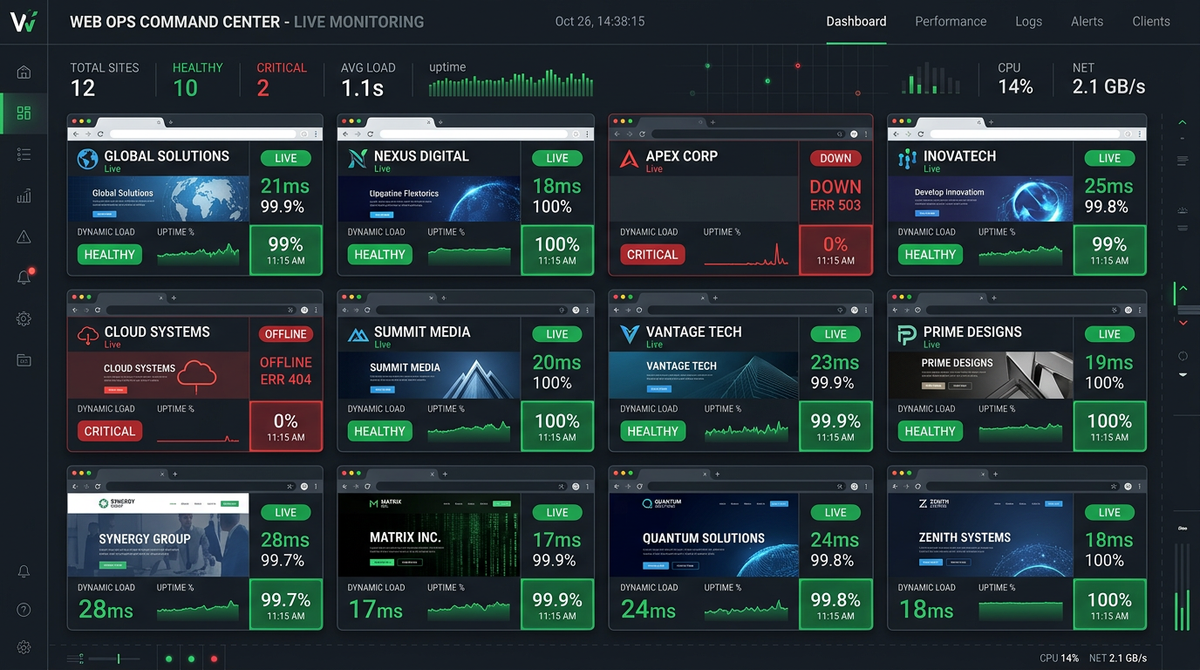
Your client found out their contact form was broken when a competitor poached their lead. You found out when the client called you. Now multiply that by twenty client sites, and you understand why agencies lose accounts over things they never knew were broken. Testing multiple websites doesn't require a QA team — it requires the right setup.
Key Takeaways
Manual testing doesn't scale past 3-4 client sites. At 10 clients, manual QA is already a bottleneck. At 50, it's fiction — you're relying on hope, not verification.
The most important things to test aren't pages — they're transactions. Contact forms, checkout flows, login screens, and booking forms. When these break, clients notice immediately and blame you.
Uptime monitoring and functional testing serve different purposes. Uptime tells you a site is reachable. Functional testing tells you it actually works. You need both.
One account can manage unlimited client sites in separate workspaces. Tests run on a schedule, alerts fire when something breaks, and your team sees everything from one dashboard — no per-seat fees.
Managing a portfolio of client websites means owning responsibility for systems you don't fully control. Plugins auto-update and break layouts. Hosting providers change PHP versions. A new CMS plugin conflicts with the contact form. A Shopify theme update removes the checkout button's ID and breaks the test — or worse, breaks the checkout itself.
None of this is hypothetical. It's Tuesday for most agencies managing more than five active client sites.
This guide is for web agencies, SEO agencies, and Shopify development shops managing anywhere from 5 to 100+ client websites. By the end, you'll have a concrete setup for automated testing across your entire portfolio: what to test, how to organize it, how to get alerted, and how to turn it into a service clients pay for.
Why Testing Multiple Websites Is Different
Testing one website is straightforward: you know the site, you know the flows, you click through the same paths before every deploy.
Testing twenty websites simultaneously is a different category of problem. The challenges aren't just 20x harder — they're qualitatively different:
You don't know every site intimately. You built the Shopify store for Client A eighteen months ago. You remember the general shape of it, but not which third-party form plugin they use or what version of their theme they're running. When something breaks, you're debugging a site you haven't thought about in months.
Changes happen without you. Clients update plugins. Their hosting company migrates their site to a new server. They hire someone to "just tweak the homepage" and that person breaks a critical dependency. You had nothing to do with the change, but when the site breaks, the client thinks of you.
You can't manually check 20 sites every day. A manual QA pass of one client site takes 20-30 minutes if you're thorough. At 20 clients, that's 7 hours of QA per day. That's a full-time hire doing nothing but clicking through websites.
The cost of a miss is asymmetric. You could manually test all 20 sites successfully 99 days in a row. On day 100, a plugin update breaks a contact form, you miss it, the client loses a week of leads, and you lose the account. One failure erases the effort of months.
The only sustainable answer is automation. Not because it's trendy, but because the math doesn't work any other way.
The Three-Layer Testing Stack
Automated testing for multiple websites works best as three complementary layers. Each catches a different category of problem.
Layer 1: Uptime Monitoring
The most basic check: is the website responding? Uptime monitoring hits your client sites every 5 minutes and alerts you the moment a site goes down. It catches server outages, hosting failures, expired domains, and critical HTTP errors.
What it doesn't catch: a site that's "up" but has a broken form. You need the next layer for that.
Layer 2: Functional Testing
The critical layer. Functional tests simulate real user actions and verify that outcomes match what's expected. A functional test for a contact form navigates to the contact page, fills in the fields, submits the form, and verifies the success message appears. If the form has been broken by a plugin update, the test fails and you get alerted before the client does.
This is the layer most agencies skip — and the one that saves accounts.
Layer 3: Visual Regression Testing
Catches layout and visual breaks that functional tests miss. A visual test captures a screenshot of a page and compares it to an approved baseline. If a plugin update changes font sizes across the site, or a theme change shifts the header layout, visual testing flags it with a similarity score. At 95% similarity threshold, even subtle visual regressions get caught.
All three layers together give you complete coverage: you know the site is up, the critical flows work, and it looks right.
How to Organize Testing for Multiple Sites
Before writing a single test, you need a clear organizational model. With 20+ client sites, sloppy organization means you'll spend more time managing tests than running them.
One Workspace Per Client
The cleanest structure is one workspace per client — a separate, isolated environment for each client's tests, health checks, and monitoring data. Tests for Client A can't interfere with tests for Client B. Alerts are client-specific. When a client churns, you delete their workspace without touching anyone else's setup.
HelpMeTest supports this directly: one user account can manage multiple company workspaces, each with its own tests, health checks, and alert settings. You log in once and switch between client contexts.
Tagging Strategy
Within each client workspace, use consistent tags to organize tests by type and priority:
#smoke — runs on every deploy, highest priority
#forms — all form submission tests
#checkout — e-commerce flows
#uptime — regular availability checks
#visual — visual regression tests
Tag-based filtering lets you run just the smoke tests after a deploy, or just the form tests after a plugin update, without running the full suite.
Naming Conventions
Consistent naming across clients makes triage faster when something breaks:
[Client] - [Page] - [Flow]
Acme Dental - Contact Form - Submission
Acme Dental - Homepage - Load
Parkside HVAC - Quote Request - Form Submission
When you get a 2am alert, a clear test name tells you exactly where to look.
Setting Up Multi-Site Testing with HelpMeTest
Here's the practical setup process for an agency starting to test multiple client websites.
Step 1: Install the CLI
curl -fsSL https://helpmetest.com/install | bash
helpmetest login
The login command opens a browser for authentication. Once logged in, the CLI is connected to your account.
Step 2: Create a Workspace for Each Client
In the HelpMeTest dashboard, create a separate company for each client. Each company gets its own subdomain (e.g., acmedental.helpmetest.com) and isolated data. You can switch between clients from a single account.
Step 3: Set Up Uptime Monitoring
For every client site, add uptime monitoring as the first line of defense. In each client workspace, add the client's URLs for 24/7 monitoring. With 5-minute check intervals on the free plan, you'll know within 5 minutes of any outage.
Step 4: Add Health Checks for Critical Services
For clients with contact forms that send emails, booking systems, or e-commerce, add health check pings for their key endpoints:
# Run from a cron job on the client's server
*/5 * * * * HELPMETEST_API_TOKEN=HELP-xxx helpmetest health <span class="hljs-string">"acme-contact-form" <span class="hljs-string">"10m"
This tells HelpMeTest that the contact form pipeline is alive every 5 minutes. If the ping stops (the form processor crashes), you get alerted.
Step 5: Write Core Functional Tests
For each client, write tests for the three highest-value flows. These take 15-20 minutes per client to set up and run automatically from that point forward.
Contact Form Test:
*** Test Cases ***
Contact Form Submission
    Go To  https://client-site.com/contact/
    Fill Text  input[name="name"]  Test User
    Fill Text  input[name="email"]  test@example.com
    Fill Text  textarea[name="message"]  Automated test message
    Click  button[type="submit"]
    Wait For Text  Thank you
Homepage Availability Test:
*** Test Cases ***
Homepage Loads
    Go To  https://client-site.com/
    Wait For Element  nav
    Get Text  h1  !=  ${EMPTY}
E-commerce Checkout Test (for Shopify clients):
*** Test Cases ***
Add to Cart Flow
    Go To  https://store.client.com/products/test-product/
    Click  button[name="add"]
    Wait For Text  Added to cart
    Go To  https://store.client.com/cart/
    Wait For Element  .cart-item
    Get Text  .cart-count  !=  0
These three tests cover the most common failure modes: broken forms, site outages, and broken e-commerce flows.
Step 6: Add Visual Regression Tests
For clients where visual appearance is critical (Shopify stores, branding-heavy sites):
*** Test Cases ***
Homepage Visual Check
    Go To  https://client-site.com/
    Check For Visual Flaws  sensitivity=0.95
Run this after any theme or plugin update. If the visual score drops below 0.95 (95% similarity to the baseline), you get a failure with a screenshot showing exactly what changed.
Step 7: Configure Alerts
Set up Slack notifications so your team gets alerted in real time when a client site has a problem. In the HelpMeTest notification settings for each workspace, add your agency's Slack webhook. Route critical failures to a #client-alerts channel and separate them by severity.
What to Test on Every Client Site
The goal isn't to test everything — it's to test the things that will cost you the account when they break.
Contact Forms
Every client site with a contact form needs a form submission test. Forms are the most common failure mode on managed websites: plugin updates break them, SMTP changes break email delivery, spam filters start blocking the contact address. A broken form silently kills leads and the client blames you.
Test the complete flow: fill all required fields, submit, verify the success state.
Checkout Flows
For e-commerce clients, test the add-to-cart → checkout initiation flow at minimum. Full payment tests require test credit cards and sandbox mode, but testing through to the checkout page catches the most common breaks (unavailable products, broken cart logic, missing payment provider scripts).
Login Screens
For clients with member portals, subscription sites, or client login areas: verify the login form accepts credentials and redirects correctly. Login breaks are immediately visible to users and generate immediate support calls.
Critical Landing Pages
For clients running paid search campaigns, test that the landing pages their ads point to are loading correctly. A broken landing page with live ad spend is money going directly into a broken bucket.
SSL Certificates
Monitor SSL certificate expiration for all client sites. An expired certificate puts a scary browser warning on the client's site and tanks their conversion rates immediately. HelpMeTest monitors SSL certificates as part of uptime monitoring — you'll be alerted before expiration.
Alert Triage: How Not to Get Overwhelmed
The failure mode for multi-site monitoring isn't too few alerts — it's too many. An agency monitoring 50 client sites can quickly drown in noise if every flaky test fires an alert every hour.
Use severity tiers. Not all failures are equal. A homepage not loading is P1. A test that occasionally fails due to a slow third-party script is P3. Tag tests by severity and route alerts to the right channel:
#urgent— checkout broken, site down, form not working#review— visual regression, non-critical page load failure#weekly— flaky tests to investigate during scheduled maintenance
Set meaningful grace periods. Health checks support grace periods — if a ping doesn't arrive within the grace period, you get alerted. For a contact form health check, a 10-minute grace period means a brief server restart won't fire an alert.
Review reliability scores weekly. HelpMeTest shows a reliability score for each test (100/100 = always passes, 95/100 = occasional failures). A test scoring below 90 is either genuinely flaky or catching a real intermittent problem. Investigate and fix before it becomes a false-alarm machine.
Silence known non-issues. If Client B's site is always slow to load a specific page due to a third-party widget they refuse to remove, mark that specific assertion as informational rather than failing. Reduce noise so real alerts get attention.
Scaling Your Testing Operation
The economics of multi-site testing get better as you add clients, because the setup cost is largely fixed.
Write test templates. After setting up tests for your tenth Shopify client, you'll notice you're writing the same four tests with different URLs. Build a standard template set for each client type (Shopify, WordPress contact site, booking site) and apply it to new clients in under 30 minutes.
Build testing into onboarding. When you take on a new client, add testing setup to your onboarding checklist as a standard deliverable. This means every client is covered from day one, not just the ones you remember to set up.
Use parallel execution for monthly audits. When running full test suites across all clients — for example, after a major platform update — parallel execution means all client tests run simultaneously. A 50-test suite across 10 clients doesn't take 50x as long as one test; they run in parallel.
Assign one person as testing owner. In an agency with 3+ people, designate one team member as the testing owner. They triage alerts, update tests when client sites change, and own the coverage metrics. This prevents testing from being "everyone's responsibility" (which means no one's responsibility).
Turning Multi-Site Testing Into a Recurring Revenue Line
Automated testing isn't just an internal operational improvement — it's a service you can bill for.
Retainer positioning. "We monitor your website 24/7 and test critical flows every day" is a concrete, understandable value proposition. Agencies charge $150-500/month per client for this kind of ongoing monitoring, depending on the client's business and the complexity of their site.
The math for the client. A contact form that breaks for a week costs a local business 20-50 lost leads. At a modest close rate and average deal value, that's thousands of dollars. Your monitoring service at $200/month is trivially cheap compared to that.
Report on what you catch. Send clients a monthly summary: "This month we ran 847 automated tests on your website. We caught 3 issues before they affected your visitors, including a contact form that broke on March 3rd and was fixed within 2 hours." This makes your invisible work visible and justifies the retainer.
For more on how to position testing as an agency service, see our guide to white label testing tools and how agencies structure their QA offerings.
FAQ
How many websites can I test from one HelpMeTest account?
There's no hard limit. Each client gets their own workspace (company) in your account, and each workspace can test multiple URLs. The Pro plan at $100/month gives you unlimited tests, which is enough for 10-50+ client sites with standard test coverage.
Do I need technical knowledge to set up automated testing?
Basic familiarity with browser selectors (CSS selectors or XPath) helps for writing functional tests. For uptime monitoring and health checks, no technical knowledge is required — you're just entering URLs and configuring alert settings. Most agencies start with monitoring and add functional tests as they get comfortable.
What happens when a client's website changes?
When a client updates their theme, changes a form plugin, or restructures their pages, some tests may break because selectors have changed. HelpMeTest includes self-healing capabilities that automatically detect and fix broken selectors. For major structural changes, you'll need to update the tests manually — typically a 10-20 minute task.
Can I white label the testing reports?
HelpMeTest's multi-tenancy gives each client their own subdomain and isolated workspace. For agency-branded reporting, see our complete guide on white label testing for the options available.
How quickly will I be alerted when something breaks?
Uptime monitoring runs every 5 minutes on the standard plan and every 10 seconds on Enterprise. Functional tests run on your configured schedule — typically once or twice daily. Health check alerts fire as soon as the grace period expires without a ping.
Is the free plan sufficient for testing client websites?
The free plan includes unlimited health checks and uptime monitoring, which covers the most critical layer. For functional tests, the free plan supports up to 10 tests total. For agencies managing multiple clients with functional testing, the Pro plan at $100/month provides unlimited tests across all client workspaces.
What to Do Next
The fastest path to multi-site testing coverage:
- Start with uptime monitoring — add all your client sites to HelpMeTest and enable 24/7 monitoring. Takes about 5 minutes per client.
- Add contact form tests for your top 5 clients — the clients where a broken form would be the most damaging. Use the template in this guide.
- Set up Slack alerts — route all failures to a single channel so nothing gets missed.
- Expand coverage incrementally — once the first five clients are covered, add the next five. Don't try to test everything before you test anything.
If you're starting from scratch and want a step-by-step walkthrough of the full setup, our guide to testing client websites automatically covers the initial configuration in detail.
Testing multiple websites is an operational problem, not a technical one. The tools exist, the setup is straightforward, and the economics make it obvious. The only question is how many client relationships you're willing to lose before implementing it.