
Firebase Test Lab Android: Automated Testing on Google Infrastructure
Firebase Test Lab runs your Android tests on Google's infrastructure using real devices and emulators.

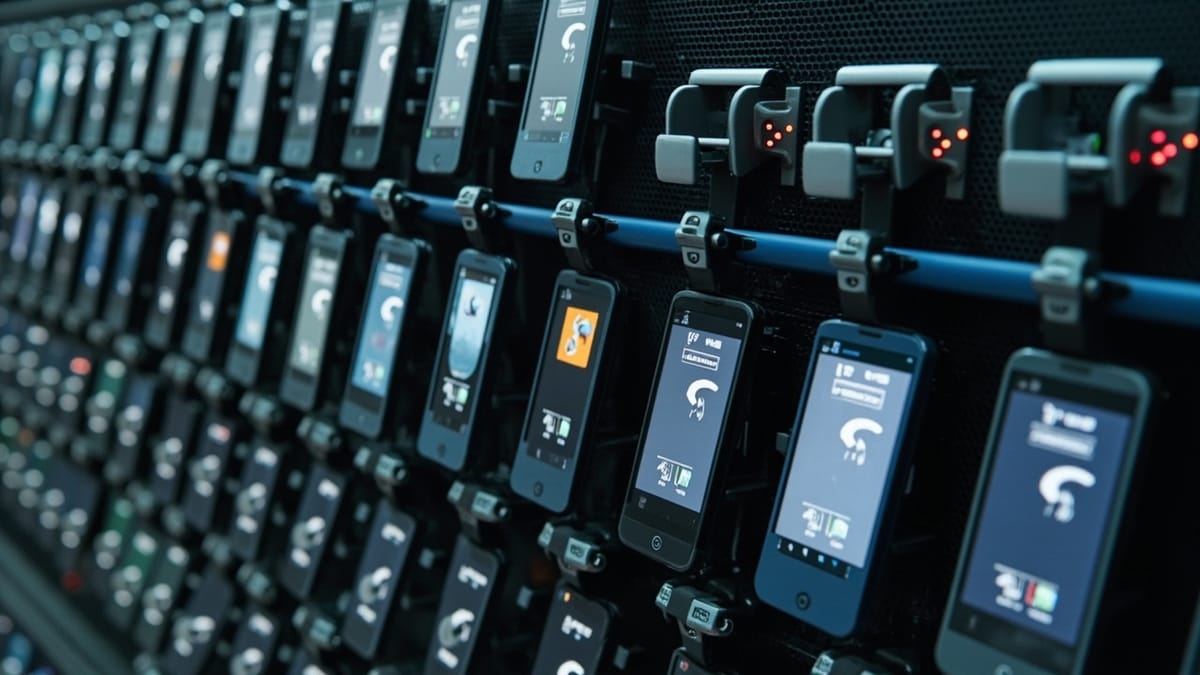
Firebase Test Lab runs your Android tests on Google's infrastructure using real devices and emulators. If you're building an Android app, it integrates naturally with the rest of the Firebase and Google Cloud ecosystem.
This guide covers the full Firebase Test Lab Android workflow: from running your first Robo test to integrating Espresso and Appium in CI.
What Firebase Test Lab Offers
Test Lab provides:
Device coverage: Hundreds of physical Android devices and emulators across different manufacturers, API levels, and screen sizes.
Test types:
- Robo test: Automated exploration without writing any test code — crawls your app and takes screenshots
- Instrumentation tests: Espresso, JUnit, or any framework using Android's instrumentation test runner
- Game Loop tests: Testing for games using a custom test intent
Output: Video recordings, screenshots, logcat, performance metrics, and a summary of all actions taken.
Prerequisites
- Firebase project (or Google Cloud project)
- Android app APK and optionally a test APK
- Google Cloud SDK (gcloud CLI) installed and authenticated
- Firebase test billing enabled (pay-per-device-minute)
Running a Robo Test (No Test Code Required)
Robo test automatically crawls your app, filling forms, clicking buttons, and exploring flows. No test code needed.
gcloud firebase test android run \
  --type robo \
  --app app/build/outputs/apk/debug/app-debug.apk \
  --device model=Pixel6,version=32,locale=en,orientation=portrait \
  --timeout 5m \
--project YOUR_FIREBASE_PROJECT_IDRobo test is useful for:
- Quick smoke testing without writing tests
- Discovering crashes in flows you haven't manually tested
- Generating a UI screenshot map of the app
Robo directives: Guide the Robo crawl to fill specific fields or navigate specific paths:
gcloud firebase test android run \
  --type robo \
  --app app-debug.apk \
  --robo-directives text:username_field=testuser@example.com,text:password_field=Password123 \
--device model=Pixel6,version=32,locale=en,orientation=portraitRunning Espresso Instrumentation Tests
For structured tests you've written:
gcloud firebase test android run \
  --type instrumentation \
  --app app/build/outputs/apk/debug/app-debug.apk \
  --test app/build/outputs/apk/androidTest/debug/app-debug-androidTest.apk \
  --device model=Pixel6,version=32,locale=en,orientation=portrait \
  --device model=oriole,version=32,locale=en,orientation=portrait \
  --results-bucket YOUR_GCS_BUCKET \
  --results-dir "test-results-$(date +%Y%m%d-%H%M%S)" \
--project YOUR_FIREBASE_PROJECT_IDUsing device matrices (test multiple devices at once):
gcloud firebase test android run \
  --type instrumentation \
  --app app-debug.apk \
  --test app-debug-androidTest.apk \
  --device model=Pixel6,version=32,locale=en,orientation=portrait \
  --device model=Pixel6,version=32,locale=en,orientation=landscape \
  --device model=a51,version=30,locale=en,orientation=portrait \
--device model=redfin,version=31,locale=en,orientation=portraitAll devices run in parallel — total test time is the longest single device, not the sum.
Configuration via YAML
For complex configurations, use a YAML config file to avoid long command lines:
# firebase-test-config.yaml
gcloud:
  project: YOUR_FIREBASE_PROJECT_ID

android:
  app: app/build/outputs/apk/debug/app-debug.apk
  test: app/build/outputs/apk/androidTest/debug/app-debug-androidTest.apk
  timeout: 10m
  results-bucket: gs://your-project-test-results
  results-dir: "results/{date}-{time}"

  device:
    - model: Pixel6
      version: 32
      locale: en
      orientation: portrait
    - model: a51
      version: 30
      locale: en
      orientation: portrait
    - model: redfin
      version: 31
      locale: fr
orientation: portraitgcloud firebase test android run --config firebase-test-config.yamlViewing Results
Test results are stored in Google Cloud Storage and displayed in the Firebase console.
From CLI:
# The command output shows a link to the Firebase console
# Also check GCS directly
gsutil ls gs://YOUR_BUCKET/results/2026-05-16-143022/

# Download all artifacts for a test run
gsutil -m cp -r gs://YOUR_BUCKET/results/2026-05-16-143022/ ./test-results/Artifacts available:
logcat— Device system logs during the testvideo.mp4— Full screen recordingtest_result_1.xml— JUnit XML resultsthumbnails/— Screenshots at each test stepinstrumentation.results— Raw instrumentation output
GitHub Actions Integration
# .github/workflows/firebase-test-lab.yml
name: Firebase Test Lab

on:
  push:
    branches: [main]
  pull_request:

jobs:
  android-test:
    runs-on: ubuntu-latest
    steps:
      - uses: actions/checkout@v4

      - name: Set up JDK 17
        uses: actions/setup-java@v4
        with:
          java-version: '17'
          distribution: 'temurin'

      - name: Build APKs
        run: |
          ./gradlew assembleDebug assembleAndroidTest

      - name: Authenticate to Google Cloud
        uses: google-github-actions/auth@v2
        with:
          credentials_json: ${{ secrets.GCP_SA_KEY }}

      - name: Set up gcloud CLI
        uses: google-github-actions/setup-gcloud@v2

      - name: Run Firebase Test Lab
        run: |
          gcloud firebase test android run \
            --type instrumentation \
            --app app/build/outputs/apk/debug/app-debug.apk \
            --test app/build/outputs/apk/androidTest/debug/app-debug-androidTest.apk \
            --device model=Pixel6,version=32,locale=en,orientation=portrait \
            --results-bucket gs://${{ secrets.TEST_RESULTS_BUCKET }} \
            --results-dir "github-actions-${{ github.run_number }}" \
--project ${{ secrets.FIREBASE_PROJECT_ID }}Running Appium Tests on Test Lab
Test Lab also supports Appium for teams that prefer Appium's cross-platform approach.
Package your Appium tests:
# Create test package structure
mkdir -p test-package
cp -r tests/ test-package/tests/
cp package.json test-package/
cp test_spec.yaml test-package/

cd test-package && zip -r ../appium-tests.zip .test_spec.yaml:
version: 0.1
phases:
  install:
    commands:
      - nvm install 20 && nvm use 20
      - npm install
  test:
    commands:
- npx wdio run wdio.conf.jsRun with Appium test type:
gcloud firebase test android run \
  --type=appium \
  --app app-debug.apk \
  --test appium-tests.zip \
  --test-spec test_spec.yaml \
--device model=Pixel6,version=32,locale=en,orientation=portraitAvailable Devices
List available devices and versions:
# List all Android device models
gcloud firebase test android models list

# Filter by manufacturer
gcloud firebase test android models list | grep -i samsung

# List available OS versions
gcloud firebase test android versions listPopular devices for broad coverage:
Pixel6(API 32-34) — Google flagshipa51(API 29-31) — Popular Samsung mid-rangeMediumPhone.arm— Arm-based emulatorredfin(API 30-31) — Pixel 5
Setting Up a Test Matrix
For pre-release testing, run a comprehensive matrix:
gcloud firebase test android run \
  --type instrumentation \
  --app app-release.apk \
  --test app-release-androidTest.apk \
  --device model=Pixel6,version=33,locale=en,orientation=portrait \
  --device model=Pixel6,version=33,locale=en,orientation=landscape \
  --device model=a51,version=30,locale=en,orientation=portrait \
  --device model=redfin,version=31,locale=en,orientation=portrait \
  --device model=MediumPhone.arm,version=34,locale=en,orientation=portrait \
  --device model=Pixel6,version=33,locale=de,orientation=portrait \
--timeout 15mThis covers: different API levels, orientations, manufacturers, and locales.
Parsing Results in CI
Fail the build if any tests fail:
# Run and capture exit code
gcloud firebase test android run \
  --type instrumentation \
  --app app-debug.apk \
  --test app-debug-androidTest.apk \
  --device model=Pixel6,version=32,locale=en,orientation=portrait


EXIT_CODE=$?

if [ $EXIT_CODE -ne 0 ]; then
  echo "Tests failed with exit code $EXIT_CODE"
  exit $EXIT_CODE
fiExit codes:
- 0: All tests passed
- 1: Test failures exist
- 2: Test infrastructure error
- 3: Not all devices were tested
Pricing
Firebase Test Lab pricing (as of 2026):
- Physical devices: ~$5/device-hour
- Virtual devices (emulators): ~$1/device-hour
- 10 free tests per day on virtual devices (Firebase Spark plan)
Cost optimization:
- Use virtual devices for unit and integration tests in CI
- Reserve physical device tests for nightly runs and pre-release validation
- Run parallel device matrix to keep wall-clock time low
Best Practices
Separate unit and integration tests: Don't run unit tests in Test Lab — run them locally in CI with a JVM runner. Use Test Lab for tests that require a device.
Use emulators for PR checks, physical devices for releases: Emulators are cheaper and faster. Physical devices catch hardware-specific issues that matter for release quality.
Limit network requests in tests: Test Lab devices have real internet connectivity, but tests that depend on external APIs are flaky. Mock or stub external dependencies.
Capture custom screenshots: Use ScreenShot.capture(device) in Espresso or Appium's screenshot capability at key assertion points to supplement the automatic recording.
Check shard counts for long test suites: For large test suites, use --num-uniform-shards to split tests across multiple devices and run in parallel:
gcloud firebase test android run \
  --type instrumentation \
  --app app-debug.apk \
  --test app-debug-androidTest.apk \
  --device model=Pixel6,version=32,locale=en,orientation=portrait \
--num-uniform-shards 4Conclusion
Firebase Test Lab makes real-device Android testing accessible without managing physical device infrastructure. The gcloud CLI and straightforward pricing model make it practical for teams of any size.
The Robo test feature is uniquely valuable — running an exploratory crawl against every commit costs almost nothing but catches unhandled crashes and obvious regressions in flows you might not test explicitly.
For continuous production monitoring that complements your Test Lab pre-release testing, HelpMeTest provides 24/7 automated checks with immediate alerting.