BackstopJS Docker Mode: Consistent Visual Tests Across Environments

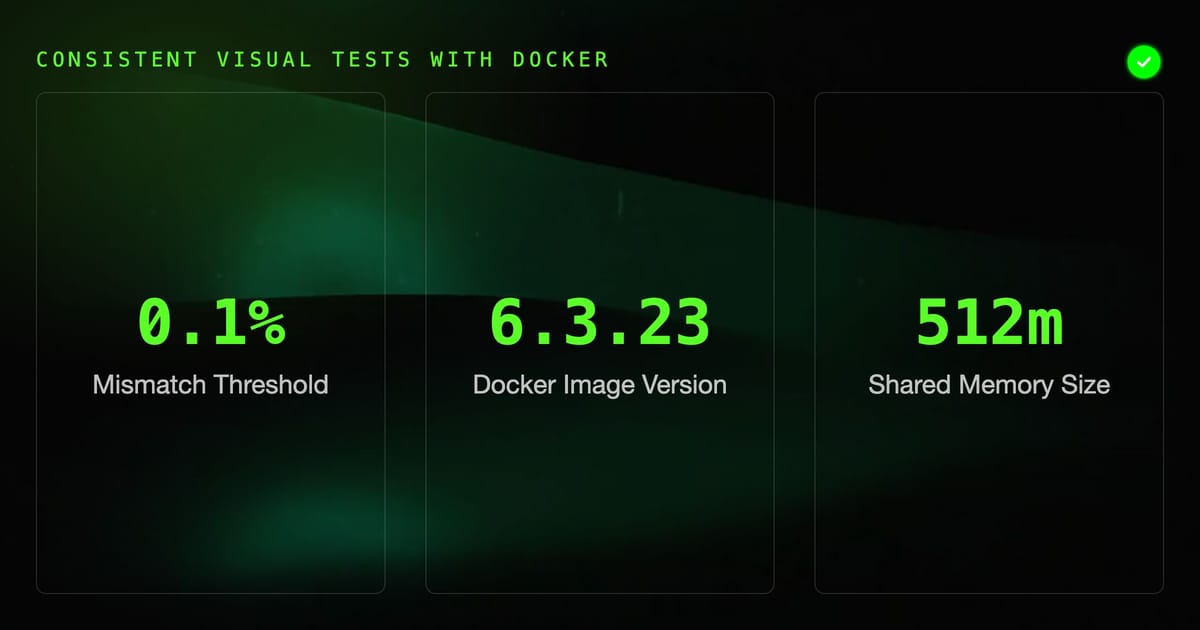
The most common complaint from teams adopting BackstopJS is false positives: tests that fail not because the UI changed but because the screenshots look slightly different depending on who ran them. A developer on macOS gets one rendering; the CI runner on Ubuntu gets another. The pixels do not match and the build turns red — for no good reason.
Docker mode solves this completely. One container, one rendering engine, one set of fonts, one Chromium version. Every environment that uses the same image produces identical screenshots.
Why Rendering Differs Between Environments
When Chromium renders text and graphics, the output depends on:
- Font rendering stack — FreeType on Linux, Core Text on macOS, DirectWrite on Windows. Same font file, different pixel output.
- Installed system fonts — a fallback font on one machine may not exist on another, causing a different font to be used.
- Subpixel rendering settings — antialiasing behavior varies by OS and display profile.
- Chromium version — even minor Chromium updates can shift rendering by a few pixels.
- Screen scale factor — a Retina display at 2x DPI produces different screenshots than a 1x CI display.
Any one of these can cause a misMatchThreshold: 0.1 test to fail when the UI has not changed at all. Teams that ignore Docker mode end up raising their thresholds to 1–5% to suppress the noise, which defeats the purpose of visual regression testing.
The BackstopJS Docker Image
The official image is backstopjs/backstopjs. It bundles:
- A pinned Chromium version
- The Noto font family (covers most scripts)
- Node.js and BackstopJS pre-installed
- A non-root user for safer container execution
Check available tags:
docker pull backstopjs/backstopjs:latest
# or pin to a specific version
docker pull backstopjs/backstopjs:6.3.23Pinning to a specific version is recommended for teams. When you decide to upgrade BackstopJS, regenerate all baselines deliberately — don't let a surprise image pull break your suite.
Basic Docker Usage
# Capture reference baselines
docker run --rm \
  -v "$(pwd)":/src \
  backstopjs/backstopjs:latest \
  reference

# Run tests
docker run --rm \
  -v "$(pwd)":/src \
  backstopjs/backstopjs:latest \
  test

# Approve changes
docker run --rm \
  -v "$(pwd)":/src \
  backstopjs/backstopjs:latest \
  approve

# Open report (generates only, doesn't open browser in container)
docker run --rm \
  -v "$(pwd)":/src \
  backstopjs/backstopjs:latest \
openReportThe -v "$(pwd)":/src mount makes your project directory available inside the container at /src. BackstopJS reads backstop.json from there and writes all output (bitmaps, reports) back to the same directory on your host.
docker-compose Setup
For teams, a docker-compose.yml is cleaner than remembering long docker run commands:
# docker-compose.yml
version: "3.8"

services:
  backstop:
    image: backstopjs/backstopjs:6.3.23
    volumes:
      - .:/src
    environment:
      - TEST_AUTH_TOKEN=${TEST_AUTH_TOKEN}
      - TEST_BASE_URL=${TEST_BASE_URL:-https://staging.example.com}
    working_dir: /src

  backstop-reference:
    extends: backstop
    command: reference

  backstop-test:
    extends: backstop
    command: test

  backstop-approve:
    extends: backstop
command: approveWith this setup:
# Take reference screenshots
docker compose run --rm backstop reference

# Run tests
docker compose run --rm backstop test

# Approve changes
docker compose run --rm backstop approve

# Run with filter
docker compose run --rm backstop test -- --filter="Homepage"Add a .env file (gitignored) for local credentials:
# .env
TEST_AUTH_TOKEN=your-local-test-token
TEST_BASE_URL=https://staging.example.comTeam Baseline Sharing
The most important rule: baselines must be generated in Docker and committed to version control.
# One-time setup for the team
docker compose run --rm backstop reference
git add backstop_data/bitmaps_reference
git commit -m "chore: initialize visual baselines"
git pushEvery developer and every CI runner then works from the same baseline. When a developer wants to approve new intentional changes:
# On the feature branch, after UI changes are complete
docker compose run --rm backstop reference
git add backstop_data/bitmaps_reference
git commit -m "chore: update visual baselines for new nav design"
git pushThe PR reviewer can see exactly which baseline images changed by looking at the git diff. Image diffs in GitHub/GitLab are viewable as side-by-side comparisons.
Gitignore Configuration
# .gitignore

# Test output — ephemeral, do not commit
backstop_data/bitmaps_test/
backstop_data/html_report/
backstop_data/ci_report/

# Baselines — commit these
# backstop_data/bitmaps_reference/ <-- intentionally NOT ignoredHandling Local App Testing with Docker
When your app runs locally on localhost:3000, the container cannot reach it via localhost — that refers to the container's own network, not the host.
On Linux:
"url": "http://172.17.0.1:3000/"172.17.0.1 is the default Docker bridge gateway, which routes to the host.
On macOS and Windows:
"url": "http://host.docker.internal:3000/"host.docker.internal is a special DNS name Docker Desktop provides.
With docker-compose and a shared network:
services:
  app:
    image: your-app-image
    ports:
      - "3000:3000"

  backstop:
    image: backstopjs/backstopjs:6.3.23
    volumes:
      - .:/src
    depends_on:
      - app
    environment:
- TEST_BASE_URL=http://app:3000When both containers share a compose network, the app container is reachable by its service name (app). Reference it in backstop.json via the environment variable:
{
  "url": "${TEST_BASE_URL}/dashboard"
}BackstopJS supports environment variable interpolation in backstop.json using the ${VAR} syntax.
Volume Mount Performance
On macOS, Docker Desktop's filesystem sharing can be slow for large bitmaps_reference directories. If docker run feels sluggish on reference capture, try using a named volume for the output and only mounting the config:
services:
  backstop:
    image: backstopjs/backstopjs:6.3.23
    volumes:
      - ./backstop.json:/src/backstop.json:ro
      - ./backstop_data/engine_scripts:/src/backstop_data/engine_scripts:ro
      - backstop-bitmaps:/src/backstop_data
    working_dir: /src

volumes:
backstop-bitmaps:This is faster but requires an extra step to copy the reference images back to the host before committing.
Upgrading BackstopJS
When you upgrade the Docker image version:
- Update the image tag in
docker-compose.yml - Run
docker compose run --rm backstop referenceto regenerate all baselines - Review the diff in git to confirm the changes are only rendering improvements, not regressions
- Commit the new baselines with a clear message:
chore: update baselines for backstopjs 6.4.0
Doing this deliberately means the team knows exactly when baselines changed and why. It also avoids the situation where an automatic image pull mid-sprint causes surprise failures.
Troubleshooting Docker Mode
Container exits with code 137 (OOM kill): BackstopJS is running out of memory. Reduce asyncCaptureLimit to 2–3, or increase Docker Desktop's memory limit in settings.
Permission errors on Linux: The container runs as a non-root user. If your project directory is owned by root, the container cannot write bitmaps back. Fix with chmod -R 777 backstop_data/ or use --user "$(id -u):$(id -g)" in the docker run command.
Fonts look wrong despite Docker: You may have referenced a custom web font in your CSS that is loaded from a CDN. The container can fetch it, but if the CDN is rate-limiting or the font is behind auth, it falls back to a system font. Use waitForSelector to wait for fonts to load, or check the network tab in --debugWindow mode.
/dev/shm size warnings: Add --shm-size=512m to your docker run command or shm_size: 512m in docker-compose. Chromium uses shared memory for rendering and the default 64MB is too small for many pages.
Docker mode is the foundation that makes visual regression testing reliable at team scale. Combined with functional testing via HelpMeTest — which validates that interactions and flows still work correctly — you get a complete picture of quality across both appearance and behavior before every deployment.