
AWS Device Farm Tutorial: Run Appium Tests on Real Devices
AWS Device Farm runs your mobile tests on real Android and iOS devices managed by Amazon.

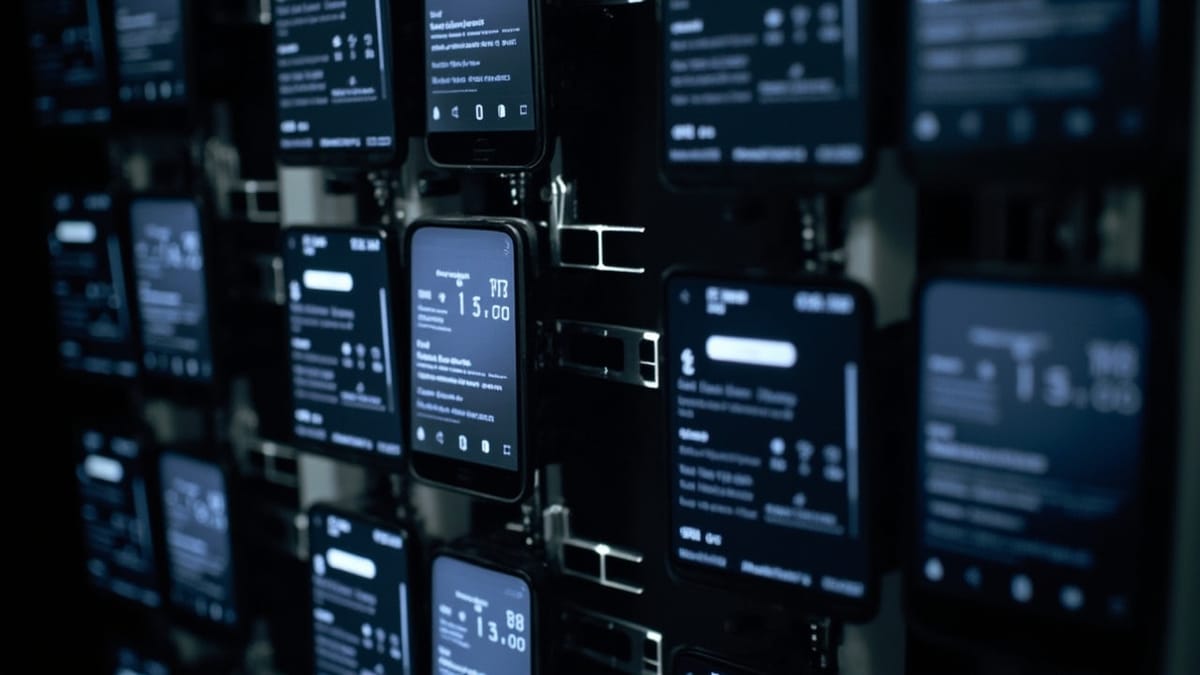
AWS Device Farm runs your mobile tests on real Android and iOS devices managed by Amazon. If you're already on AWS, the integration with CodePipeline, CodeBuild, and your existing IAM setup makes it a natural choice.
This tutorial walks through running Appium tests on Device Farm — from packaging your tests to analyzing results.
What AWS Device Farm Offers
Device Farm provides two testing modes:
Automated Testing: Upload your test package and run it against a device or device pool. Supports Appium, XCUITest, Espresso, Calabash, and built-in fuzz testing.
Remote Access: Interactive access to a real device in a browser for exploratory testing and debugging.
Key differentiators from other device cloud providers:
- Deep AWS integration (IAM, CodePipeline, CloudWatch)
- Pay-per-minute pricing model (no monthly minimums)
- Direct VPC connectivity for testing apps against internal resources
- Unmetered device pools for high-volume testing
Prerequisites
- AWS account with Device Farm access (not all regions have Device Farm — use
us-west-2) - AWS CLI configured with appropriate permissions
- Android app (
.apk) or iOS app (.ipa) - Appium test package (covered in this tutorial)
Step 1: Package Your Appium Tests
Device Farm requires tests packaged as a zip file with a specific structure. This is different from running Appium locally.
For Node.js (WebdriverIO or similar):
# Install dependencies locally
npm install

# Create the test package
zip -r test-package.zip \
  tests/ \
  node_modules/ \
  package.json \
wdio.conf.jsFor Java (TestNG/JUnit):
# Build your test JAR
mvn clean package -DskipTests

# Device Farm needs a zip with the jar and a testng.xml or similar
zip test-package.zip \
  target/your-tests.jar \
testng.xmlFor Python (pytest):
# Create virtual environment and install
python3 -m venv .venv
source .venv/bin/activate
pip install -r requirements.txt

# Package
zip -r test-package.zip \
  tests/ \
  .venv/ \
requirements.txtDevice Farm uses a test_spec.yml file to tell it how to run your tests. This replaces environment-specific configuration.
test_spec.yml for Node.js Appium:
version: 0.1
phases:
  install:
    commands:
      - export NVM_DIR="$HOME/.nvm"
      - source "$NVM_DIR/nvm.sh"
      - nvm install 20
      - nvm use 20
  pre_test:
    commands:
      - npm install
  test:
    commands:
      - npm test
  post_test:
    commands:
- echo "Tests complete"Step 2: Create a Device Farm Project
# Create project
aws devicefarm create-project \
  --name "MyMobileApp" \
  --region us-west-2

# Note the project ARN from the response
# arn:aws:devicefarm:us-west-2:123456789:project:your-project-idStep 3: Upload Your App and Test Package
# Upload the app
APP_UPLOAD=$(aws devicefarm create-upload \
  --project-arn arn:aws:devicefarm:us-west-2:123456789:project:YOUR_PROJECT_ID \
  --name "app.apk" \
  --type ANDROID_APP \
  --region us-west-2)

APP_ARN=$(echo $APP_UPLOAD | jq -r '.upload.arn')
APP_S3_URL=$(echo $APP_UPLOAD | jq -r '.upload.url')

# Upload to S3 using the pre-signed URL
curl -T app.apk "$APP_S3_URL"

# Upload test package
TEST_UPLOAD=$(aws devicefarm create-upload \
  --project-arn arn:aws:devicefarm:us-west-2:123456789:project:YOUR_PROJECT_ID \
  --name "test-package.zip" \
  --type APPIUM_NODE_TEST_PACKAGE \
  --region us-west-2)

TEST_ARN=$(echo $TEST_UPLOAD | jq -r '.upload.arn')
TEST_S3_URL=$(echo $TEST_UPLOAD | jq -r '.upload.url')

curl -T test-package.zip "$TEST_S3_URL"

# Upload test spec
SPEC_UPLOAD=$(aws devicefarm create-upload \
  --project-arn arn:aws:devicefarm:us-west-2:123456789:project:YOUR_PROJECT_ID \
  --name "test_spec.yml" \
  --type APPIUM_NODE_TEST_SPEC \
  --region us-west-2)

SPEC_ARN=$(echo $SPEC_UPLOAD | jq -r '.upload.arn')
SPEC_S3_URL=$(echo $SPEC_UPLOAD | jq -r '.upload.url')

curl -T test_spec.yml "$SPEC_S3_URL"Step 4: Create a Device Pool
A device pool defines which devices to test on.
Create a custom device pool:
aws devicefarm create-device-pool \
  --project-arn arn:aws:devicefarm:us-west-2:123456789:project:YOUR_PROJECT_ID \
  --name "Top Android Devices" \
  --rules '[
    {
      "attribute": "PLATFORM",
      "operator": "EQUALS",
      "value": "\"ANDROID\""
    },
    {
      "attribute": "OS_VERSION",
      "operator": "GREATER_THAN_OR_EQUALS",
      "value": "\"11\""
    }
  ]' \
  --max-devices 5 \
--region us-west-2Or use the pre-built Top Devices device pool (AWS selects popular devices for you).
Step 5: Schedule a Test Run
aws devicefarm schedule-run \
  --project-arn arn:aws:devicefarm:us-west-2:123456789:project:YOUR_PROJECT_ID \
  --app-arn "$APP_ARN" \
  --device-pool-arn "arn:aws:devicefarm:us-west-2:YOUR_ACCOUNT:devicepool:YOUR_PROJECT_ID/TOP_DEVICES" \
  --name "Build $BUILD_NUMBER" \
  --test '{
    "type": "APPIUM_NODE",
    "testPackageArn": "'$TEST_ARN'",
    "testSpecArn": "'$SPEC_ARN'"
  }' \
--region us-west-2The response includes a run.arn — use it to poll for completion.
Step 6: Poll for Results
Test runs take time. Poll until status is COMPLETED, FAILED, or ERRORED:
RUN_ARN="arn:aws:devicefarm:us-west-2:..."

while true; do
  STATUS=$(aws devicefarm get-run \
    --arn "$RUN_ARN" \
    --region us-west-2 \
    --query 'run.status' \
    --output text)

  echo "Status: $STATUS"

  if [[ "$STATUS" == "COMPLETED" || "$STATUS" == "FAILED" || "$STATUS" == "ERRORED" ]]; then
    break
  fi

  sleep 30
done

# Get result
RESULT=$(aws devicefarm get-run \
  --arn "$RUN_ARN" \
  --region us-west-2 \
  --query 'run.result' \
  --output text)

echo "Result: $RESULT"
[ "$RESULT" == "PASSED" ] || exit 1Step 7: Download Artifacts
Device Farm generates videos, logs, and screenshots for each device job.
# List jobs in the run
JOBS=$(aws devicefarm list-jobs \
  --arn "$RUN_ARN" \
  --region us-west-2)

# For each job, list artifacts
for JOB_ARN in $(echo $JOBS | jq -r '.jobs[].arn'); do
  aws devicefarm list-artifacts \
    --arn "$JOB_ARN" \
    --type FILE \
    --region us-west-2 | \
    jq -r '.artifacts[] | .name + ": " + .url'
doneArtifacts include:
- Video: Full recording of the test session on each device
- Logcat: Android system logs
- Screenshots: Captured at failure points
- Customer Artifacts: Files your tests write to the artifacts directory
Configuring Appium for Device Farm
When running on Device Farm, the Appium session is pre-configured. You connect using:
// device_farm_test.js
const { Builder } = require('selenium-webdriver');

async function createDriver() {
  return new Builder()
    .usingServer('http://localhost:4723/wd/hub')  // Device Farm provides local Appium
    .withCapabilities({
      'appium:app': process.env.APP_PATH,  // Device Farm sets this
      'platformName': 'Android',
      'appium:automationName': 'UiAutomator2',
      'appium:deviceName': 'Android',
    })
    .build();
}Key difference from local Appium: Device Farm injects the APP_PATH environment variable pointing to your uploaded app. You don't specify device details — Device Farm handles device assignment.
GitHub Actions Integration
# .github/workflows/device-farm.yml
name: Device Farm Tests

on:
  push:
    branches: [main]

permissions:
  id-token: write
  contents: read

jobs:
  mobile-test:
    runs-on: ubuntu-latest
    steps:
      - uses: actions/checkout@v4

      - name: Configure AWS credentials
        uses: aws-actions/configure-aws-credentials@v4
        with:
          role-to-assume: arn:aws:iam::123456789:role/DeviceFarmCIRole
          aws-region: us-west-2

      - name: Build app
        run: ./gradlew assembleDebug

      - name: Package tests
        run: |
          npm install
          zip -r test-package.zip tests/ node_modules/ package.json

      - name: Run Device Farm tests
        run: python3 scripts/run_device_farm.py
        env:
          PROJECT_ARN: ${{ secrets.DEVICE_FARM_PROJECT_ARN }}
          DEVICE_POOL_ARN: ${{ secrets.DEVICE_FARM_POOL_ARN }}
          APP_PATH: app/build/outputs/apk/debug/app-debug.apk
          TEST_PACKAGE_PATH: test-package.zip
TEST_SPEC_PATH: test_spec.ymlConfiguring VPC for Private Resources
If your app accesses internal APIs or services, use Device Farm's VPC connectivity:
# Create Device Farm VPC connection
aws devicefarm create-test-grid-project \
  --name "Private Network Tests" \
  --vpc-config '{
    "securityGroupIds": ["sg-123456"],
    "subnetIds": ["subnet-123456", "subnet-789012"],
    "vpcId": "vpc-123456"
  }' \
--region us-west-2This lets devices communicate with resources inside your VPC without exposing them to the internet — useful for staging environments.
Pricing Considerations
Device Farm pricing:
- Pay-per-use: $0.17/device-minute for standard devices
- Unmetered device slots: $250/month per slot for unlimited usage
- Private devices: Custom pricing for dedicated hardware
Cost optimization:
- Run tests in parallel to minimize wall-clock time (each parallel device is a separate session)
- Use unmetered slots if you run more than ~25 hours of device-time per month
- Run smoke tests on 1-2 devices per commit; full suite on main branch merges only
Best Practices
Structure tests for Device Farm's environment: Your test entry point (run by test_spec.yml) runs in Device Farm's Linux environment. Ensure all paths are relative, no hardcoded local paths.
Use environment variables for configuration: Device Farm injects DEVICEFARM_* environment variables. Use these instead of hardcoding device/environment details.
Capture artifacts explicitly: Write important files (custom logs, screenshots) to $DEVICEFARM_LOG_DIR to have them available in the artifacts download.
Keep test packages small: Exclude development dependencies from the test package. Large packages take longer to upload and deploy.
Use device filters wisely: Start with Top Devices pool to cover common hardware. Expand to specific devices based on customer support tickets or analytics data.
Conclusion
AWS Device Farm fits naturally into AWS-centric engineering organizations. IAM-based access control, CodePipeline integration, and VPC connectivity make it well-suited for teams that want mobile testing to work like any other AWS service.
The packaging workflow (test zip + test spec) is more involved than some competing platforms but gives you full control over the test execution environment.
For continuous monitoring that complements your Device Farm test runs, HelpMeTest provides 24/7 automated testing with alerts — catching production issues between scheduled test runs.