
Automated Accessibility Testing Tools: axe, Lighthouse, and Beyond

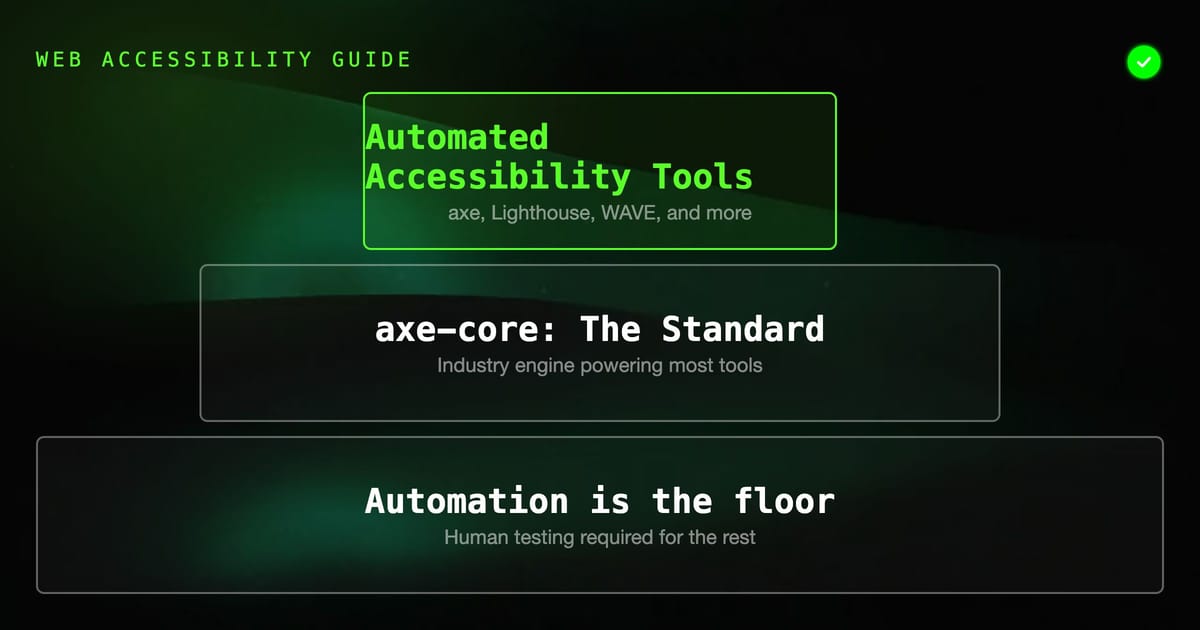
Automated accessibility testing tools scan web pages and applications for WCAG violations without manual review. They're fast, free, and catch the most common issues — but industry studies put real-world coverage around 30-40% of WCAG violations. This guide compares the major tools, explains what each catches, and shows how to integrate them into a development workflow.
Key Takeaways
axe-core is the industry standard engine. Most accessibility testing tools — Lighthouse, WAVE, Deque, and others — use axe-core under the hood. Learning axe is learning the foundation.
Lighthouse is the easiest starting point. Built into Chrome DevTools, requires no installation, produces a 0-100 accessibility score. Good for initial audits; not granular enough for serious remediation work.
axe DevTools (browser extension) is best for developers. Shows exactly which element failed, why, and how to fix it. Free version covers the most impactful rules.
Integrate axe into your test suite with jest-axe or @axe-core/playwright. Automated accessibility checks run on every deployment, catching regressions before they reach production.
Automated tools miss most WCAG issues — WebAIM and Deque both put real-world automated coverage in the 30-57% range depending on how it's measured. Color contrast with custom rendering, screen reader compatibility, keyboard trap detection, and cognitive accessibility all require human testing. Automation is the floor, not the ceiling.
Why Automated Testing
Manually auditing every page of a web application for WCAG compliance is time-consuming and inconsistent. An automated tool can scan a page in seconds, consistently apply the same ruleset, and flag issues that a human reviewer might miss.
The limitation: automated tools can only check what's mechanically verifiable from the DOM and CSS. Whether a description is meaningful, whether navigation makes sense to a screen reader user, whether error messages are clear — these require human judgment.
The practical approach: run automated tools first to eliminate mechanical violations, then invest human testing time on the issues automation can't find.
The Major Tools
axe-core (Engine)
What it is: The open source accessibility testing engine developed by Deque Systems. Used by more accessibility testing tools than any other engine.
What it catches: 57 rules covering the most impactful WCAG 2.1 criteria — missing alt text, color contrast failures, missing form labels, missing document language, duplicate IDs, keyboard trap indicators, ARIA misuse.
Accuracy: axe-core is designed for zero false positives on its supported rules. If axe flags something, it's a real violation. (The tradeoff: some issues axe is uncertain about, it won't flag — reducing false positives at the cost of coverage.)
How to use: Browser extension, npm package, or via another tool that embeds it.
Lighthouse (Built into Chrome)
What it is: Google's automated auditing tool, built into Chrome DevTools (F12 → Lighthouse tab). Uses axe-core for accessibility checks.
What it catches: A subset of axe rules, plus additional checks for mobile accessibility, focus management, and meta viewport.
Score: 0-100 accessibility score. Useful for tracking improvement over time; not useful as a compliance metric (a score of 100 does not mean WCAG compliance).
How to use:
Chrome DevTools (F12) → Lighthouse → Accessibility → Generate reportOr via CLI:
npm install -g lighthouse
lighthouse https://example.com --output html --output-path report.htmlBest for: Quick initial audits, tracking score trends in CI, developer-friendly feedback.
axe DevTools (Browser Extension)
What it is: Deque's browser extension that exposes axe-core results in a developer-friendly UI. Available for Chrome and Firefox.
What it catches: All axe-core rules, with detailed explanations, affected elements highlighted in the page, and fix guidance with code examples.
Free vs. paid: The free extension covers the most impactful rules. The paid version (axe DevTools Pro) adds guided tests for issues automation can't fully check and screen reader integration.
How to use: Install the extension → navigate to the page → click the axe DevTools icon → Analyze.
Best for: Development-time accessibility debugging, detailed remediation guidance.
WAVE (WebAIM)
What it is: Web Accessibility Evaluation Tool from WebAIM. Available as a browser extension and web-based tool.
What it catches: Similar coverage to axe — alt text, contrast, form labels, heading structure, ARIA landmarks, document structure.
Unique feature: Visual overlay mode shows accessibility issues directly on the page using icons. Excellent for understanding the context of issues.
How to use: Install WAVE extension → navigate to page → click the WAVE icon.
Best for: Non-technical stakeholders, visual representation of issues, quick page audits.
IBM Equal Access Checker
What it is: IBM's open source accessibility checker, available as a browser extension and npm package.
What it catches: WCAG 2.1 and 2.2, IBM's own accessibility guidelines, and some EN 301 549 (EU standard) checks.
How to use: Browser extension or:
npm install -g accessibility-checker
achecker https://example.comBest for: Organizations requiring EN 301 549 compliance (EU), comprehensive WCAG 2.2 coverage.
Pa11y
What it is: CLI tool for running automated accessibility tests. Wraps axe-core and HTML_CodeSniffer.
How to use:
npm install -g pa11y
pa11y https://example.com
pa11y https://example.com --reporter cli --standard WCAG2AABest for: CI/CD integration, command-line accessibility testing, scripted bulk audits.
Integrating Automated Testing Into Development
Unit/Component Level: jest-axe
Test React components for accessibility violations in unit tests:
npm install --save-dev jest-axeimport { axe, toHaveNoViolations } from 'jest-axe';
import { render } from '@testing-library/react';
expect.extend(toHaveNoViolations);
test('LoginForm has no accessibility violations', async () => {
const { container } = render(<LoginForm />);
const results = await axe(container);
expect(results).toHaveNoViolations();
});This catches accessibility violations in component-level tests. Every form, modal, and custom widget can have an axe test alongside functional tests.
End-to-End Level: @axe-core/playwright
npm install --save-dev @axe-core/playwrightimport { checkA11y } from '@axe-core/playwright';
test('checkout page is accessible', async ({ page }) => {
await page.goto('/checkout');
await checkA11y(page, null, {
detailedReport: true,
detailedReportOptions: { html: true },
});
});This runs axe against the fully rendered page in a real browser, catching issues that component-level tests miss (missing skip links, broken focus management across components, page-level landmark issues).
CI/CD: Lighthouse CI
npm install -g @lhci/cli# .github/workflows/a11y.yml
accessibility:
runs-on: ubuntu-latest
steps:
- uses: actions/checkout@v4
- name: Build
run: npm run build
- name: LHCI
run: |
lhci autorun
env:
LHCI_GITHUB_APP_TOKEN: ${{ secrets.LHCI_GITHUB_APP_TOKEN }}// lighthouserc.json
{
"ci": {
"assert": {
"assertions": {
"categories:accessibility": ["error", {"minScore": 0.9}]
}
}
}
}This blocks PR merge if the Lighthouse accessibility score drops below 90.
Comparing What Each Tool Catches
| Issue Type | Lighthouse | axe DevTools | WAVE | IBM Checker |
|---|---|---|---|---|
| Missing alt text | ✓ | ✓ | ✓ | ✓ |
| Color contrast | ✓ | ✓ | ✓ | ✓ |
| Missing form labels | ✓ | ✓ | ✓ | ✓ |
| ARIA misuse | Partial | ✓ | Partial | ✓ |
| Document language | ✓ | ✓ | ✓ | ✓ |
| Heading structure | ✓ | ✓ | ✓ | ✓ |
| Keyboard traps | ✗ | Partial | ✗ | Partial |
| Screen reader experience | ✗ | ✗ | ✗ | ✗ |
| Cognitive accessibility | ✗ | ✗ | ✗ | ✗ |
| WCAG 2.2 new criteria | Partial | Partial | ✗ | ✓ |
The pattern is consistent: structural, DOM-level issues are well-covered; behavioral and subjective issues are not.
What Automated Testing Misses
Keyboard trap detection in dynamic content. Automated tools can check that elements have tabindex, but they can't determine whether focus gets trapped inside a modal opened via JavaScript interaction.
Screen reader announcement quality. An element might have valid ARIA labels that technically pass automated checks but announce awkwardly or confusingly when read aloud.
Custom interactive components. A custom date picker built with divs and ARIA might pass automated checks while being completely unusable with a screen reader in practice.
Cognitive accessibility. Clear language, consistent navigation, appropriate reading level — these require human judgment.
Dynamic content changes. If content changes after user interaction (live regions, status messages, dynamically loaded content), only manual testing can verify that changes are announced correctly.
Recommended Workflow
- Development time — axe DevTools extension in the browser for immediate feedback while building
- Pull request — jest-axe or @axe-core/playwright in the test suite, blocking merge on new violations
- Deployment — Lighthouse CI tracking accessibility score against threshold
- Release cycle — Manual screen reader testing of key user flows (quarterly or per feature)
- Annual audit — Full WCAG 2.1 AA manual audit with documented remediation plan
The automated layers catch regressions and structural issues automatically. Manual testing catches what automation can't. Together they provide meaningful coverage at a sustainable cost.